
How to Create a Challenge Funnel
Published: Updated:
A challenge funnel is a step-by-step system that helps businesses attract leads, build engagement, and convert customers through a timed event. It creates an interactive experience where participants complete daily tasks while learning about a product or service. This article explains how challenge funnels work, how to create one, and key tips for making them successful.
Requirements
Section titled “Requirements”-
An active ClickFunnels account
-
Payments AI connected to the workspace (to use Stripe, connect it through Payments AI), or an existing direct Stripe connection
How Challenge Funnels Work
Section titled “How Challenge Funnels Work”A challenge funnel is a marketing system that delivers a structured, time-based experience to engage potential customers and guide them toward a paid offer. Instead of promoting a product directly, businesses use a challenge to provide value, build trust, and create a sense of achievement. Participants follow daily steps, complete tasks, and interact with the brand, making them more likely to take action at the end.
This type of funnel works well for businesses that teach skills, promote habits, or sell transformation-based products. For example, a nutrition coach could run a “5-Day Healthy Eating Challenge” where participants receive daily meal plans and grocery lists. At the end, they might be offered a full coaching program. A fitness trainer could host a “7-Day Home Workout Challenge” with guided exercises, leading into a membership program. A wellness brand might launch a “10-Day Mindfulness Challenge” to introduce their meditation app or coaching services.
Challenges create momentum by getting participants actively involved. They experience progress firsthand, making them more invested in the process. By the time they reach the final step, they’re more likely to see the value in upgrading to a paid offer.
Understanding the Challenge Funnel Structure
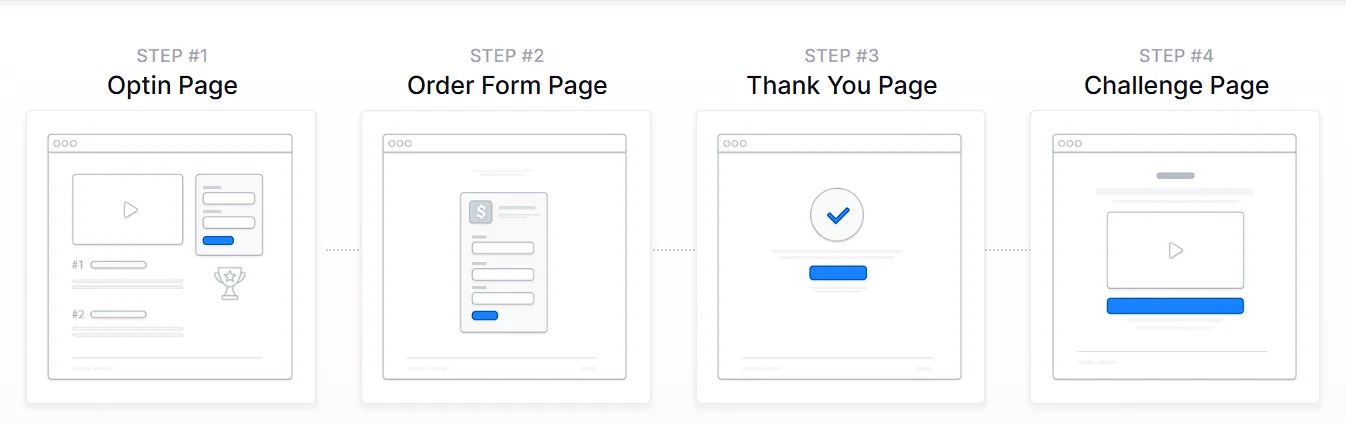
Section titled “Understanding the Challenge Funnel Structure”A challenge funnel consists of four main pages, each designed to guide participants through the experience while encouraging engagement and conversions.
-
Opt-in Page: This is where visitors sign up for the challenge. The page highlights what they’ll learn, the duration of the challenge, and why they should join. It includes a simple form to collect names and emails, allowing businesses to follow up with participants.
-
Order Form Page (Optional VIP Upgrade): After signing up, participants are taken to an optional VIP upgrade page. This might offer bonuses such as live coaching, exclusive resources, or replays of the challenge sessions. If they choose to upgrade, they complete their purchase on this page.
-
Thank You Page: Once registered, participants land on the thank you page. This page confirms their spot in the challenge and provides next steps, such as joining a private community or marking the challenge dates on their calendar.
-
Challenge Page: The challenge page is where participants access daily lessons, videos, and resources. Depending on the setup, this could be a single page with sections unlocked each day or multiple pages for different challenge days.
Creating a Challenge Funnel
Section titled “Creating a Challenge Funnel”A challenge funnel can be built quickly using ClickFunnels’ pre-designed templates. Instead of starting from scratch, you can choose a template that matches your needs, customize it with your content, and launch your funnel in just a few steps.
-
Go to Funnels and click Create Funnel. The Funnel Templates page opens.
-
Open Filters and pick the Challenge Funnels filter under Funnel Type, or use Search, to find a template that fits your challenge funnel. Click Preview to look through it, then click Use This Template. ClickFunnels installs the funnel and opens it in the funnel editor.
-
Prefer to build it yourself? Click Start From Scratch, or let Build with AI create the funnel for you.
For the full steps, see How to Create a New Funnel.
Once the template is loaded into your workspace, you can begin customizing it to fit your product, audience, and sales message.
Editing Challenge Funnel Pages
Section titled “Editing Challenge Funnel Pages”Once your challenge funnel is set up, you can start customizing each page to match your branding, messaging, and challenge content. This can be done using the Funnel Workflow Editor inside ClickFunnels.
-
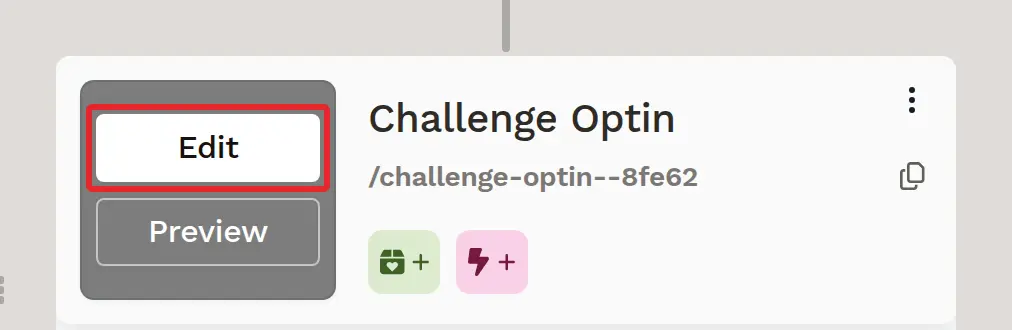
Open the Funnel Workflow Editor by clicking on the funnel, find the page you want to update, hover over it, and click Edit.
-
Each page is built using sections, rows, and elements. Key areas to customize include:
-
Opt-in Form: Collect names and emails for challenge registration.
-
Headline & Description: Clearly state the challenge name, duration, and key benefits.
-
Video Element: Add an introduction video to explain what participants can expect.
-
Call-to-Action Button: Ensure buttons stand out and guide users to the next step.
-
Countdown Timer: Create urgency by showing when the challenge starts.
-
Testimonials or Social Proof: Build credibility with success stories from past participants.
-
Opt-Out Link: Usually included on the VIP access page below call-to-action buttons for users who don’t want to upgrade. Set the link’s click action to Redirect to Next Step so they can continue without selecting the VIP offer. Alternatively, link it to
?next_funnel_step=true.
To learn more about editing elements in ClickFunnels, refer to the Getting Started with the ClickFunnels Page Editor article.
-
-
Click Save in the top right corner to keep changes.
-
Use the Preview option to check how the page looks before publishing. Remember to view your funnel on mobile devices to ensure it looks great on all screens. For detailed instructions, check our article on Mobile Optimization Techniques.
Adding Products to The Order Form Page
Section titled “Adding Products to The Order Form Page”A challenge funnel usually gives participants a free experience, but adding a VIP upgrade allows you to offer extra value to those who want more. This could include live Q&A sessions, challenge replays, exclusive training, or other premium resources. Setting up the VIP option correctly ensures the right offer is available at checkout.
To add your VIP product, open the Order Form page’s three-dot (⋮) menu and select Add Products (or click the green Products icon on the step card), then select your product. To adjust settings such as the title or description, click the Gear (⚙) icon on the attached product and click Update included product to save. If you create a new product from the product selection window, it opens in a new browser tab and isn’t attached automatically, so return to the funnel and select it. For the full steps, see Adding Products in a Funnel Step.
Automating Communication for Challenge Funnels
Section titled “Automating Communication for Challenge Funnels”Workflows help keep participants engaged throughout the challenge without requiring manual follow-ups. They can send reminders, segment participants, and deliver important content at the right time.
With workflows, you can:
-
Send email reminders for daily challenge content.
-
Tag participants based on their engagement and actions.
-
Deliver exclusive VIP content automatically.
-
Register participants for third-party tools like Zoom for live sessions.
To set up a workflow: click the Lightning Bolt (⚡) icon on the funnel step where you want to trigger the workflow. In the Choose a workflow dialog, select an existing workflow or click New Workflow.
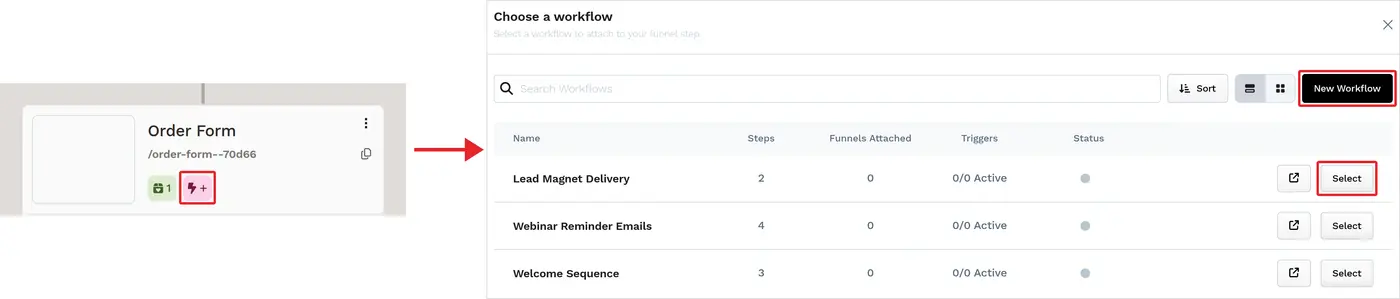
In the workflow builder, add steps such as Send Email, Send asset, or Tag contact, and add a Delay to space out follow-up actions over time. Make sure the workflow is enabled: open the workflow’s Settings, turn on Status, then click Update Workflow. Disabled workflows don’t run when triggered. For the full steps, see Adding Workflows to Funnel Steps and How to Create a Workflow.
Testing and Publishing Your Funnel
Section titled “Testing and Publishing Your Funnel”Before making your funnel live, it’s important to test its functionality to ensure everything works as expected.
-
Test the Funnel
-
Verify that all pages are connected in the correct order.
-
Check buttons, forms, and links to confirm they function properly.
-
Test the funnel on different devices and browsers for a smooth experience.
-
To run a full checkout test, follow the steps in How to Test Funnel Checkout in Test / Sandbox Mode.
-
-
Turn On Live Mode (Payments)
- When you’re ready to take real payments for your VIP upgrade, open the funnel’s settings (⚙), turn on Live Mode (Payments), and click Update Funnel. This setting affects payments only.
-
Copy and Share Your Funnel URL
-
Click Copy URL on the Start of Funnel card in the funnel editor.
-
Share the link via your website, social media, or email campaigns.
-
Learn more in How to Publish and Share Your Funnel URL.
-