
Checkbox Input: Enable Multiple Selections in Forms
Published: Updated:
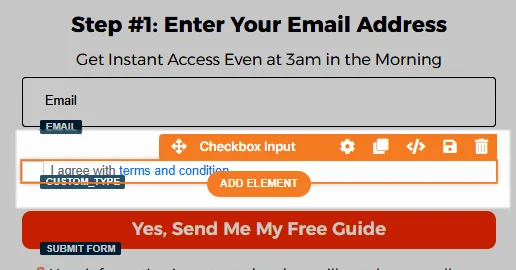
The Checkbox Input element in ClickFunnels represents a standard HTML checkbox (<input type="checkbox">) that you can add to your forms. This element is useful for capturing user agreements or preferences, such as accepting terms and conditions before submitting a form. This article will guide you through the setup and customization options available for the Checkbox Input element.
Requirements
Section titled “Requirements”-
An active ClickFunnels account
-
A page created in your workspace
Adding a Checkbox Input Element in the Page Editor
Section titled “Adding a Checkbox Input Element in the Page Editor”-
Inside the page editor, add a Section where you want to place the element.
-
Add a Row within that section.
-
Click the orange + Plus or Add New Element button inside the row to insert a new element.
-
From the Form category, select the Checkbox Input element.
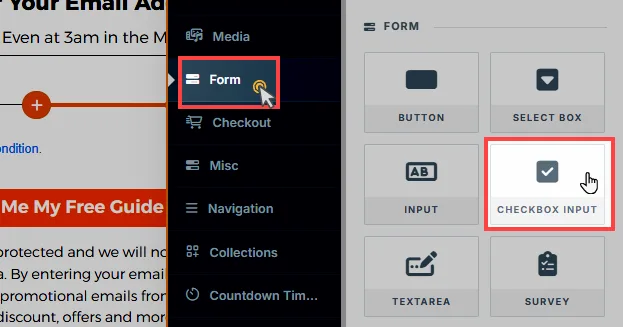
Once the Checkbox Input element is added, you can customize its appearance to fit your page design.
Editing Text Content
Section titled “Editing Text Content”Once you’ve added a text element, you can easily edit its content by clicking inside the text block. This editing behavior is consistent across headlines, sub-headlines, paragraphs, and other text elements. When you click, the text cursor will appear, allowing you to type or paste your content directly.
Text Quick Toolbar:
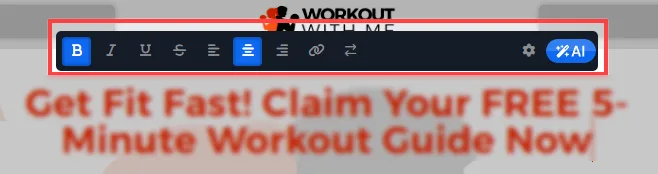
When you click inside a text element (like a Headline or Paragraph) in the ClickFunnels Page Editor, the Text Quick Toolbar appears just above the editing area. This toolbar provides convenient formatting and personalization options for your content. Below are the available options:
-
Bold, Italic, Underline, Strike-through: These options allow you to quickly apply bold, italic, underline, and strike-through styling to selected text, making it stand out or emphasizing key points.
-
Text Alignment: You can set the text alignment to left, center, or right.
-
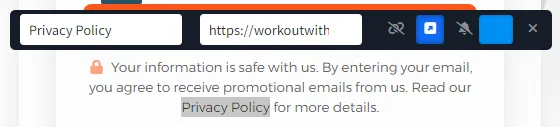
Hyperlink: To create and manage a hyperlink, follow these steps:
-
Select the text you want to hyperlink and paste the URL in the provided field.
-
Click the arrow icon to choose whether the link should open in the same or a new tab.
-
Use the color picker to change the hyperlink color and match it with your design.
-
If the selected text is linked, click the unlink chain icon to remove the hyperlink.
-
Click the bell icon to unlink any click event listeners. This is useful if you have automation triggered by link clicks but want to exclude this specific link from triggering those actions. It is particularly handy for adding external references, buttons, or calls to action within your content.
-
On the published page, clicking a link in the checkbox label opens the link without checking or unchecking the box, so you can link to documents such as your terms and conditions.
-
-
Dynamic Contact Attributes: The arrow icon lets you insert dynamic content, such as a subscriber’s first name. This feature is useful for personalizing pages like order confirmations or thank you pages. For example, using the contact’s first name in a thank you message adds a personalized touch.
-
Settings: Clicking the settings icon opens the detailed settings panel for further customization.
Customizing the Checkbox Input Element
Section titled “Customizing the Checkbox Input Element”When you hover over an element, its border will be highlighted in orange. To access an element’s settings, click on the gear ⚙️ icon or click directly on the element.
Top Margin
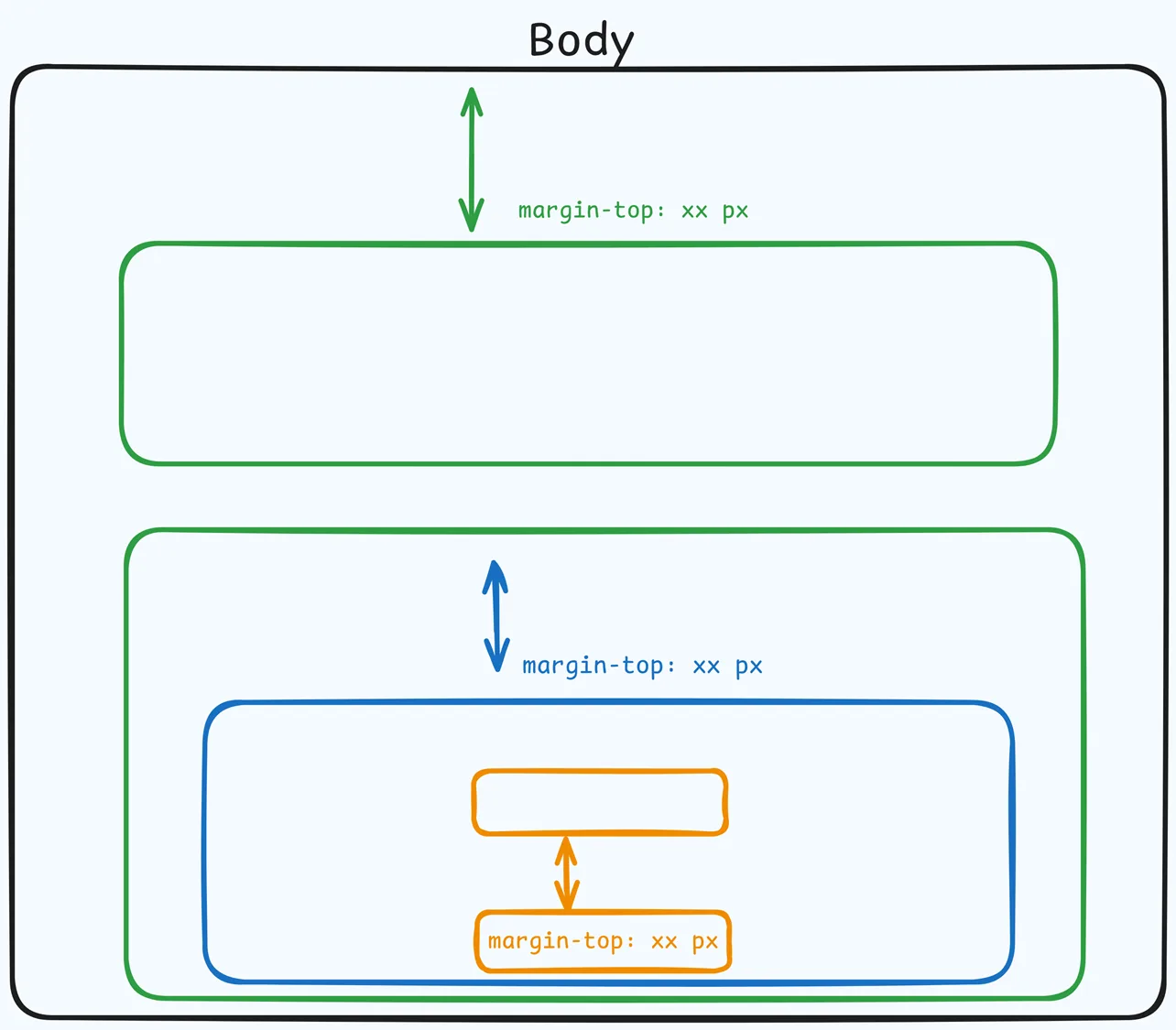
 The Top Margin setting lets you control the space between the current container (section, row, flex, and element) and the container directly above it. If no previous container exists, the margin will be applied relative to the parent container. If no preceding container is added, the Body will be the parent.
You can set top margin values independently for desktop and mobile by using the device icons (🖥️ & 📱 ). If no mobile value is specified, it will inherit the desktop setting by default. Use the slider or manually enter a value in pixels (px) or percentage (%) to create consistent spacing across screen sizes.
Configuring Checkbox Settings
The Checkbox Input Element includes several settings under Checkbox Type to control its behavior and functionality:
-
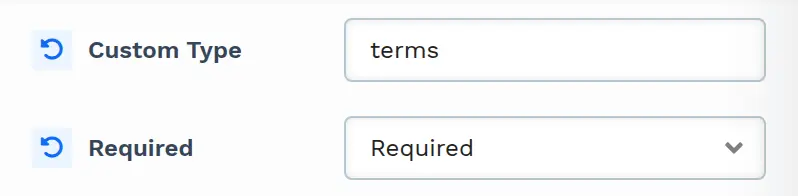
Input Type: New checkboxes use Custom Type automatically, so you go straight to the Custom Type field. The Input type dropdown (Not Set or Custom Type) appears only on older checkboxes that don’t have a type yet; select Custom Type there. The Custom Type option allows you to assign a unique name for specific purposes, such as “terms” or “newsletter-signup.”
-
Custom Type: Enter a unique name for the checkbox. This name is used for identification, especially when multiple checkboxes are added.
-
Required: Choose Required or Not Required from this dropdown. When Required is selected, users must check the box before submitting the form.
Customizing Checkbox Styles
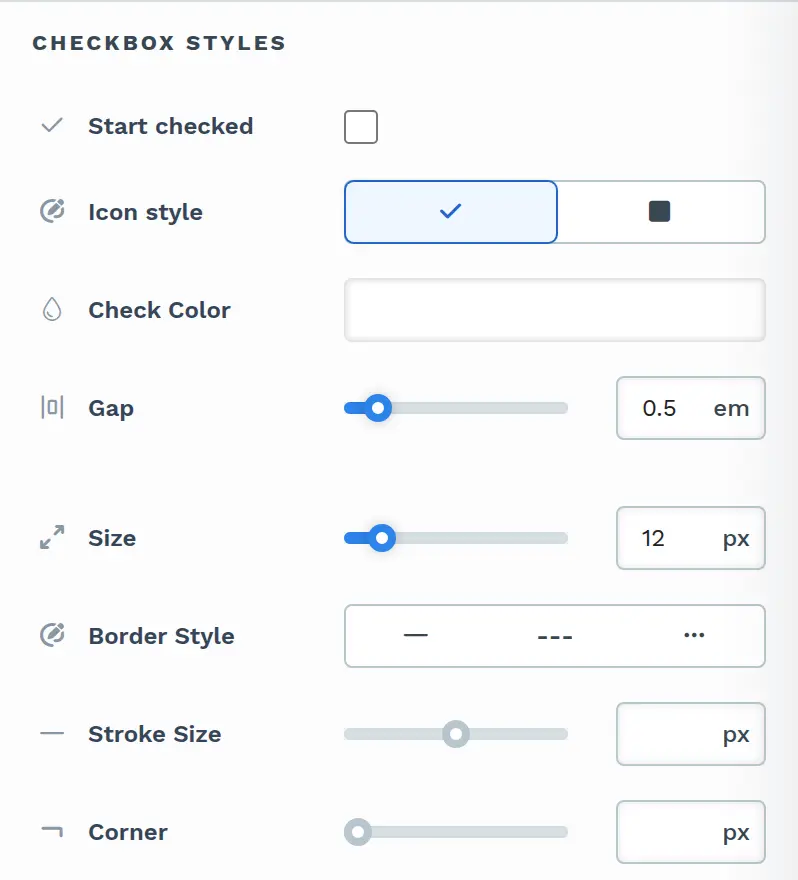
The Checkbox Input Element offers various style settings for visual customization. The Checkbox Styles section includes:
-
Start checked: Check this box to have the checkbox selected by default when the page loads. This can be useful for options you recommend users agree to, such as subscribing to updates.
-
Icon style: Choose what appears inside the box when it is selected: a checkmark or a filled square.
-
Check Color: Customize the color of the checkmark for a cohesive design. This option appears when the checkmark icon style is selected.
-
Square Color and Square Corner: Customize the color of the filled square and round its corners (0–10px). These options appear when the filled square icon style is selected.
-
Gap: Adjust the spacing between the checkbox icon and the associated label text for balanced alignment (0–5
em).
The Checkbox Settings section controls the box itself:
-
Size: Control the size of the checkbox (0–100px), allowing it to fit seamlessly with other form elements.
-
Border Style: Select a solid, dashed, or dotted border for the checkbox to enhance visibility or integrate with the page’s design.
-
Stroke Size: Adjust the width of the border around the checkbox (0–50px).
-
Corner: Customize the corner radius (0–10px) for a squared or rounded checkbox appearance.
Checkbox States
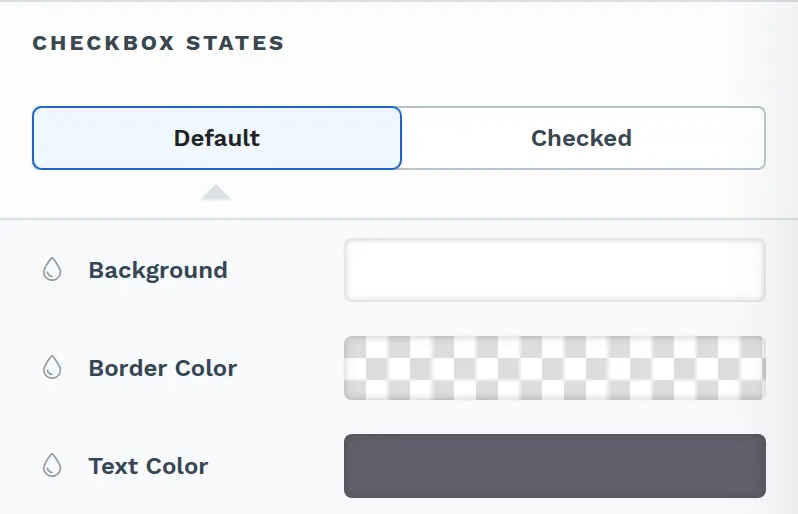
The Checkbox Input Element includes two states that allow further customization:
-
Default: This state represents the appearance of the checkbox when it is not selected. You can style the Checkbox (Background and Border Color) and the Label Text (Text Color) to ensure they fit the checkbox’s default design when not selected.
-
Checked: This state represents the checkbox when it is selected. Customize the same Checkbox and Label Text colors to ensure they fit the design when the checkbox is checked.
Label
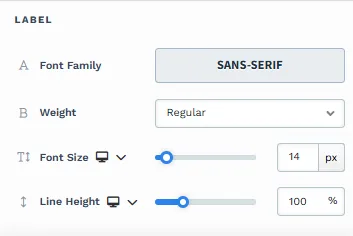 The Label settings allow you to control the appearance of text in your element.
-
Font Family: This option allows you to select the font type for your text. ClickFunnels provides a range of popular fonts from the Google Fonts library. Additionally, you can upload and use your own custom fonts by navigating to Workspace Settings > My Assets > Fonts. Once uploaded, your custom fonts will appear in the selection list for use.
-
Weight: This option defines the thickness of the text. The weights available depend on the selected font. Thin fonts provide a subtle look, while bold fonts create more visual impact.
-
Font Size: You can adjust the text size using the slider or manually inputting a specific value. Additionally, you can choose between rem or px for the size measurement, such as 2rem or 32px. You can also set font size values independently for desktop and mobile by using the device icons (🖥️ & 📱 ).
-
Rem is a relative unit based on the base font size defined in your style guide. For example, if you select a text size of 2rem and your style guide specifies a base font size of 16px for desktop, the resulting text size will be 32px for desktop view (i.e., 2rem × 16px = 32px).
-
Px is an absolute measurement, providing precise control over the text size.
-
-
Line Height: Controls the vertical space between lines of text. This is typically expressed as a percentage of the font size. A higher percentage increases the space between lines, improving readability, especially for larger blocks of text. You can also set line height values independently for desktop and mobile by using the device icons (🖥️ & 📱 ).
Control Panel
The Control Panel appears at the bottom of every container(Section, Row, Flex, and Element) in the page editor, offering quick access to essential settings and actions for that container. Here’s what each icon represents:

-
ALL: The container will be visible on all devices (desktop, tablet, and mobile).
-
Desktop (🖥️) Icon: The container will only be visible in desktop view (screens 771px and wider).
-
Mobile (📱) Icon: The container will only be visible in mobile view (screens up to 770px wide).
-
Eye (👁️) Icon: Hides the container on all devices. It isn’t deleted. To show it again, select All, Desktop, or Mobile in this panel, or open Layout in the top bar and turn the container’s desktop or mobile toggle back on.
-
Code (
</>): Opens the code editor for this container, where you can add custom CSS to change its styling. The editor shows the container’s CSS ID Selector so your CSS targets only this container. Open it from the code icon at the top of the settings panel, or hover over the container on the page and click Code in its toolbar. -
Trash (🗑️) Icon: Removes the container from the page editor entirely.
Advanced Settings
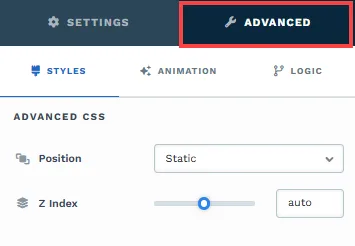
To further customize your container (section, row, column, and element), ClickFunnels provides Advanced settings that allow you to control style, advanced CSS, animation, and rendering logic. We’ve separated these advanced features into dedicated articles to avoid overwhelming you with too much content in one place and to keep our documentation concise. Explore the following resources for more details:
-
Advanced Settings - Customize Styles: Learn how to populate contents dynamically, position containers, and apply z-index.
-
Advanced Settings - Customize Animation: Learn how to add animations, control entry and exit effects, and adjust animation delay.
-
Advanced Settings - Customize Logic: Learn how to apply conditional logic to elements and add custom attributes.