
'Pause' Step - Temporarily Hold Contacts in a Workflow
Published: Updated:
The Pause step in ClickFunnels workflows allows you to hold contacts at a specific point in the workflow until you manually release them. This gives you control over when contacts proceed through your automation, which can be particularly useful for high-touch campaigns, timed promotions, or when you need to review certain contacts before moving them to the next step. In this article, we’ll walk through how to add and configure the Pause step in a workflow.
Requirements
Section titled “Requirements”-
An active ClickFunnels account
-
A workflow created in your workspace
Adding the Pause Step to Your Workflow
Section titled “Adding the Pause Step to Your Workflow”-
Navigate to the Automations app and select Workflows.
-
Open an existing workflow or create a new one.
-
Click on the Plus Icon (+) in your workflow editor.
-
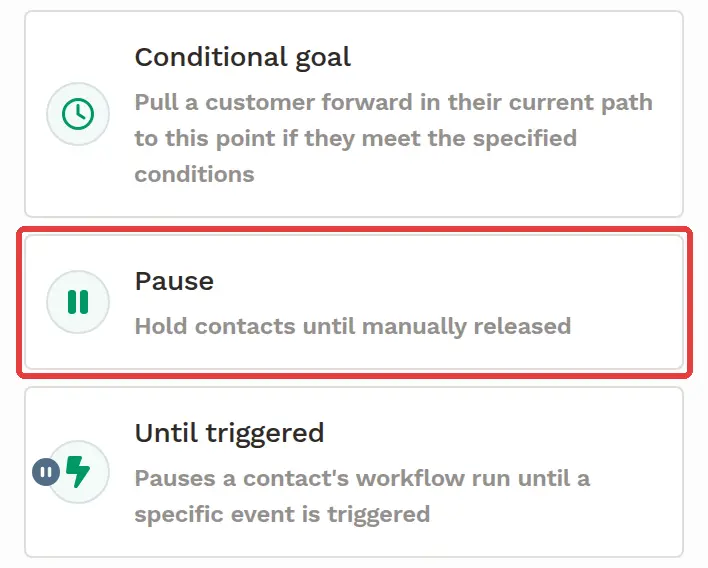
Select the Pause step under the Workflow category. The step is added right away; there are no settings to configure.
How the “Pause” Step Works
Section titled “How the “Pause” Step Works”When contacts in the workflow reach the “Pause” step, they will be held in that step indefinitely, until you manually release them. For example, let’s say you have a workflow where contacts receive a series of emails, and you want to insert a Pause before a special email offer.
-
Viewing Paused Contacts:
-
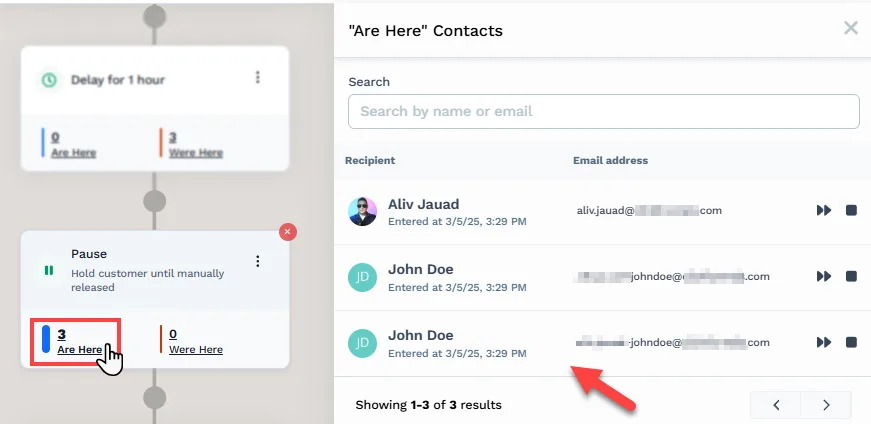
You can see how many contacts are currently paused by looking at the Pause step in the workflow editor. The number of paused contacts is displayed under Are Here in the step analytics. If the workflow is executed multiple times for the same contact, the contact will be recorded multiple times, with a timestamp indicating the instances when they entered the step.
-
-
Releasing All Contacts:
To release all paused contacts and allow them to proceed to the next step in the workflow:
-
Click on the Pause step.
-
In the Pause Step window that appears, click Release to move all contacts currently paused on this step to the next step. Contacts who reach the step after you release will be paused until you release them.
-
-
Releasing Specific Contacts:
If you want to release specific contacts, follow these steps:
-
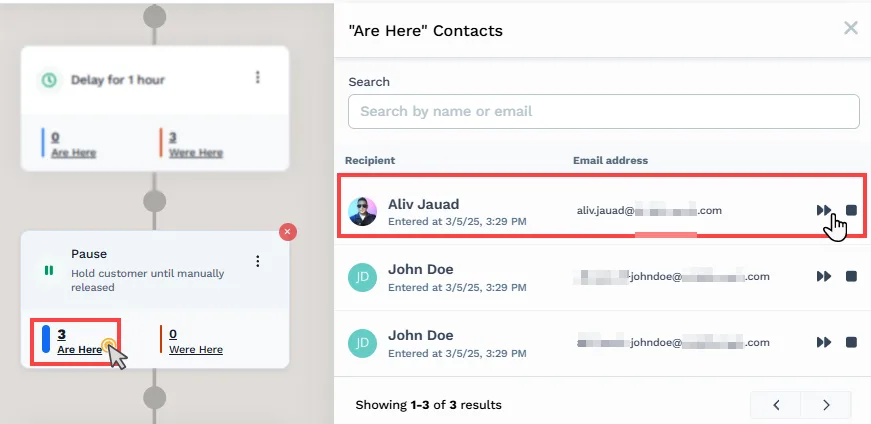
Click on the number under the Are Here analytics to open the ‘Are Here’ Contacts list of all contacts currently paused on the step.
-
The list will show the name, email address, and entry time of each contact. For each contact, you will see two icons:
-
⏩ Move to next step: Click this icon to release the individual contact and move them to the next step in the workflow.
-
⏹️ Stop run: Click this icon to stop the workflow for the contact entirely.
-
-
Safely Deleting the Pause Step
Section titled “Safely Deleting the Pause Step”-
To delete the step, hover over the Pause step in the workflow editor and click the Red Cross Icon.
-
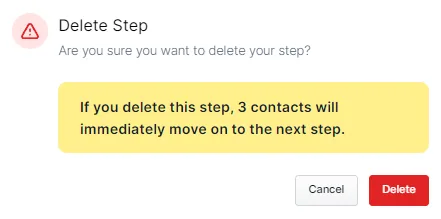
If contacts are currently paused at this step, a warning will pop up notifying you that deleting the step will release those contacts to the next step in the workflow.
-
Click Delete to confirm. All paused contacts will immediately move forward to the next step in the workflow.
Understanding the Difference Between the Pause Step and the Delay Step
Section titled “Understanding the Difference Between the Pause Step and the Delay Step”In ClickFunnels workflows, both the Pause and Delay steps can control how contacts move through your sequences, but they serve different purposes.
-
Pause Step:
-
Manual Control: Contacts stay on hold until you manually release them.
-
Use for: Manual review or intervention before proceeding.
-
Example: Approving contacts before sending them an offer.
-
-
Delay Step:
-
Automated Timing: Holds contacts for a set period (minutes, hours, days) before moving to the next step.
-
Use for: Drip campaigns or timed actions without manual intervention.
-
Example: Automatically send emails 1 day after a contact signs up.
-
Key Difference:
-
Pause Step requires manual action to proceed.
-
Delay Step moves contacts automatically after a set time.