
Manually Adding a Discount to a Subscription Order
Published: Updated:
ClickFunnels offers a robust feature that allows you to manually add discounts to subscription orders, providing flexibility and enhanced customer satisfaction. This functionality is particularly useful when you need to apply special promotions or rectify issues on a case-by-case basis. Manually adding discounts can help retain customers and improve their overall experience by offering them personalized deals. For example, if a customer subscribes to a weekly delivery of a product, you can manually add a discount to their order to offer a loyalty reward or a promotional price.
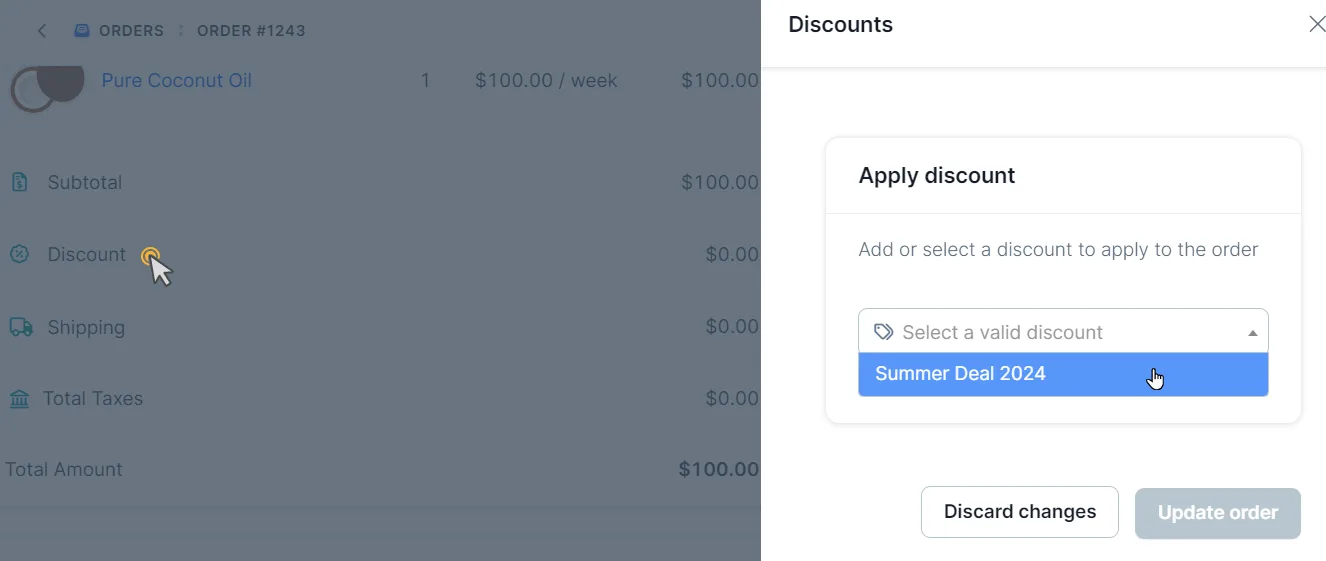
In this article, you will learn how to navigate to your ClickFunnels dashboard to manually apply discounts to subscription orders, ensuring these discounts are reflected in future invoices.
Requirements
Section titled “Requirements”-
An active ClickFunnels account
Manually Adding a Discount to a Subscription Order
Section titled “Manually Adding a Discount to a Subscription Order”Follow these steps to add a discount manually:
-
Navigate to Orders:
-
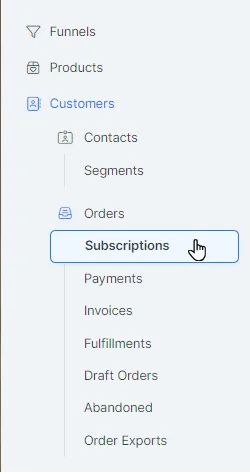
From your ClickFunnels dashboard, go to the Customers > Orders > Subscriptions.
-
-
Select the Subscription Order:
- Locate the subscription order to which you want to add the discount. Click on the order to open its details.
-
Access the Discount Settings:
-
On the order details page, find the Upcoming Invoice section.
-
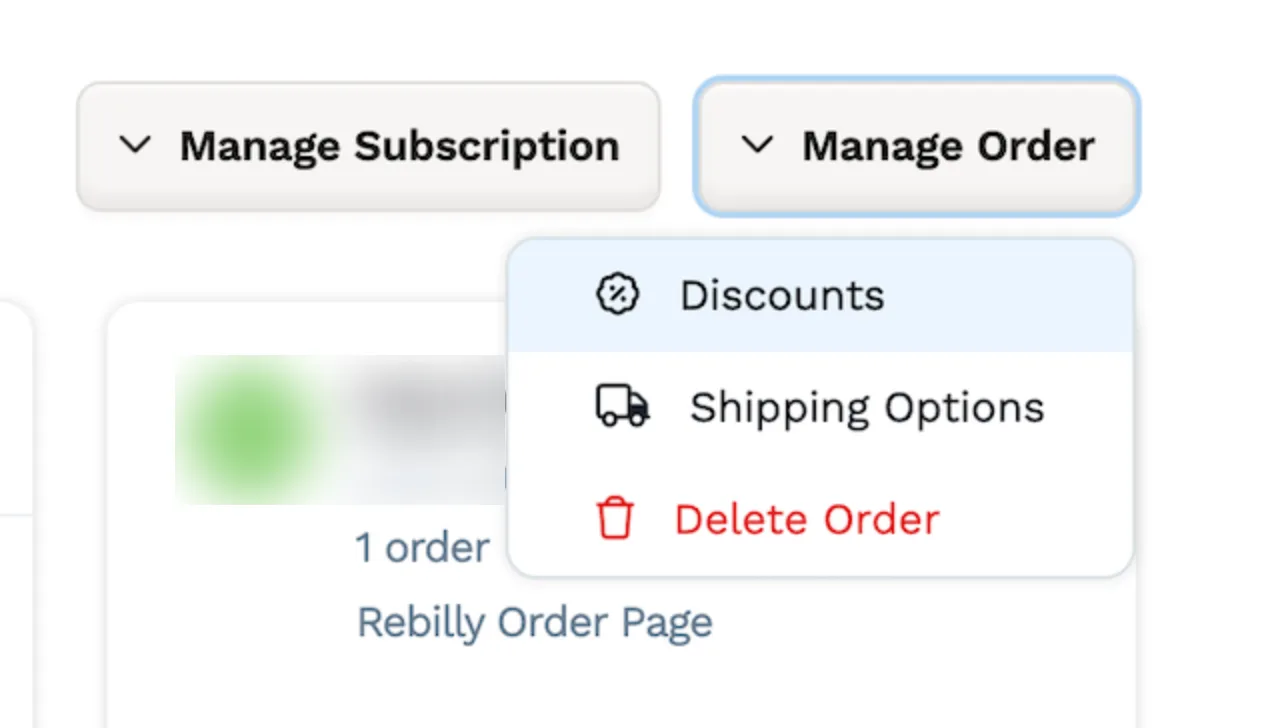
Click Discount to open the Discounts panel. You can also click Manage Order and select Discounts.
-
-
Apply the Discount:
-
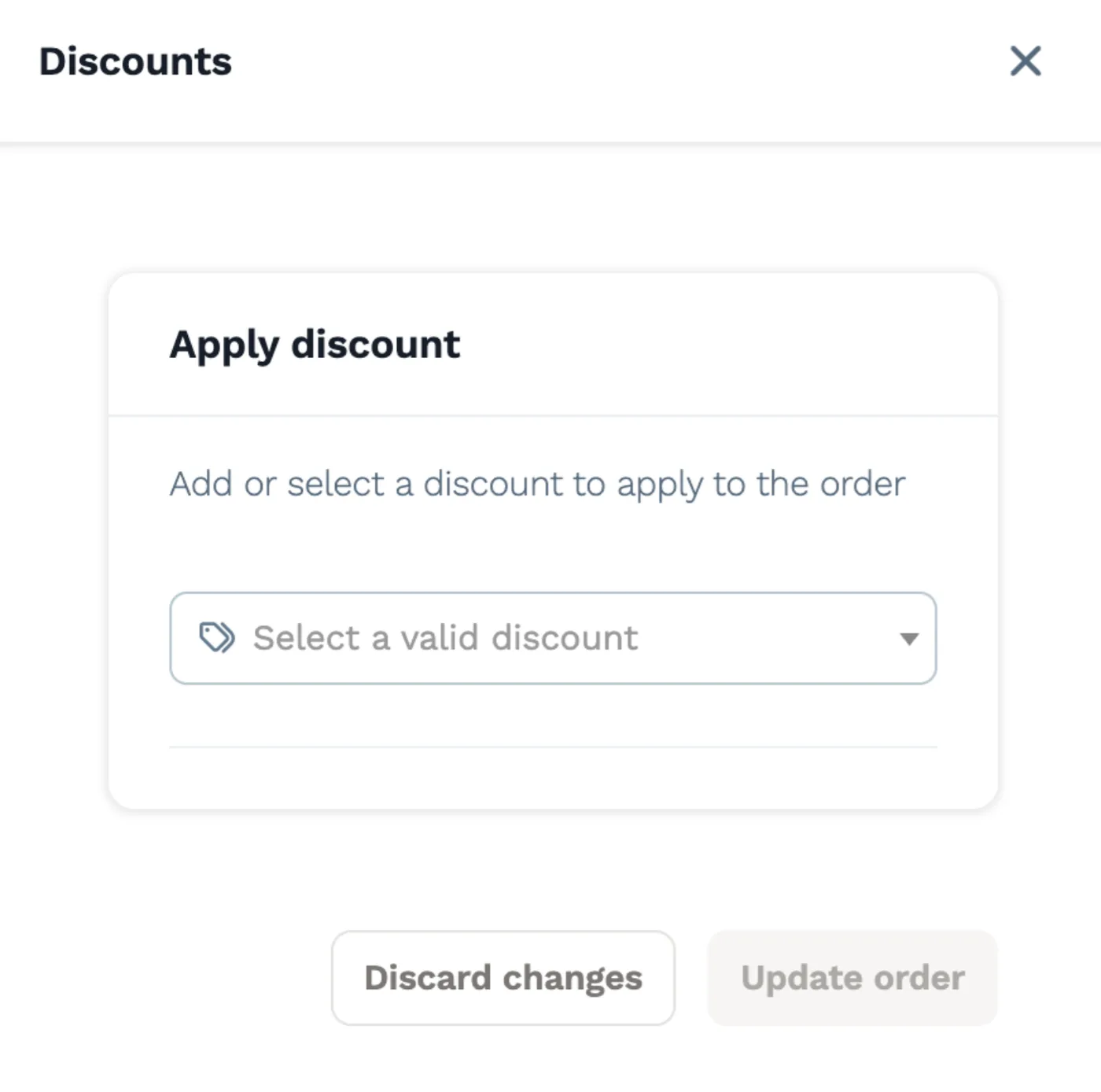
Under Apply discount, click Select a valid discount and choose the discount you want to apply. Only active discounts that apply to the products in the order are listed.
-
Click Update order to save the changes and apply the discount. An order can have only one discount at a time, so applying a new discount replaces the current one.
-
-
Verify the Discount Application:
-
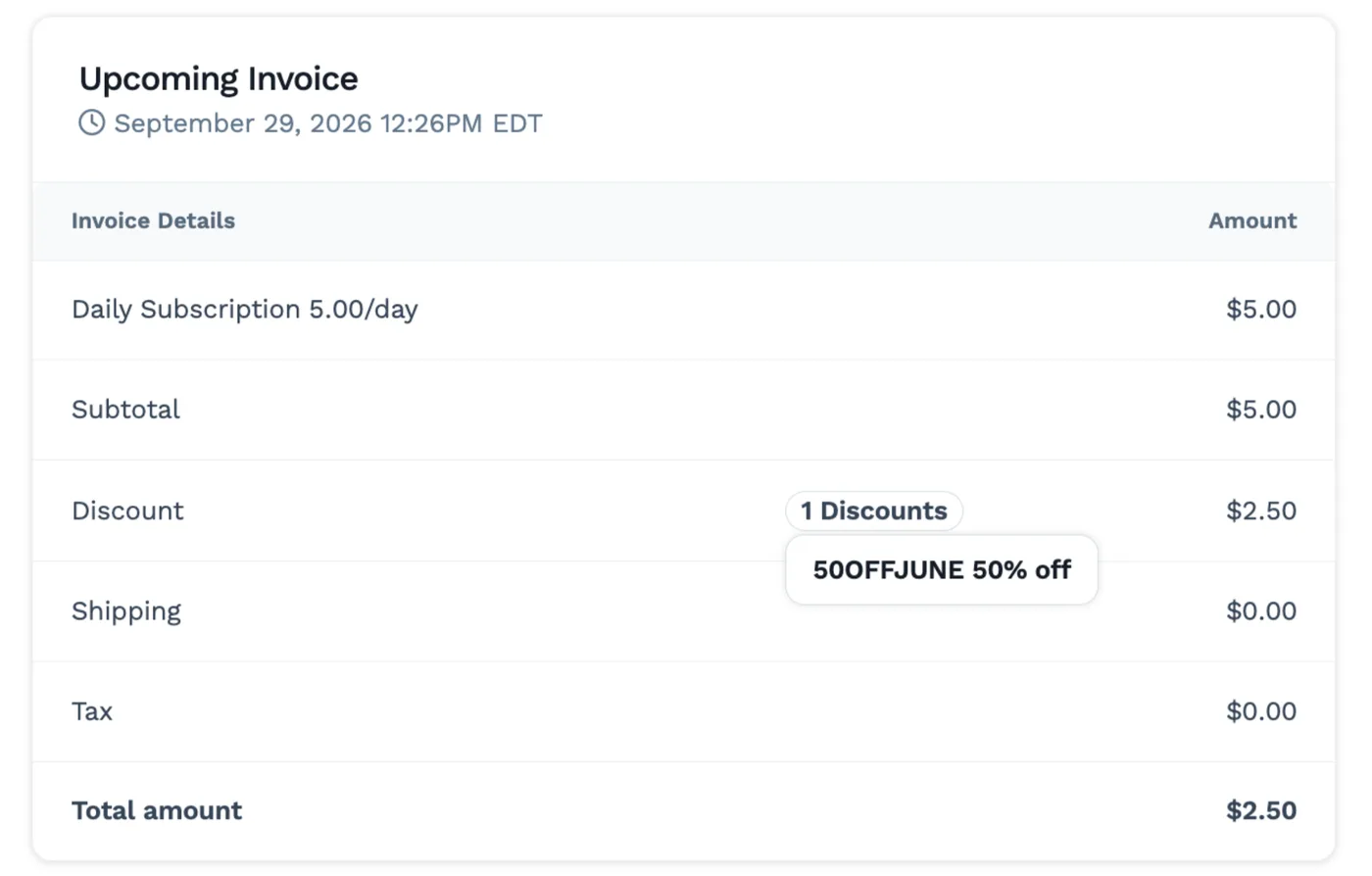
Check the order summary to ensure that the discount has been applied.
-
This discount will be reflected in the subsequent invoices for the subscription, providing the customer with the discounted rate for the specified duration.
-
Removing a Discount from an Order
Section titled “Removing a Discount from an Order”-
Open the order and click Discount in the Upcoming Invoice section, or click Manage Order and select Discounts.
-
In the Discounts panel, click the trash icon (Remove discount) next to the discount.
-
Confirm the removal in the pop-up.