
Custom HTML Pages
Published: Updated:
Overview
Section titled “Overview”A Custom HTML page is a funnel step whose entire body is HTML you supply. You paste a complete, self-contained HTML document into ClickFunnels, and ClickFunnels hosts it at a path on your funnel’s domain and serves it exactly as pasted — nothing is rewritten, injected, or templated.
It behaves like any other funnel step: it has a name and a URL path, it appears in the funnel builder, and it can be duplicated, split-tested, and branched.
What it is not is an editor page. There is no drag-and-drop editing surface for a Custom HTML page, no sections or rows, and no templates. The HTML is the only content surface: paste it to publish, and swap it to update.
When to use it
Section titled “When to use it”Custom HTML pages fill the gap between the two hosting models that already existed:
| If you… | Use |
|---|---|
| Want to compose a page visually in ClickFunnels | A regular funnel page in the page editor |
| Have a complete HTML document but nowhere to host it | A Custom HTML page |
| Already host the page yourself (own domain, static host, Netlify, Vercel, your app) | An external page with the ClickFunnels SDK |
The case this was built for is a page that was generated rather than designed — an AI agent producing the whole HTML, CSS, and JavaScript in one document. Previously you still had to find somewhere to put that file. Now you can hand it to ClickFunnels and have it live as a real funnel step.
What you need before you start
Section titled “What you need before you start”-
A funnel for the page to live in. A Custom HTML page is a funnel step. (It can also be created standalone, with no step — see Standalone pages and split tests.)
-
A complete HTML document. Not a fragment. What you paste is the whole response the visitor’s browser receives, so it needs its own
<!doctype html>,<head>, and<body>, along with any CSS and JavaScript it depends on — inline, or loaded from URLs the page can reach. The document is capped at 2MB.
Step 1: Add the step
Section titled “Step 1: Add the step”Open the funnel, click the + on the connector where the step belongs, and in the Add Step panel choose Custom HTML page under Funnel — described in the panel as “Paste complete HTML and ClickFunnels hosts it as a page in this funnel.”
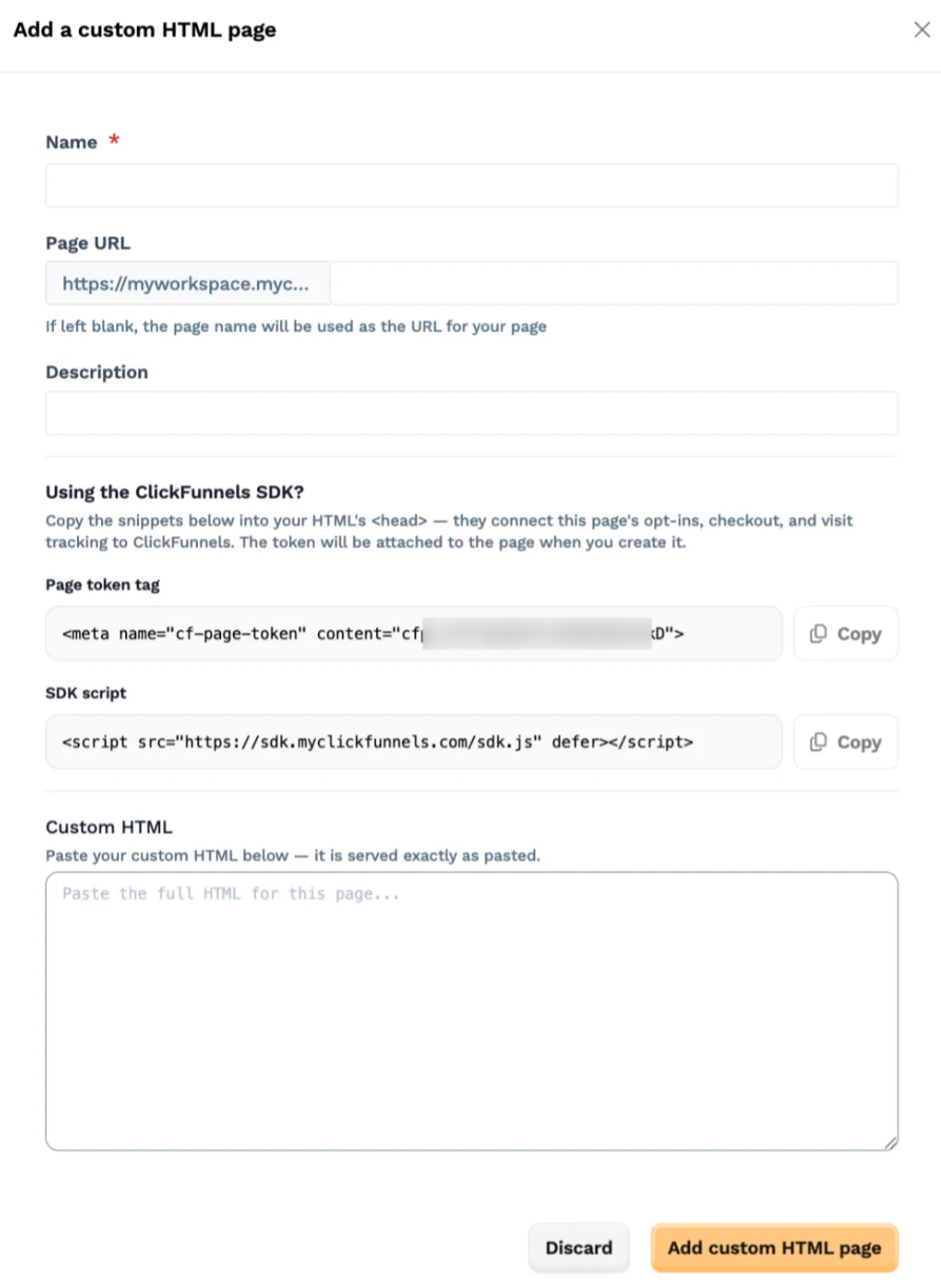
Fill in the form:
| Field | What it is |
|---|---|
| Name | The step’s name in the funnel builder. Required. |
| Page URL | The path the page is served at on the funnel’s domain. Leave it blank and the page name is used to build one. |
| Description | Optional note for your own reference. |
| Using the ClickFunnels SDK? | Not a field — this page’s SDK snippets, ready to copy. Skip it if the page has no forms and no checkout; otherwise see Step 2. |
| Custom HTML | The full HTML document, pasted in. Required. |
The order matters: if the page needs the SDK, take the snippets from the middle of the form and paste them into your document before you paste that document into the last field.
Click Add custom HTML page and the page is live at that path immediately.
Step 2: Grab the Page token (if you want the SDK)
Section titled “Step 2: Grab the Page token (if you want the SDK)”ClickFunnels mints this page’s Page token the moment the create form opens, so the snippets are ready before the page itself exists. Under Using the ClickFunnels SDK? the form shows two of them, each with a Copy button:
-
Page token tag — the
<meta name="cf-page-token" content="cfp_…">tag. -
SDK script — the
<script src="…/sdk.js" defer></script>tag for your account’s SDK host.
Copy both into your document’s <head>, paste the finished document into
Custom HTML, and click Add custom HTML page. The token you were shown is
attached to the page as it’s created, so the HTML you just pasted already points
at the right page — there’s no second pass and nothing to retrofit.
Both snippets are optional. If this page is a piece of content with no forms and no checkout, ignore the section and just paste your HTML. Nothing is stored until you create the page either, so closing the form without finishing costs nothing — the token you were shown is simply never used.
The token is not a one-time reveal. It stays available in the step’s settings, in that same Using the ClickFunnels SDK? section — both snippets, both with a Copy button — sitting just above the Custom HTML field you update the HTML in.
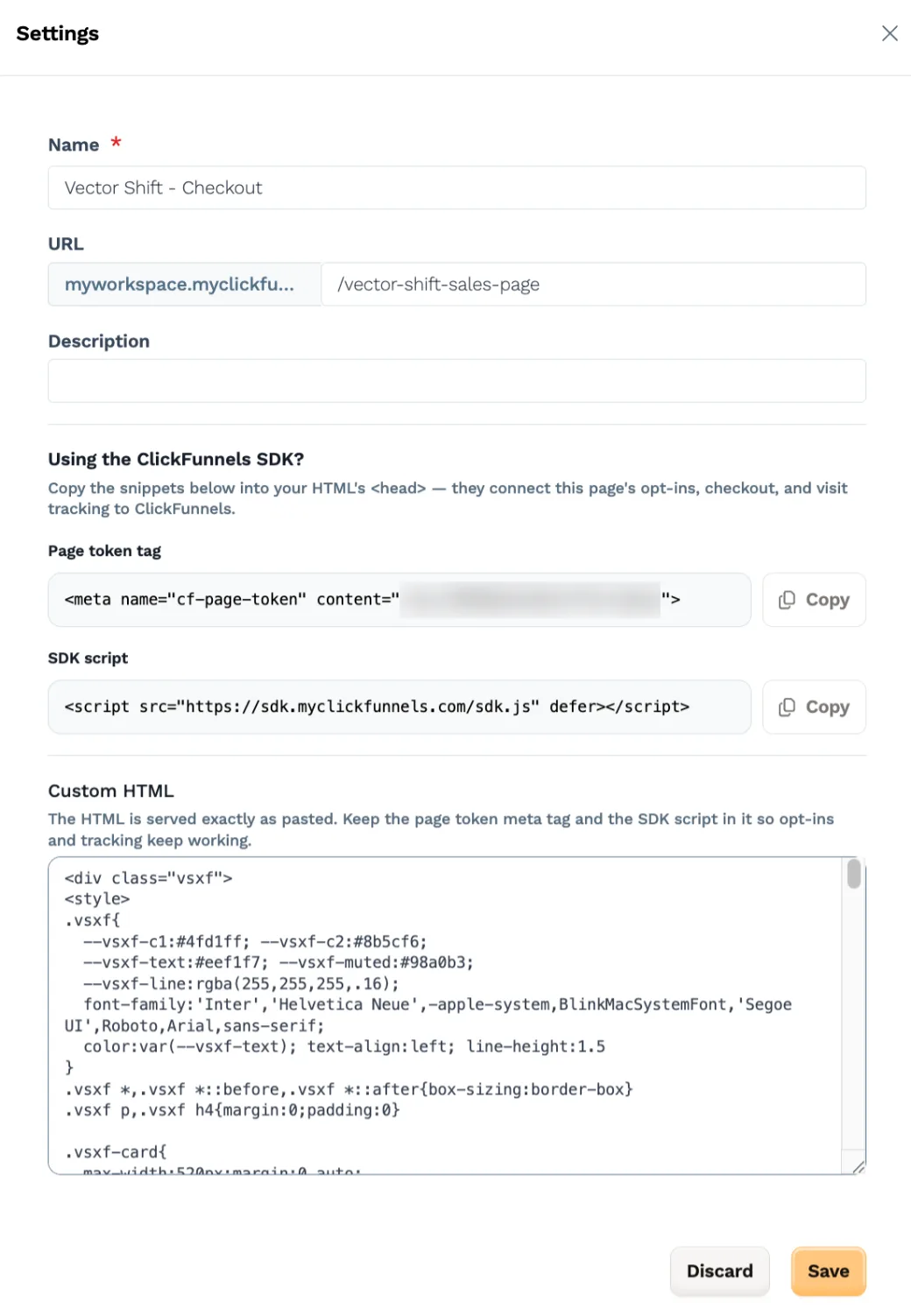
The same settings pane is where you update the HTML later.
If your HTML doesn’t carry the token yet
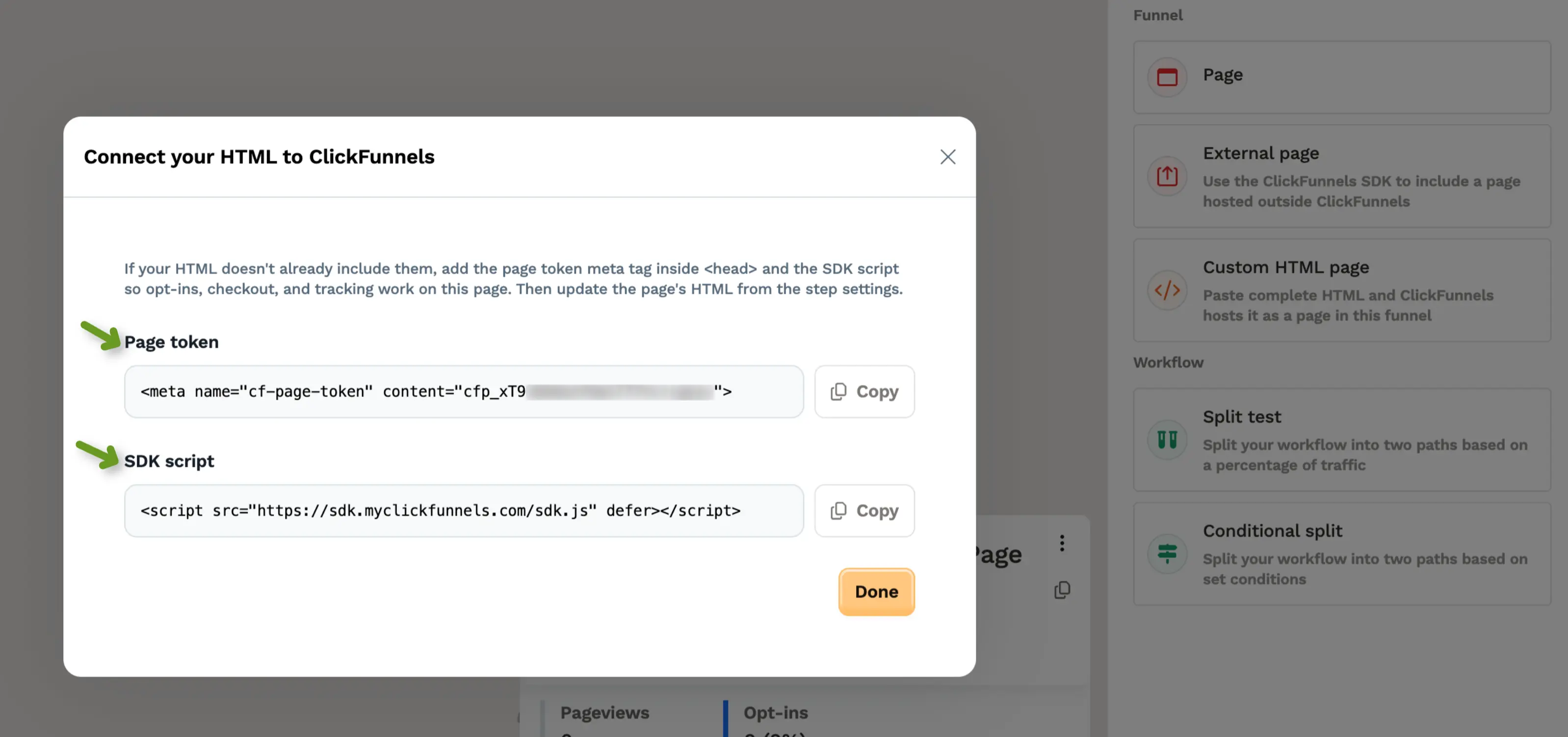
Section titled “If your HTML doesn’t carry the token yet”If the HTML you pasted doesn’t contain this page’s token meta tag, the modal switches on create to a Connect your HTML to ClickFunnels pane with the same two snippets — so nothing is lost if you pasted first and thought about the SDK second. Copy what you need and click Done, then add them to the document from the step settings. When your HTML already carries the tag, the modal simply closes.
Updating the HTML
Section titled “Updating the HTML”Open the step’s settings from the funnel builder. Below Name, URL, Description, and the SDK snippets there’s a Custom HTML field holding the page’s current HTML — it’s fetched when you open the settings, so give it a moment to load on a large document.
Edit or replace it, save, and the live page updates. Each save replaces the document wholesale: there’s no partial edit, so paste the complete new document, not just the part you changed.
If the HTML can’t be loaded, the field is locked rather than left empty on purpose — an empty editable box is indistinguishable from a page with no content, and saving it would wipe the live page. Use Retry. Name, URL, and description can still be edited while the field is locked.
Adding the ClickFunnels SDK (optional)
Section titled “Adding the ClickFunnels SDK (optional)”Everything the ClickFunnels SDK does on a page you host yourself works the same way
on a Custom HTML page: visitor tracking, opt-in capture that creates contacts and
fires your automations, and checkout. The contract is identical — the page token
in a meta tag, the SDK script, and data-cf-element on your form fields — the only
difference is who hosts the file.
So ClickFunnels SDK: External Pages and Funnels
is the reference for all of it: the element registry, how submission behaves, the
checkout elements and the CfSdk JavaScript API, and the troubleshooting steps.
Read it with two substitutions in mind:
-
Registration is the page creation itself. You don’t enter an external URL and there’s nothing to keep in sync — the page’s address is the path you gave it on the funnel’s domain, so a
403 url_mismatchisn’t a failure mode here. -
Content Security Policy isn’t yours to configure. ClickFunnels serves the response, so the CSP section doesn’t apply unless you send a CSP from a
<meta http-equiv>tag in your own document.
A minimal Custom HTML opt-in page, complete:
<!doctype html><html lang="en">  <head>    <meta charset="utf-8" />    <meta name="viewport" content="width=device-width, initial-scale=1" />    <title>Join the list</title>
    <!-- The Page token from the step settings -->    <meta name="cf-page-token" content="cfp_aB3xY7zQ9pK2mNvT8r5JcDef">  </head>  <body>    <form>      <label for="first">First name</label>      <input id="first" name="first_name" type="text" data-cf-element="first-name" autocomplete="given-name" required />
      <label for="email">Email</label>      <input id="email" name="email" type="email" data-cf-element="email" autocomplete="email" required />
      <button type="submit">Continue</button>    </form>
    <script src="https://sdk.myclickfunnels.com/sdk.js" defer></script>  </body></html>
Checkout and one-click upsells
Section titled “Checkout and one-click upsells”Selling works on a Custom HTML page the same way it works on a page you host yourself: attach the products to the step, mark up the form with the checkout elements, and the SDK mounts the payment UI. Adding checkout in the SDK article is the full contract.
One-click upsells work too. A one-time offer is the funnel step after a
checkout — the buyer’s card was saved on the purchase they just made, so
accepting the offer is a single click, with no email, no card entry, and no
<form>. Either hosting model can play either role, and they mix freely: a
Custom HTML checkout can hand off to a Custom HTML upsell, to an externally
hosted one, or the other way around.
To set one up:
-
Make the upsell its own step, immediately after the checkout step — a Custom HTML page or an external page. Those are the two page types that can receive the one-click grant; a page composed in the page editor can’t.
-
Attach the offered product to the upsell step, not to the checkout step. An upsell step with nothing attached has nothing to sell, and no offer is extended.
-
Give the upsell page an
oto-acceptbutton, anoto-declinebutton, and ashippingelement.oto-acceptcarries the offered line in itsvalueattribute asvariantId|priceId; clicking it charges the saved card and sends the buyer on to the next step.oto-declineadvances without charging — which is also how you chain a downsell, itself another Custom HTML page if you like.
The one-click grant is issued by the checkout as it redirects, so the buyer has
to arrive at the upsell through that redirect. Opening the upsell URL
directly gives the offer no purchase to attach to: the SDK reports the outcome as
unavailable, and your page should send those visitors to your order form. So
test the pair the way a buyer moves through it — start on the order form and pay
with a test card — rather than loading the upsell page on its own.
One-time offers has
the complete markup and the rest of the behavior.
Building with an AI agent
Section titled “Building with an AI agent”A Custom HTML page is the natural output of an assistant that can write a full web page but has nowhere to publish it — and the whole page type is manageable programmatically, so the assistant can do the publishing too.
Connect the ClickFunnels MCP Server and your assistant can create the page in the funnel, read back the token it was issued, write the final HTML with the token and SDK tags already in it, update the page, and read the served HTML back to confirm what’s live. It will tell you which hosting model it’s proposing — a ClickFunnels editor page, a Custom HTML page, or an externally hosted page — and confirm with you before it creates anything.
The same operations are available on the ClickFunnels V2 API for anyone building their own tooling; see the Developer Hub.
Standalone pages and split tests
Section titled “Standalone pages and split tests”A Custom HTML page can also be created without a funnel step. The page exists and gets its token, but it isn’t reachable through a funnel yet. That’s how you prepare a page destined for a split-test variant or a conditional-split branch, because those slots take a page rather than a URL.
To A/B test two Custom HTML pages, create the first one as a step in the funnel, create the second standalone, then build the split test from the two pages.
Duplicating works normally — duplicating the step, duplicating the funnel, or using duplicate this page inside a split test all copy the HTML across. The copy is a new page with its own token, and if the HTML you pasted contains a page token, ClickFunnels updates it to the clone’s own token so the two stay in sync. Without that, the duplicate would serve under the original page’s SDK identity and its submissions would land on the wrong step.
Sharing a funnel that contains a Custom HTML page
Section titled “Sharing a funnel that contains a Custom HTML page”A funnel that contains Custom HTML pages can be shared. Generate a funnel
share link the usual way, or include the funnel in a framework or resource
package, and the Custom HTML steps travel with it — the document arrives in the
other account exactly as you pasted it, {{ braces }} and all. See
How to Share and Clone a Funnel.
What does not travel is the Page token. A cfp_ token is an SDK identity, so
it never leaves the workspace that minted it:
-
When you publish the share link, ClickFunnels replaces every page token in the document with an unusable placeholder. The copy sitting behind the share link carries no working token of yours.
-
When someone claims the funnel, their copy of the page mints its own token, and ClickFunnels writes that token into the HTML in place of the placeholder.
The claimed page is therefore SDK-ready on arrival: its opt-ins and checkout run
under the claimer’s own page, and nothing points back at yours. The sdk.js
script tag is ordinary markup and is copied unchanged.
Two limits remain:
-
A Custom HTML page can’t be shared on its own. Standalone page sharing, and picking a page into a resource package, both still refuse a Custom HTML page. Share the funnel it lives in instead.
-
An external page still blocks the whole funnel. A funnel containing an external page can’t be cloned, shared, or included in a resource package — that page lives on someone else’s host, so there is nothing to copy.
How it differs from an editor page
Section titled “How it differs from an editor page”A Custom HTML page is deliberately a thin hosting surface: your document is the page, and ClickFunnels serves it untouched. That’s a trade — a handful of conveniences that come with an editor page don’t apply here, so it’s worth knowing which ones.
-
There is no editor. A Custom HTML page can’t be opened in the page editor, because there’s no page tree behind it to edit. The HTML field in the funnel step settings is the editing surface.
-
Funnel and site head/footer code isn’t injected. Serving the document verbatim means exactly that — custom head and footer code configured at the funnel or site level doesn’t get added, including any tracking scripts you rely on there. Put whatever this page needs inside its own HTML.
-
The page can’t be shared on its own. Page-level sharing — a standalone page template, or a page included in a resource package — still refuses a Custom HTML page. The funnel it lives in can be shared; see Sharing a funnel that contains a Custom HTML page.
-
Step cards show a badge instead of a thumbnail. Funnel builder previews are rendered from an editor page’s structure, which a Custom HTML page doesn’t have, so its step card carries an
</> HTMLbadge. -
Run-based reporting counts the step on submission, not on view. A Custom HTML step doesn’t advance the funnel run when it’s merely viewed, so a visitor who lands on one and leaves without submitting isn’t recorded as having reached it. The step card itself still reports its page views, opt-ins, and sales like any other step.
Reference material and feedback
Section titled “Reference material and feedback”-
ClickFunnels SDK: External Pages and Funnels — the full markup and checkout contract, which applies unchanged to Custom HTML pages
-
ClickFunnels MCP Server — connect an AI assistant to your workspace and let it create and update these pages
-
Which ClickFunnels integration should I use? — how the API, the Page SDK, MCP, and webhooks differ
-
Developer Hub — API reference and guides