
Sell with Whop
Published: Updated:
Connect your Whop account to ClickFunnels, sell through Whop’s embedded checkout on your funnel pages, and — if you want them tracked — record those purchases as ClickFunnels orders.
Overview
Section titled “Overview”Selling with Whop in ClickFunnels comes in two parts. Most sellers use both, but they are independent and you can stop after the first.
| Part | What it does | Required? |
|---|---|---|
| Whop Checkout app and the Whop Checkout element | Connects your Whop account, creates the Whop business ClickFunnels sells through, and embeds Whop’s checkout on a funnel page so buyers pay without leaving your funnel | Required to sell through Whop on your pages |
| External Purchases | Records Whop purchases as ClickFunnels orders and invoices, and keeps them up to date through renewals, cancellations, refunds and disputes | Optional |
Before You Begin
Section titled “Before You Begin”To sell with Whop you need:
-
An active Whop account whose email address Whop has verified. ClickFunnels creates the business you sell through against that address, so it has to be one Whop can confirm is yours
-
The Whop Checkout app available in your ClickFunnels workspace
-
A funnel with a step you want the checkout to appear on
And, only if you are also doing Part 3:
- At least one product created in ClickFunnels to map your Whop plan to
You do not need products in Whop before you start. ClickFunnels creates the business as part of connecting, and you build your products and plans inside it afterwards — see The Connected Business.
Live and Test Mode
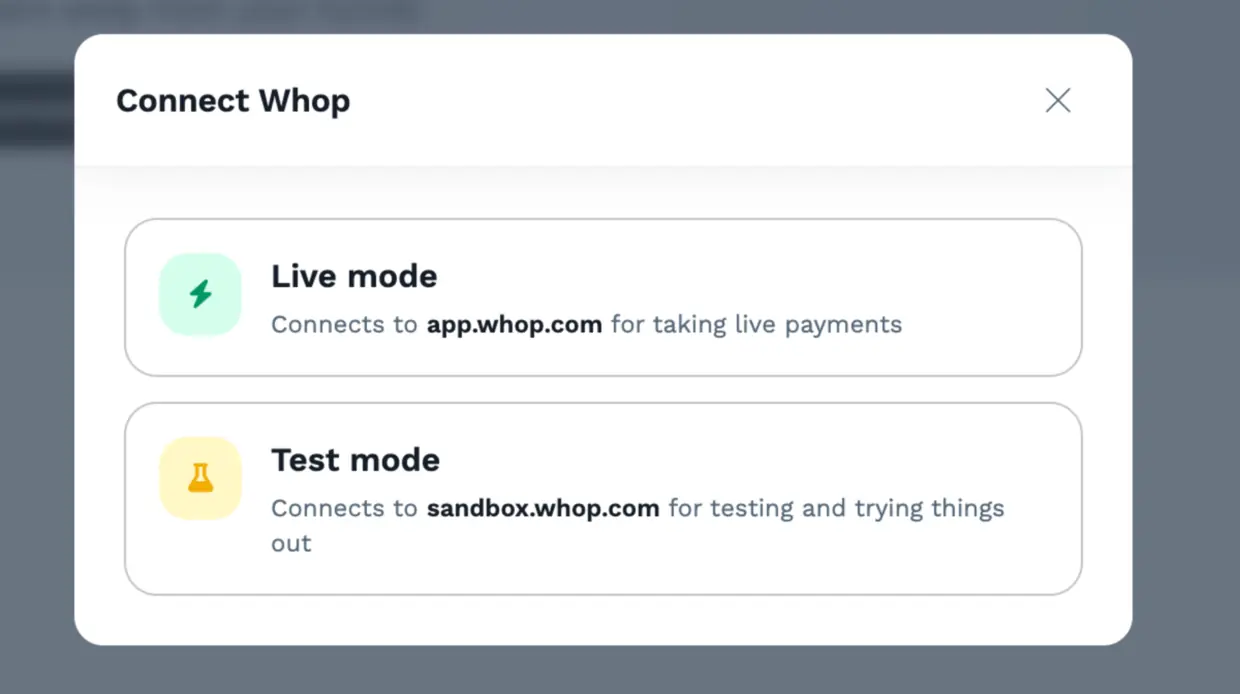
Section titled “Live and Test Mode”Whop keeps its sandbox in a wholly separate account on a separate host: app.whop.com for live and sandbox.whop.com for testing. They share nothing — not accounts, not products, not plan IDs.
This runs through everything below, so it is worth understanding once:
-
You connect the Whop Checkout app once per mode. A workspace can hold a live connection and a test connection at the same time, and each has its own business — a live one on app.whop.com, a test one on sandbox.whop.com
-
The checkout element is configured for both modes up front, and the funnel’s own live/test mode decides which plan is used when a buyer lands on the page
-
An External Purchases endpoint belongs to one mode, and needs a webhook from the matching Whop account
Part 1 – Connect the Whop Checkout App
Section titled “Part 1 – Connect the Whop Checkout App”Connecting Your Whop Account
Section titled “Connecting Your Whop Account”-
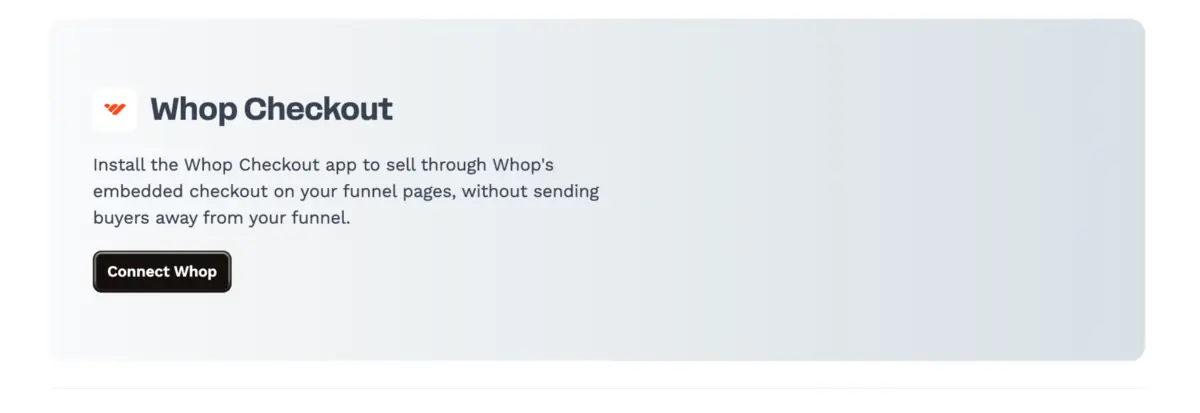
In your ClickFunnels workspace, open the Apps area and find Whop Checkout
-
Click Connect Whop
-
Choose Live mode to connect app.whop.com for taking live payments, or Test mode to connect sandbox.whop.com for testing and trying things out
-
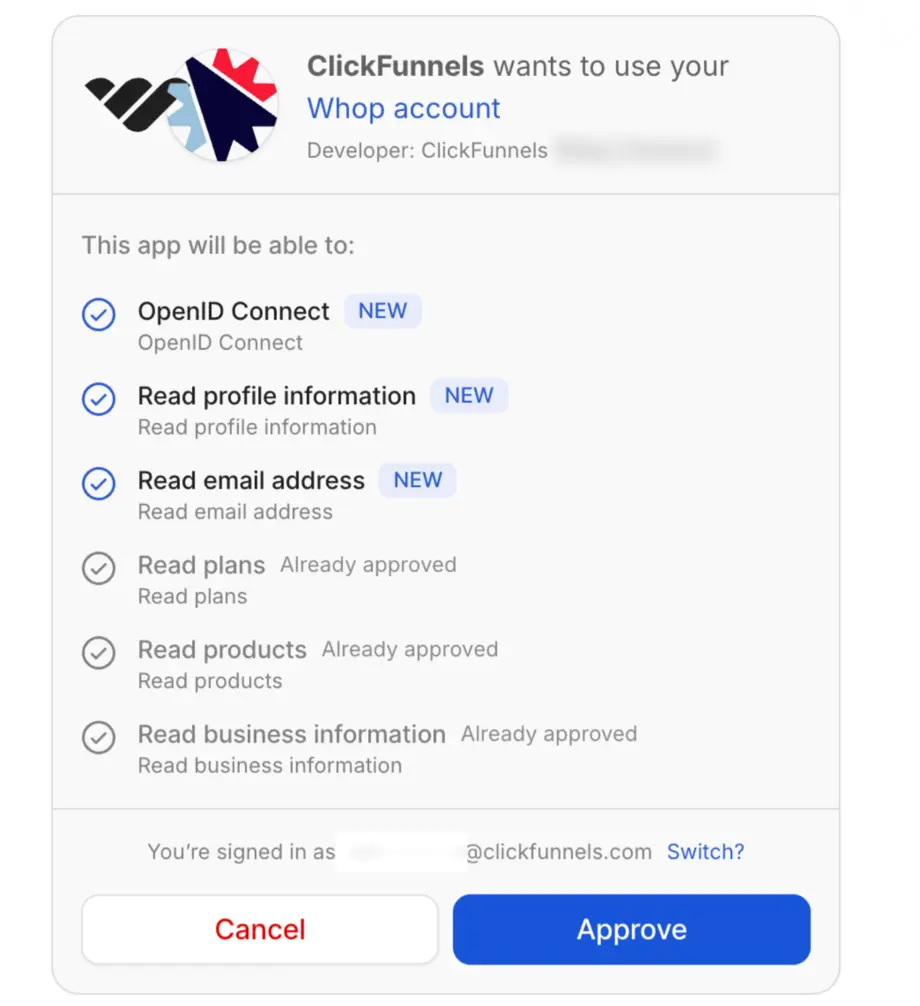
Authorize ClickFunnels in Whop
-
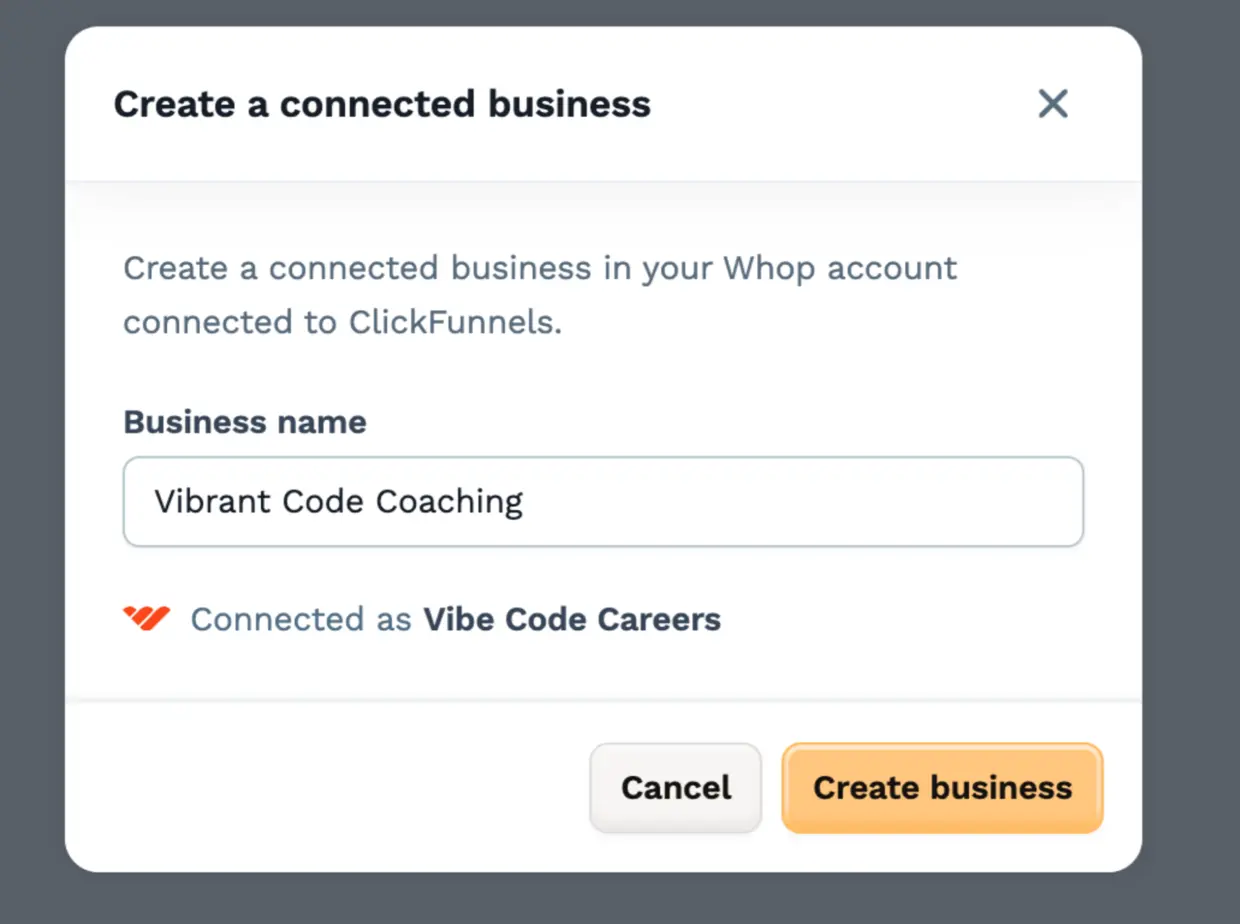
Back in ClickFunnels, name the business Whop will create for you and click Create business
You are connecting by authorizing the ClickFunnels app in Whop, the same shape as connecting Stripe. There are no API keys to copy.
Authorizing asks Whop for your name, your username and your email address alongside the read access to plans and products. The email address is not decoration: it is what the business is created against, and ClickFunnels will not create one unless Whop reports the address as verified.
Repeat for the other mode if you want both.
The Connected Business
Section titled “The Connected Business”Whop organizes everything you sell under a business. ClickFunnels does not sell through a business you already run — it creates one for you, in your own Whop account, and sells through that.
When you come back from authorizing, the Create a connected business dialog opens: create a connected business in your Whop account connected to ClickFunnels.
-
Business name starts as your workspace’s name. Change it to whatever your buyers should see; you can rename it in Whop later
-
Connected as shows the Whop account it will be created under. The business is yours — you own it, and ClickFunnels only ever has the access your authorization gave it
-
Click Create business. ClickFunnels confirms: your Whop business is connected to this workspace
If You Already Have a Connected Business
Section titled “If You Already Have a Connected Business”Whop allows one ClickFunnels-connected business per Whop account, so the dialog checks with Whop before it creates anything. If you already have one — because another workspace connected the same Whop account, or because you connected, disconnected and came back — the dialog reads Connected business found: Whop allows one business connected to ClickFunnels, and you already have one. It shows that business and offers Use this business instead of a name field.
The check asks Whop rather than ClickFunnels’ own records, because a business outlives the connection that made it: after a disconnect ClickFunnels holds nothing, while the business is still sitting in your Whop account.
Only the person whose Whop account it is can create or attach the business, since it is created in their name and against their email address. Workspace admins can connect and disconnect; collaborators can see the page.
If Whop can’t be reached, the dialog says so and offers Try again rather than half-creating anything.
Managing the Connection
Section titled “Managing the Connection”The Whop Checkout page lists each connection with its mode, the ClickFunnels user who connected it, the Whop account, its connected business, and the date — live mode first. The business name is read from Whop each time the page loads, so renaming the business in Whop shows up here.
-
Connected Business shows the business once it exists. A connection that has none yet offers a Connect link, which opens the create dialog
-
Whop dashboard opens that business in Whop — app.whop.com for a live connection, sandbox.whop.com for a test one. This is where you build its products and plans

Disconnecting always succeeds. If Whop won’t release the connection at its end, ClickFunnels still disconnects and tells you to remove ClickFunnels from your connected apps in Whop. After disconnecting a mode you won’t be able to create or manage any Whop Checkout instances in that mode on your pages.
Disconnecting does not delete the business. It stays in your Whop account with its products and its sales history; connect the same Whop account again and ClickFunnels offers to attach it back rather than create a second one.
Part 2 – Add the Whop Checkout Element to a Funnel Page
Section titled “Part 2 – Add the Whop Checkout Element to a Funnel Page”The Whop Checkout element embeds Whop’s own checkout on the page. Buyers complete the purchase inside it, on your funnel step, rather than being sent to Whop.
Adding and Configuring the Element
Section titled “Adding and Configuring the Element”-
Open a funnel step in the page editor
-
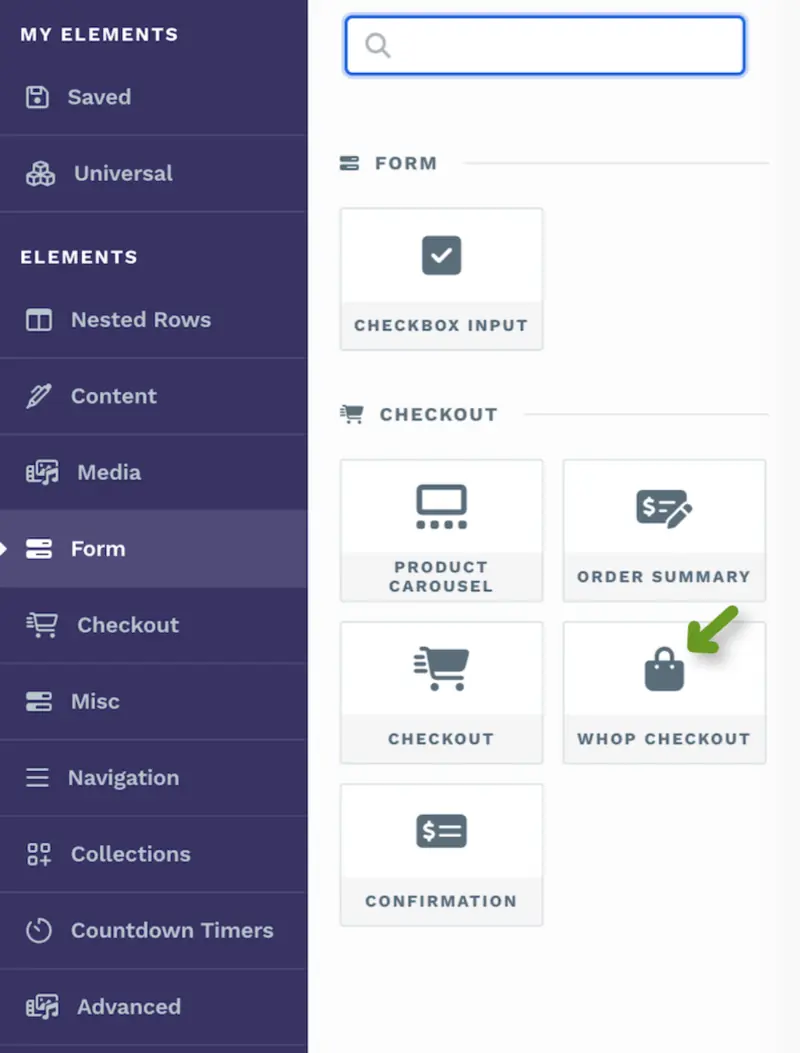
Add the Whop Checkout element to the page
-
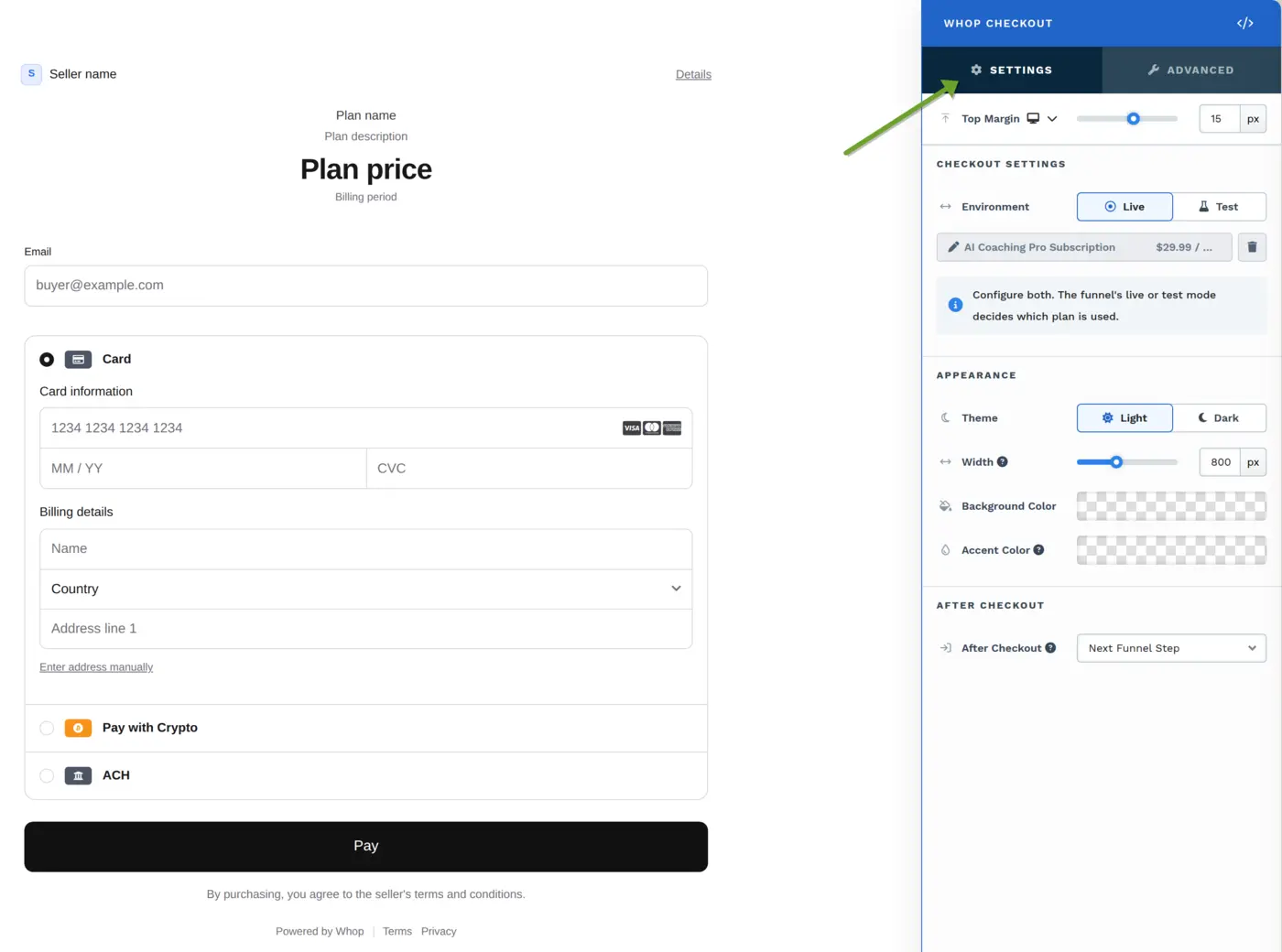
In Checkout Settings, pick the plan for each environment (see below)
-
Work through Appearance, After Checkout and Advanced Settings as needed
-
Save and publish
Choosing Plans: Configure Both Environments
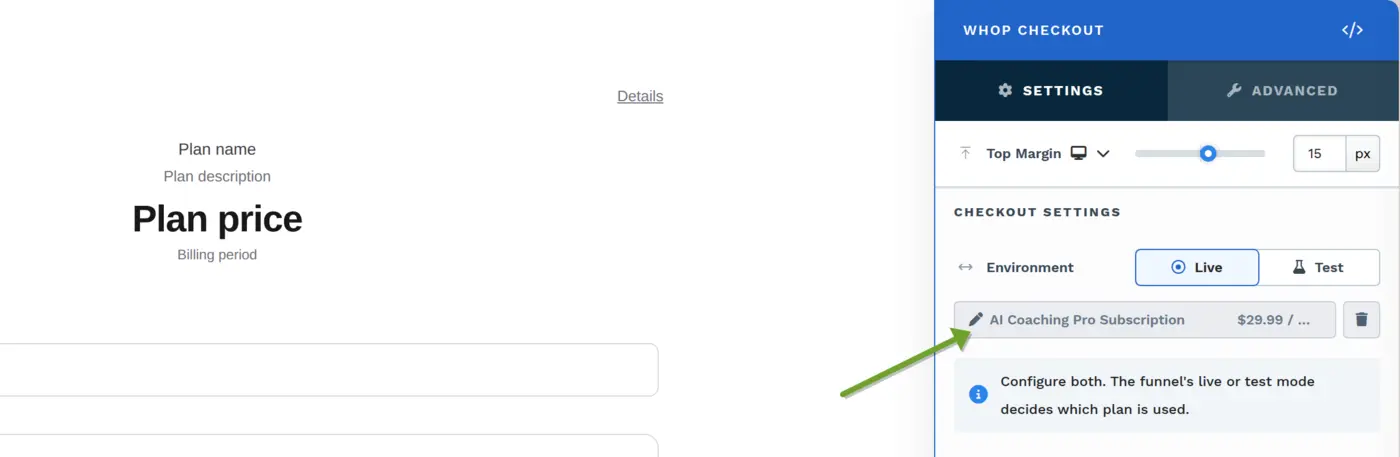
Section titled “Choosing Plans: Configure Both Environments”Configure both. The funnel’s live or test mode decides which plan is used.
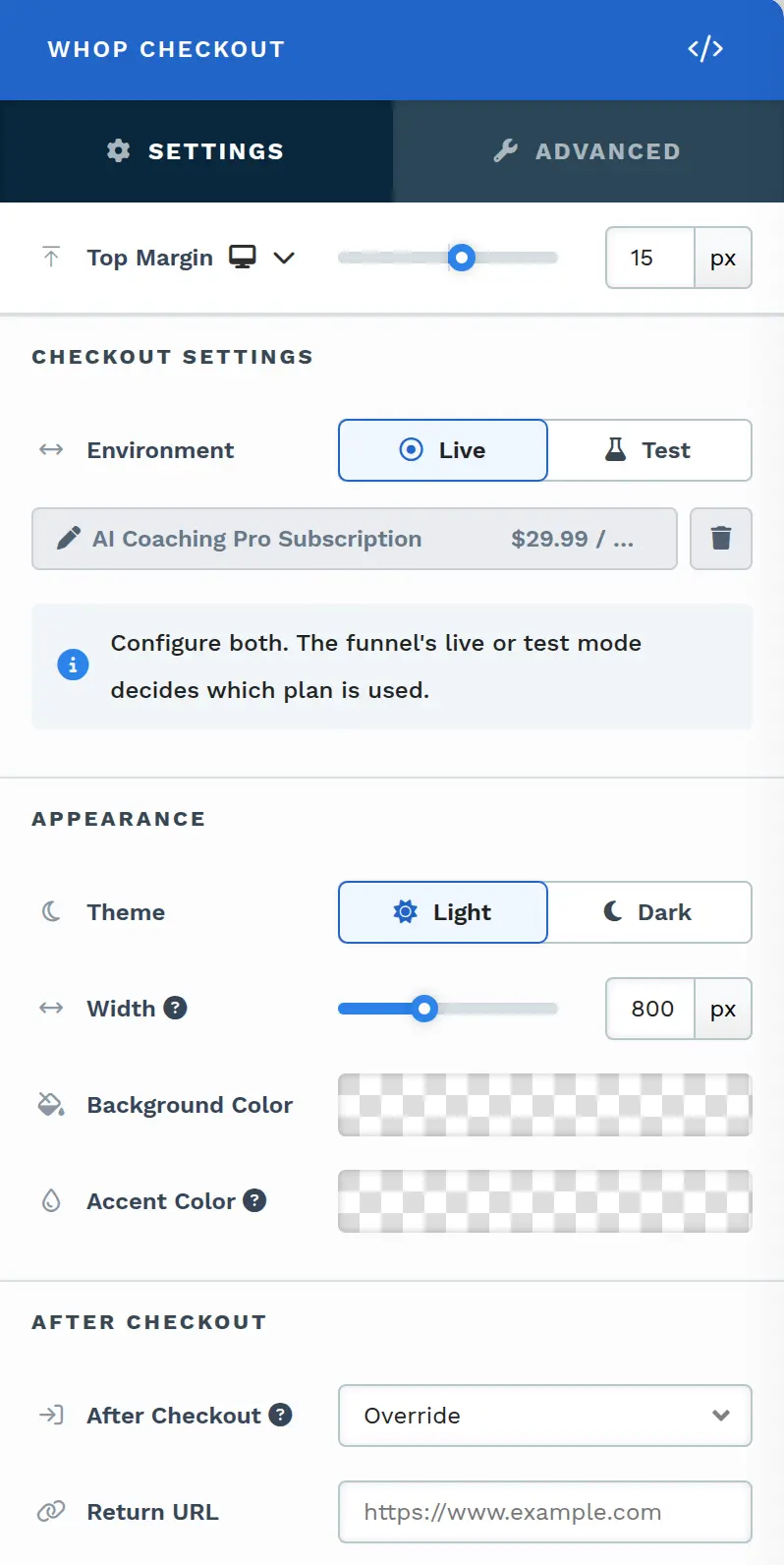
The Live/Test buttons at the top of Checkout Settings are not a publish setting — they only choose which environment’s plan you are currently editing. Both are stored on the element, and when a buyer loads the page it is the funnel’s own mode that picks between them.
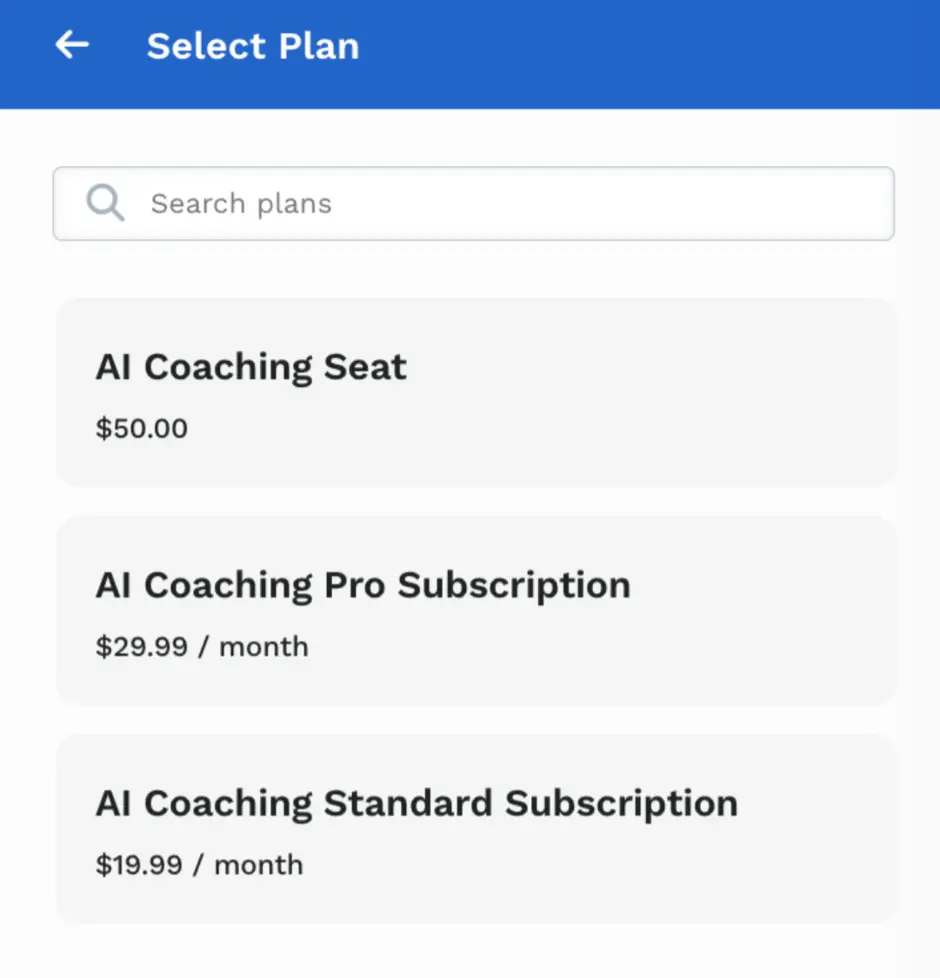
Under the switch, a button opens the plan picker for the selected environment. Rows show the product title, with the price beneath it and the plan’s own title alongside where you have given it one — a product’s plans usually differ by tier, “Monthly” against “Annual”, rather than by name, so labelling them in Whop is what keeps two plans of the same product apart here.
The plans listed are the ones in that mode’s connected business. Since a connection has a single business, the picker goes straight to its plans — there is no business to choose between. An empty list means the business has no plans yet: create them in Whop, then reopen the picker.
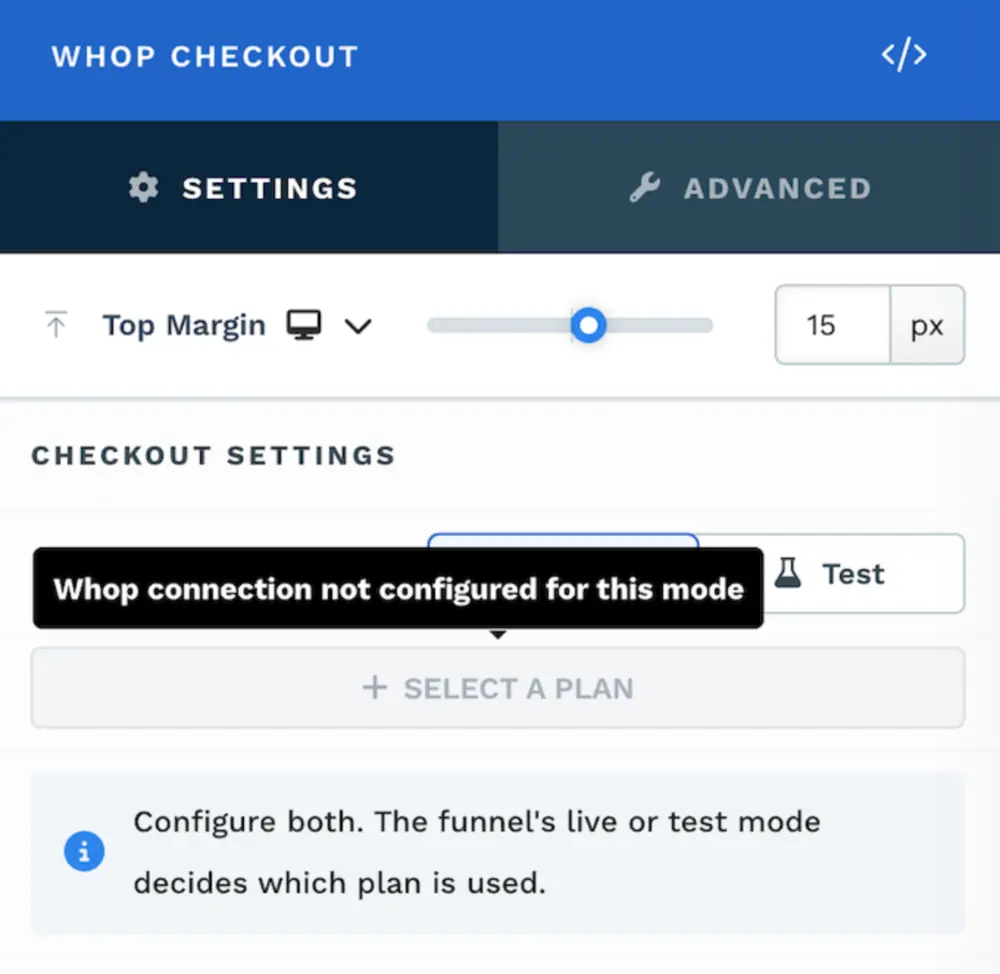
If the selected mode has no Whop connection, the plan button is disabled and explains itself on hover: Whop connection not configured for this mode. Connect that mode in Part 1 first.
After Checkout
Section titled “After Checkout”After Checkout decides where the buyer goes once the purchase is complete:
-
Next Funnel Step (the default) sends the buyer on to the next step of this funnel. The last step of a funnel has no next step, so the buyer is brought back to the same page — use Override on a last step instead
-
Follow Plan Redirect leaves it to Whop, which sends the buyer to the redirect URL set on the plan in Whop, or shows its own confirmation if the plan has none
-
Override reveals a Return URL field and sends the buyer to a URL of your own. Leave the field empty and Whop handles the redirect, as with Follow Plan Redirect
Switching between the three options clears the settings the hidden options own, so a stale redirect is never handed to Whop.
Appearance
Section titled “Appearance”-
Theme: Light or Dark. Without a background color, the Dark theme paints the whole checkout in Whop’s own dark panel color
-
Width: caps how wide the checkout grows, in
pxor%. It defaults to 800px, and the checkout is never wider than its column. Below 1024px wide, Whop shows the plan summary above the payment form; from 1024px, beside it -
Background Color: fills the whole checkout, including the plan summary
-
Accent Color: colors the pay button, with a white or black label chosen for contrast. The fields’ focus ring and the seller’s badge take the closest color in Whop’s palette
Advanced Settings
Section titled “Advanced Settings”Advanced Settings holds Affiliate Code and Do Not Forward UTM Parameters. UTM parameters from the page URL are passed to Whop by default; turn that last one on to stop forwarding them.
What the checkout shows and collects — the price, terms of service, email, shipping address, phone number, local-currency pricing, saved payment details and the pay button’s text — follows the plan in Whop, so there are no settings for it on the element. Pages saved with the older Hide Price, Hide Terms Of Service, Hide Submit Button, Hide Email, Collect Shipping Address, Collect Phone Numbers, Show Prices In Local Currency, Save Payment Details or Button Text settings still load; those settings are simply ignored.
Prefilled Buyer Details
Section titled “Prefilled Buyer Details”If the buyer opted in on an earlier step of the funnel, the checkout is prefilled with their email address, name, and billing and shipping address. Details the buyer types into the Whop checkout are not passed back to ClickFunnels, so a later step is prefilled only from the earlier opt-in.
When the Checkout Can’t Load
Section titled “When the Checkout Can’t Load”If Whop can’t load the checkout — for example, because the plan was deleted or archived in Whop — the element shows the message “This checkout is unavailable right now. Please try again later.” in place of the checkout.
NOTE: Whop renders the real product title and price itself, so the editor shows a placeholder mock (“Plan name”, “Plan price”, “Seller name”) rather than your actual plan. It follows your theme, colors and width, and places the plan summary beside the form from 1024px of width just as the live checkout does, but the wording is deliberately generic.
Funnel Stats and Whop Purchases
Section titled “Funnel Stats and Whop Purchases”Whop purchases do not update your funnel’s sales and revenue stats. The sales count, revenue, earnings per click and average cart value shown on the funnel and its steps all stay where they were, no matter how much the Whop checkout sells.
This is a consequence of where the money moves. Those figures count purchases that were paid through ClickFunnels and attributed to a funnel step. A Whop purchase is neither: the payment is taken by Whop inside its own checkout, so ClickFunnels never processes a transaction for it.
What is not affected: pageviews and opt-ins still work normally. Those are tracked by the page itself, so a funnel step carrying a Whop checkout records traffic and opt-ins exactly as any other step does. It is only the sales and revenue metrics that stay flat.
To see what Whop has sold, use one of these instead:
-
Your Whop dashboard, which is the system of record for every Whop payment
-
Your ClickFunnels orders list, if you set up External Purchases in Part 3. The orders are there and are reportable as orders — they are simply not attributed to a funnel
At this point you can sell. Everything below is optional.
Part 3 (Optional) – Track Whop Purchases as ClickFunnels Orders
Section titled “Part 3 (Optional) – Track Whop Purchases as ClickFunnels Orders”This part uses the External Purchases app to turn Whop purchases into ClickFunnels orders and invoices. When a customer buys, renews, cancels, or is refunded on Whop, ClickFunnels:
-
Creates a contact for the customer (or matches an existing one)
-
Creates an order in your ClickFunnels workspace
-
Updates the order for renewals, failed payments, cancellations, reactivations, refunds, and disputes
-
Triggers automations, webhooks and workflows based on order events
What it does not do:
-
It does not update funnel stats. The sales and revenue figures on your funnel stay flat, as described in Funnel Stats and Whop Purchases above
-
It does not move money. Whop has already taken the payment; ClickFunnels records what happened, it does not process or settle anything
-
It does not change what the buyer sees or receives. The membership and its access live in Whop
External Purchases works with Whop purchases from anywhere — the embedded checkout you built in Part 2, a Whop checkout link, or Whop’s own storefront. It listens to your Whop account, not to a particular page.
Step 1: Create an Endpoint Listener in ClickFunnels
Section titled “Step 1: Create an Endpoint Listener in ClickFunnels”-
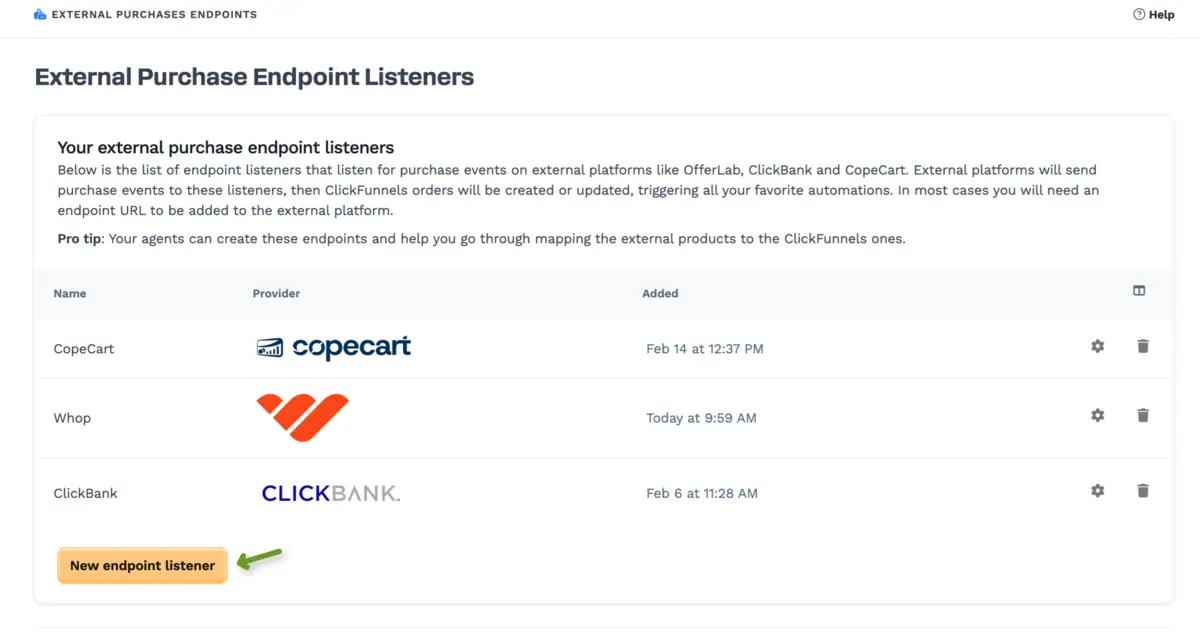
In your ClickFunnels workspace, navigate to the External Purchases App
-
Click the yellow New Endpoint Listener button
-
Enter a Name for the listener (e.g., “Whop Memberships”)
-
Select Whop as the Provider
-
Choose a Mode – Live or Test
-
Click Create
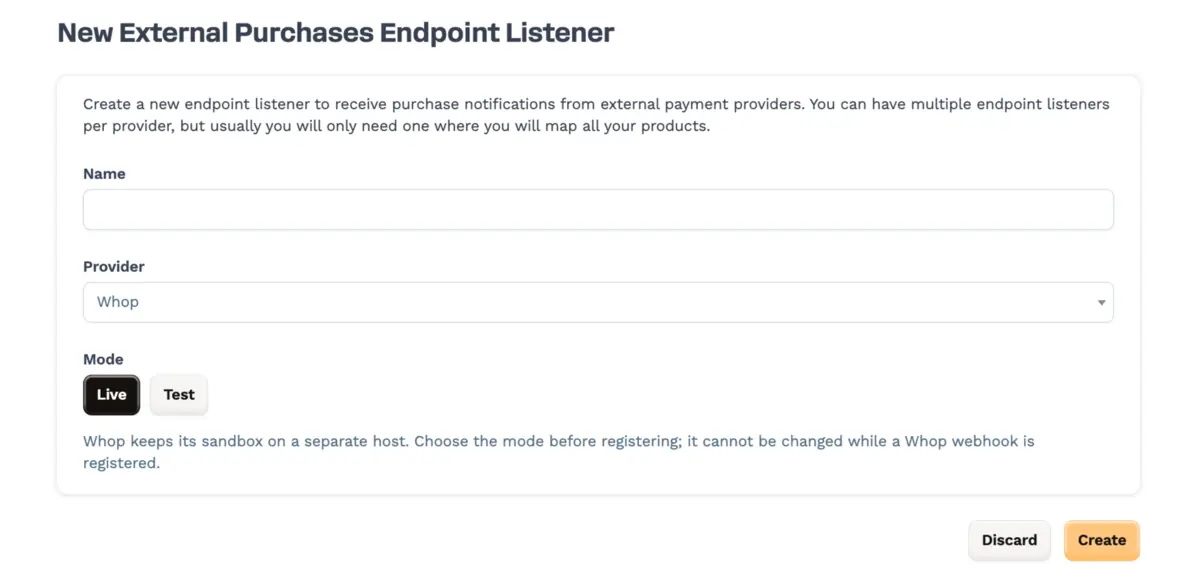
The Mode selector only appears once you pick Whop.
Step 2: Create the Webhook in Whop
Section titled “Step 2: Create the Webhook in Whop”Create the webhook in Whop and paste the ws_ secret back into ClickFunnels. Until you do, the endpoint is not registered with Whop, so no purchases will reach it.
-
Copy the Endpoint URL from the endpoint listener page in ClickFunnels
-
In your Whop dashboard, go to Developer > Webhooks and create a new webhook
-
Paste the ClickFunnels Endpoint URL as the webhook’s destination
-
Subscribe the webhook to all nine events listed below
-
Copy the signing secret Whop shows you — it starts with
ws_, and Whop will not show it again -
Back in ClickFunnels, paste it into the secret field on the endpoint page and click Save signing secret
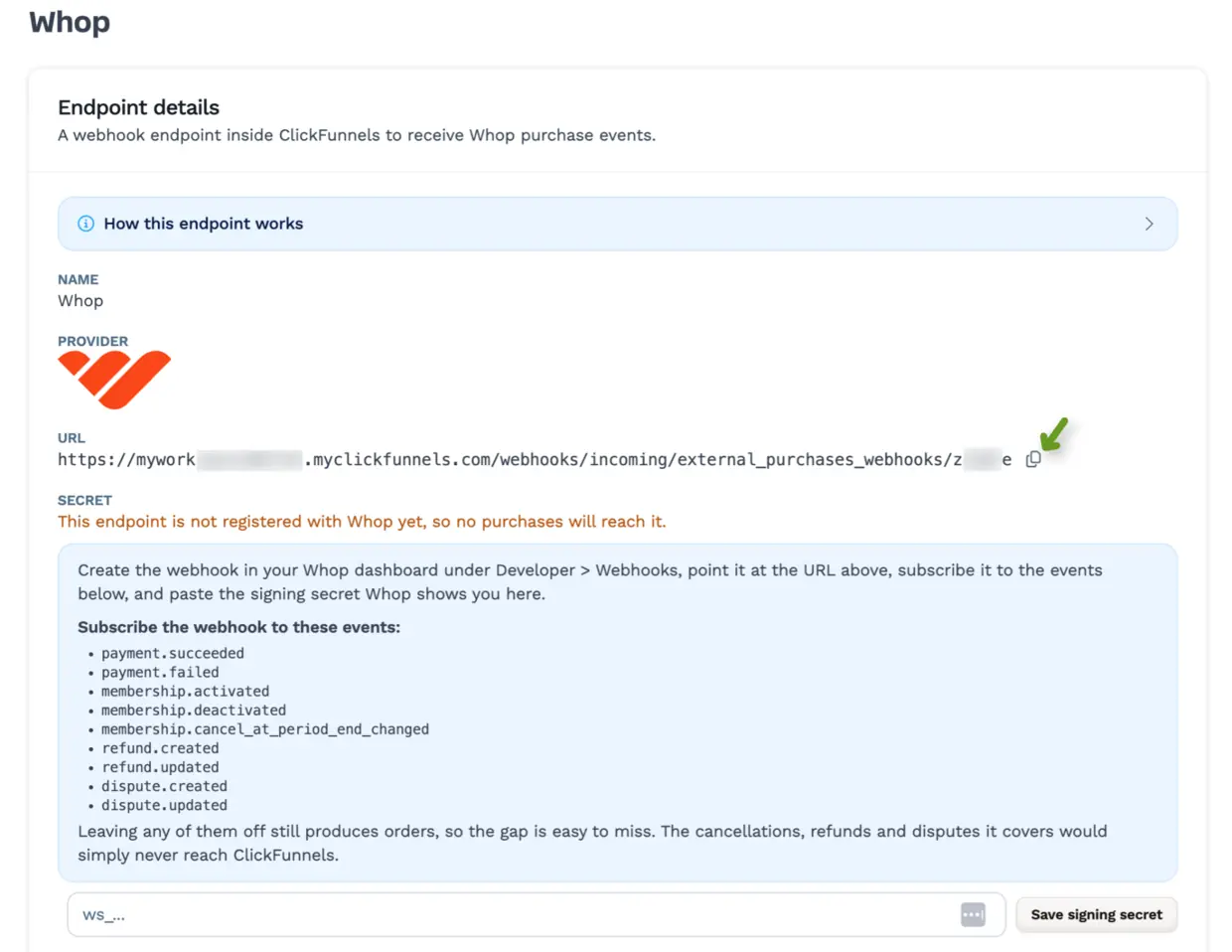
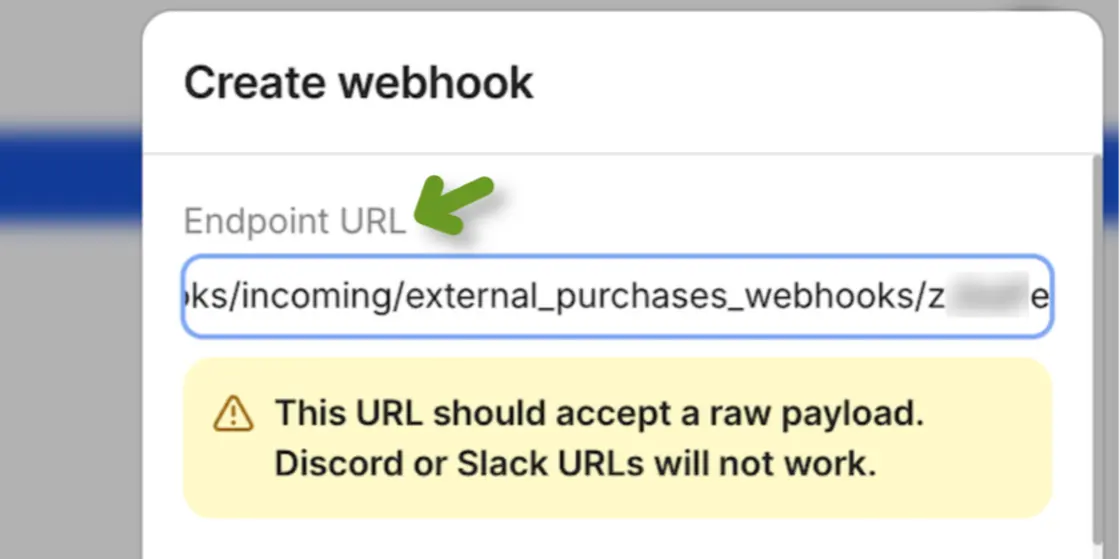
This is separate from the app connection in Part 1. Connecting the Whop Checkout app does not create the webhook, and creating the webhook does not require the app to be connected.
Events to Subscribe To
Section titled “Events to Subscribe To”Subscribe the webhook to these nine events:
| Event | |
|---|---|
payment.succeeded |
refund.created |
payment.failed |
refund.updated |
membership.activated |
dispute.created |
membership.deactivated |
dispute.updated |
membership.cancel_at_period_end_changed |
Whop accepts 80+ event types. Any event type this listener does not act on is dropped rather than stored, so subscribing to extras just adds noise, not coverage.
Step 3: Confirm the Endpoint Is Verified
Section titled “Step 3: Confirm the Endpoint Is Verified”Once the secret is saved, the endpoint shows the last few characters of it and the Mode field is locked.
The secret must be Whop’s ws_ secret from the webhook that sends events to this endpoint. Whop shows it only once, when the webhook is created. If you paste anything that doesn’t start with ws_, ClickFunnels rejects it rather than silently failing every delivery.
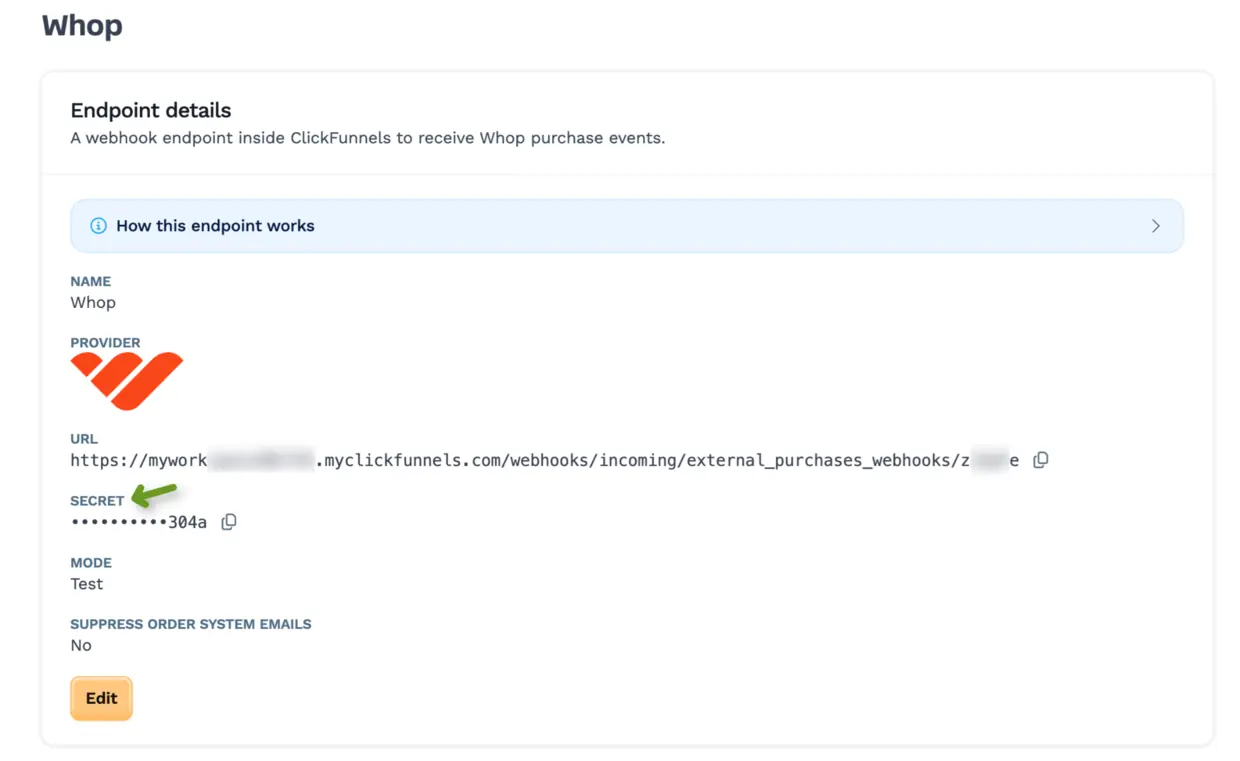
NOTE: A delivery older than five minutes is rejected. If your test events are all being turned away, check that the clock on the sending side is correct and that you are using the right mode’s webhook.
Mapping Whop Plans to ClickFunnels Products
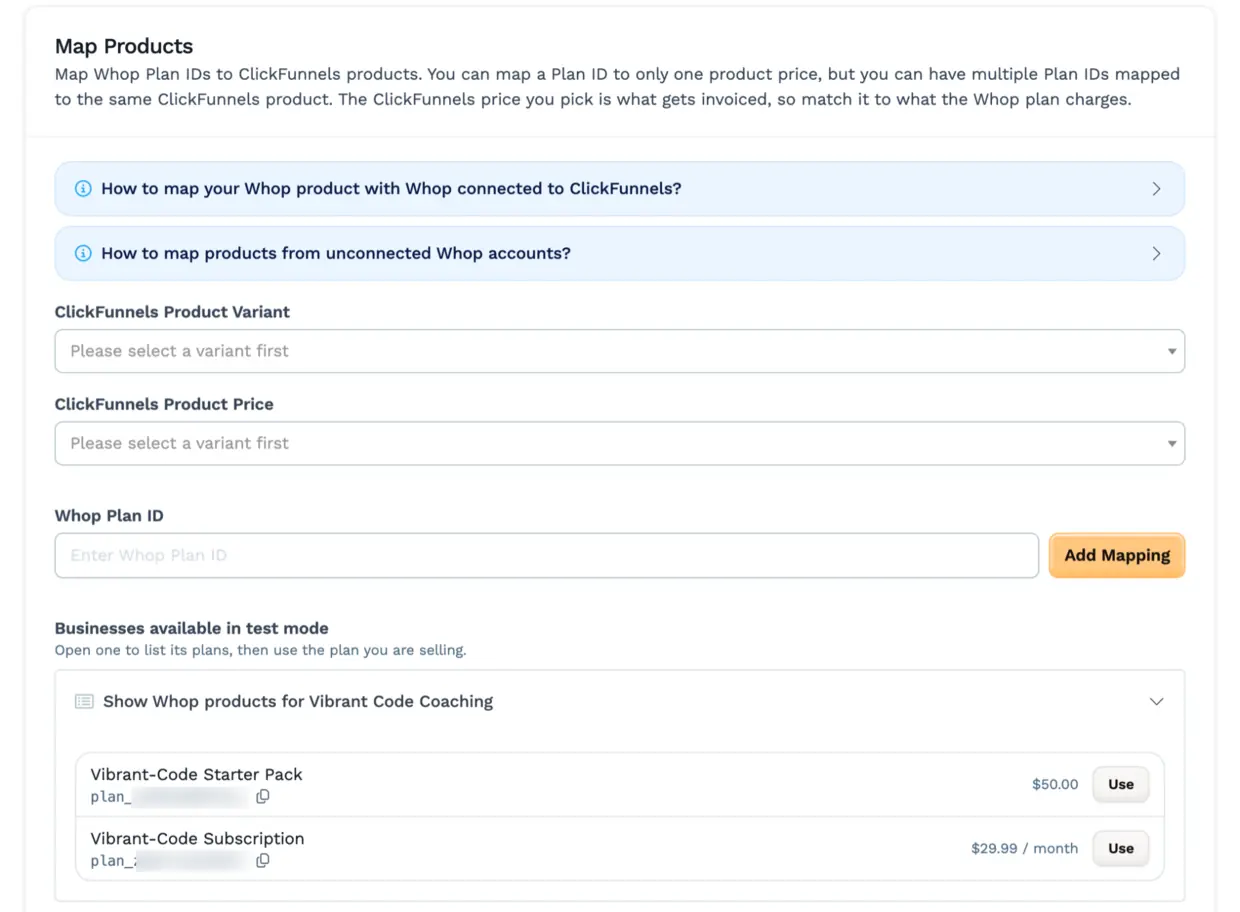
Section titled “Mapping Whop Plans to ClickFunnels Products”Before Whop purchases can create orders in ClickFunnels, you need to map your Whop plans to ClickFunnels products.
Finding Your Whop Plan ID
Section titled “Finding Your Whop Plan ID”There are two routes to a plan ID. Which one applies depends on whether the Whop account is connected to ClickFunnels.
If the Whop account is connected
Section titled “If the Whop account is connected”If you completed Part 1, the connection is already in place. It is read-only as far as your catalog goes: it lets ClickFunnels list your Whop products so you don’t have to hunt for their IDs.
-
On the Map Products page, open the connected business to list its plans
-
Press Use on the plan you are selling to put its
plan_ID into the Whop Plan ID field
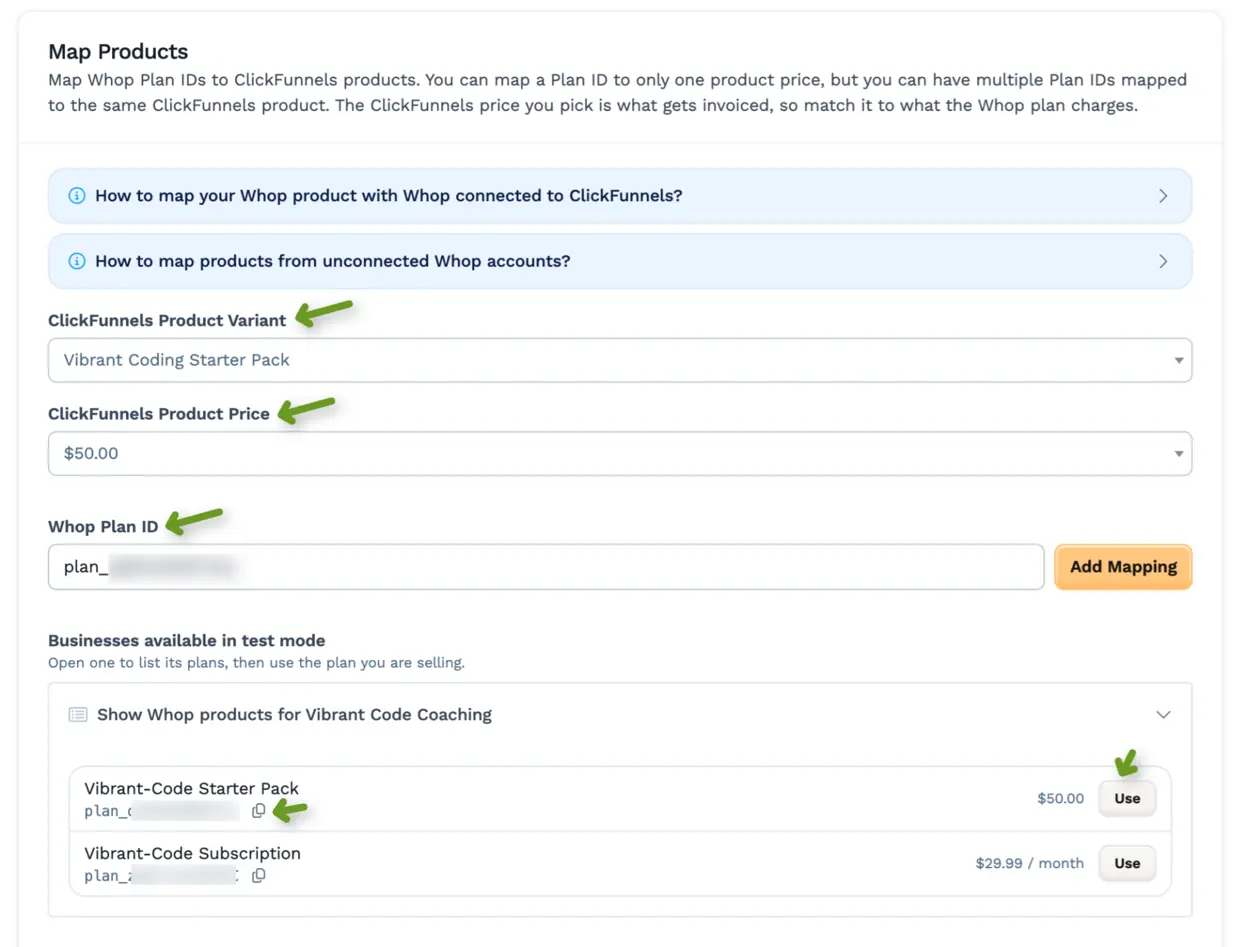
Only the business connected in this endpoint’s own mode is listed. If nothing is listed, connect a Whop account in that mode — or paste the plan ID by hand, as below. Plans that live in your other Whop businesses are never listed here, because the connection does not reach them; paste those IDs by hand.
If the Whop account is not connected
Section titled “If the Whop account is not connected”You do not have to connect an account to map its products. Any Whop plan ID works, as long as the webhook is set up in Whop and its secret is saved on the endpoint.
-
In the Whop dashboard that owns the product, go to Checkout links
-
Click the pricing option you are selling, to open it
-
Read the plan ID off your browser’s address bar. It is the last part of the URL, and it starts with
plan_:whop.com/dashboard/biz_XXXXXXXX/links/checkout/plan_XXXXXXXX -
Copy that
plan_value and paste it into the Whop Plan ID field
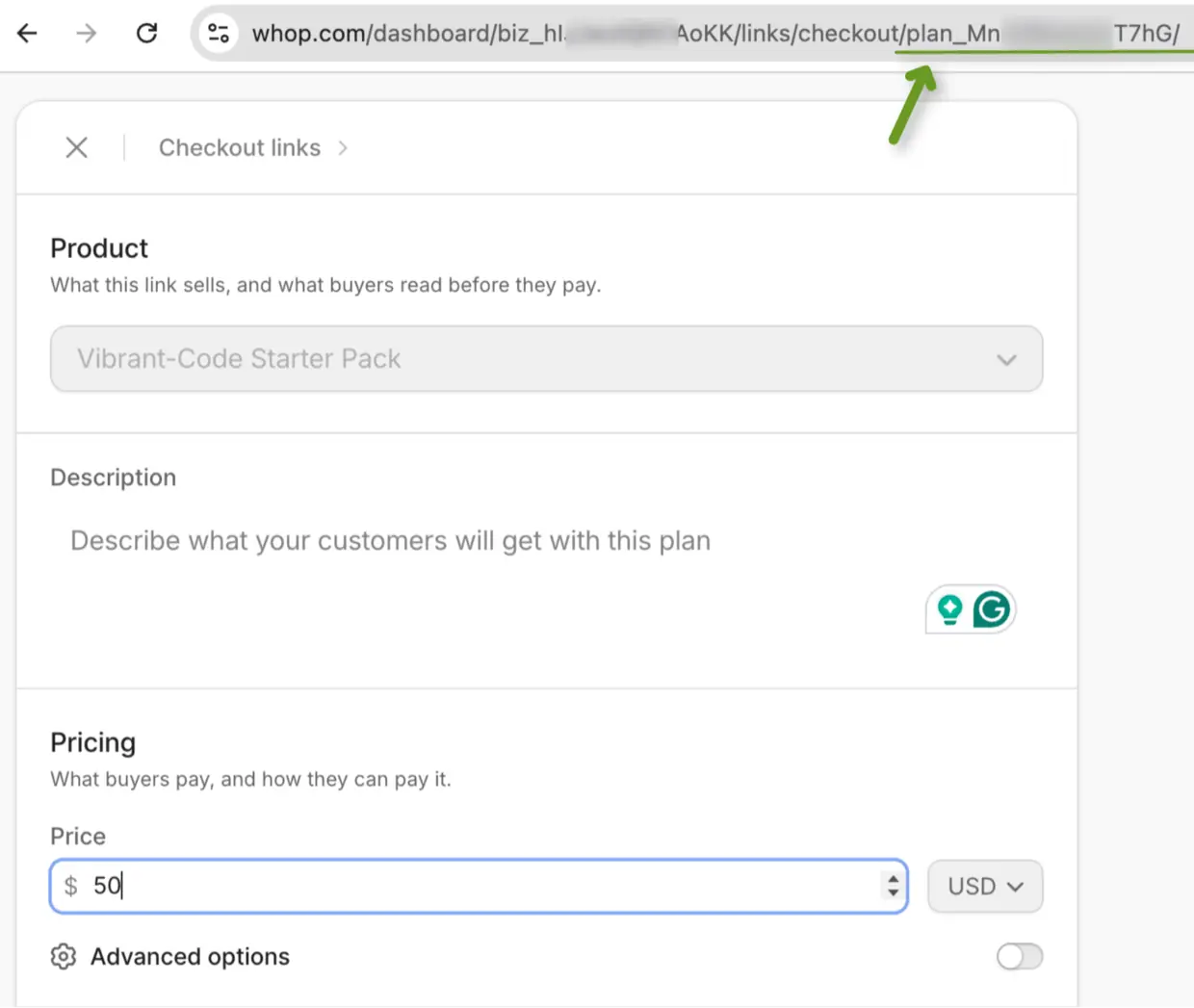
NOTE: This is the same plan you chose on the checkout element in Part 2. If you built the page first, the plan is already picked there — map that same plan here.
Creating a Product Mapping
Section titled “Creating a Product Mapping”-
In ClickFunnels, go to your endpoint listener’s detail page
-
Click Map Products
-
Select the ClickFunnels Product Variant you want to map to
-
Select the ClickFunnels Product Price for that variant
-
Enter the Whop Plan ID (or press Use on a plan in the list below)
-
Click Add Mapping
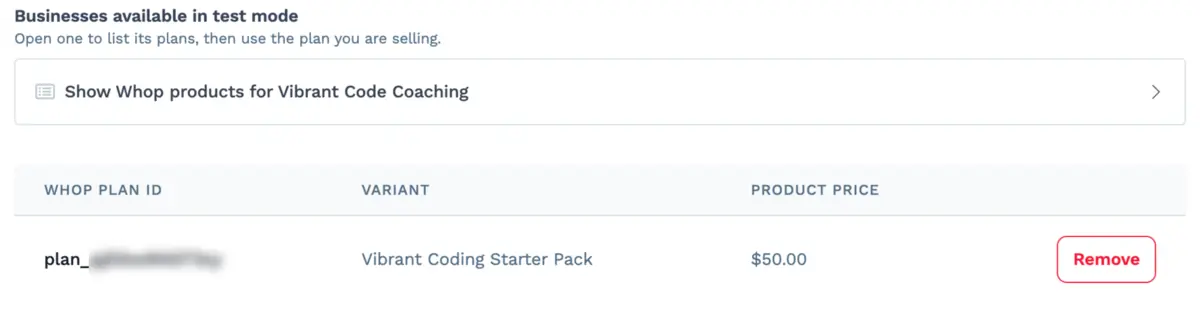
You can map multiple Whop plans to different ClickFunnels products within the same endpoint listener. You can also point multiple Whop plans at the same ClickFunnels product. However, you can’t map the same Whop Plan ID twice on one endpoint.
Map Before the First Sale
Section titled “Map Before the First Sale”A payment.succeeded for a plan you have not mapped cannot become an order, so it is dropped rather than stored — it will not appear under Events at all. Map the plan before the first sale you want recorded.
If a sale has already slipped through, the membership.activated that Whop sends just before it is recorded, and it carries the plan ID. You can copy the Plan ID out of that event under Events, add the mapping, and subsequent purchases will go through.
Supported Events
Section titled “Supported Events”The Whop integration processes the following events:
| Event | What Happens in ClickFunnels |
|---|---|
| payment.succeeded | Creates the order and contact (the only event that creates an order), or records a renewal invoice on an existing subscription |
| payment.failed | Marks the order past due, noting the next retry date if Whop scheduled one |
| membership.cancel_at_period_end_changed | Schedules the cancellation for the period end, or reverses a scheduled cancellation and resumes the subscription |
| membership.deactivated | Ends (churns) the subscription |
| membership.activated | Reactivates a subscription that had ended |
| refund.created / refund.updated | Applies a succeeded refund — full or partial — to the correlated invoice; a refund Whop later reports as failed or canceled is released and the invoice restored |
| dispute.created / dispute.updated | Marks the invoice disputed only when the dispute is finally lost; a dispute later resolved as won restores the invoice and lifts the churn the loss caused |
Note: Everything except the initial payment.succeeded requires an existing order in ClickFunnels. An event that can’t be matched to one is kept with a “Processing Skipped” status and an explanation, for your records.
Every outcome above is written to the order’s notes, so an order tells its own history — for example “Whop membership canceled at period end (effective date: …)” or “Partial refund via Whop of …”.
How Refunds and Disputes Work
Section titled “How Refunds and Disputes Work”Whop does not guarantee the order in which it delivers events, and ClickFunnels keeps every verified delivery, so both refunds and disputes can be given back:
-
A refund is only applied when Whop reports it as succeeded. Pending refunds are recorded but change nothing
-
A refund Whop later reports as failed or canceled under the same refund ID is released, and the invoice returns to whatever the refunds that still stand say it is — along with the access that refund revoked
-
A dispute only changes the invoice when it is finally lost. A dispute later resolved as won restores the invoice and lifts the churn, unless the membership was itself canceled or deactivated in the meantime
-
A report that a later, contradicting report has already superseded is retained rather than applied
An invoice you have moved to a status this listener does not manage — voided, for instance — is left alone rather than recalculated out from under you.
How Cancellations Work
Section titled “How Cancellations Work”Whop manages the subscription; ClickFunnels reflects it:
-
When a member schedules a cancellation, the order is marked cancelled and will churn at the period end
-
When Whop deactivates the membership, the order is churned immediately
-
A scheduled cancellation that the member reverses before the period end resumes the subscription. A membership Whop has already deactivated cannot be resumed this way
NOTE: Customers manage their memberships in their own Whop hub at whop.com/orders. Cancellations and refunds are performed in Whop and reflected in the ClickFunnels order.
Monitoring Events
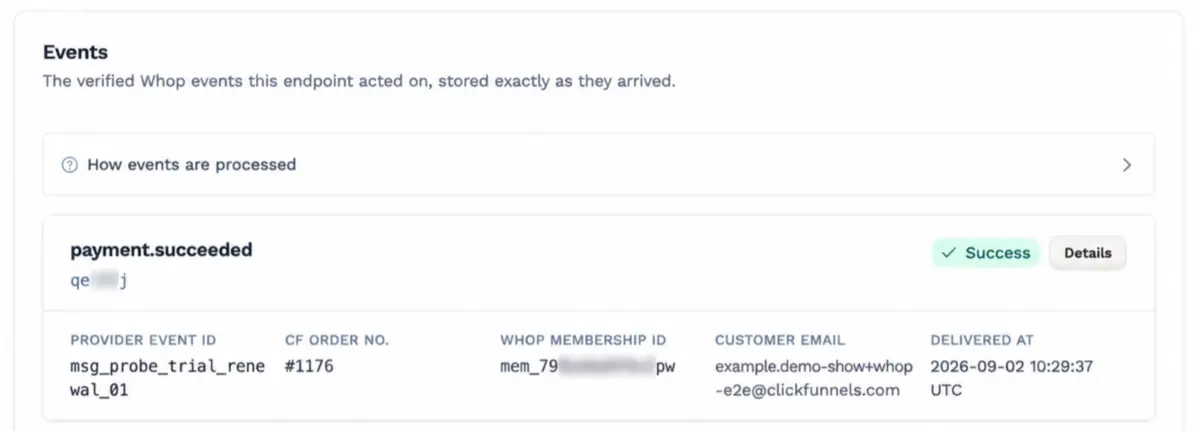
Section titled “Monitoring Events”The Events section at the bottom of the endpoint listener page shows each verified Whop delivery as a card, stored exactly as it arrived. Each card carries a status:
| Status | Description |
|---|---|
| Pending | Received and not finished processing |
| Success | Produced or updated a ClickFunnels order |
| Processing Skipped | Nothing to do with it — usually an update to a purchase ClickFunnels never recorded, or a status that changes nothing |
| Duplicate Event | Already processed |
| Processing Failed and the other failure statuses | Could not finish; the reason is on that event’s Details page |
Viewing Event Details
Section titled “Viewing Event Details”For each event, you can see:
-
Event Type – the Whop event (e.g.,
payment.succeeded) -
Provider Event ID – Whop’s own ID for the delivery
-
Whop Membership ID – the membership the event belongs to
-
Processed Resource ID – the payment, refund, or dispute the event acted on
-
Customer Email – linked to their ClickFunnels contact
-
CF Order No. – link to the corresponding ClickFunnels order
-
Received At – when the delivery arrived
-
Request Headers and the full JSON payload – on the event’s Details page
Viewing External Purchase Webhooks on an Order
Section titled “Viewing External Purchase Webhooks on an Order”When viewing an order created by a Whop purchase, you will see an External Purchase Webhooks card on the order detail page, listing every event associated with that order.
Other Settings
Section titled “Other Settings”Suppress Order System Emails stops ClickFunnels sending its own confirmation, cancellation and churn emails for orders created by this endpoint. Turn it on when Whop — or you — already email the buyer.
Managing With Agents
Section titled “Managing With Agents”External Purchases is available through the ClickFunnels API and MCP, so an AI agent can create endpoints, set the signing secret, and work through the product mappings for you.
Frequently Asked Questions
Section titled “Frequently Asked Questions”Q: Do I have to set up External Purchases to sell through the Whop checkout?
A: No. Part 3 is optional. The embedded checkout takes payments on its own, and Whop is the system of record for the payment either way. Add External Purchases when you want the resulting orders and invoices inside ClickFunnels.
Q: Can I use External Purchases without the embedded checkout?
A: Yes. The endpoint listens to your Whop account, so it records purchases made through a Whop checkout link or Whop’s storefront just as well as ones made through the element on your funnel page.
Q: Will my funnel stats show sales and revenue from the Whop checkout?
A: No. Whop purchases never update a funnel’s sales or revenue figures, because the payment is taken by Whop rather than processed through ClickFunnels. Setting up External Purchases does not change this — it creates orders, and those orders are not attributed to the funnel. Pageviews and opt-ins on the step are unaffected and still tracked normally. See Funnel Stats and Whop Purchases.
Q: My funnel shows traffic but zero sales, and I know the Whop checkout is selling. Is something broken?
A: No, that is expected. The step records views and opt-ins as usual, but a Whop purchase is not counted as a funnel sale. Check your Whop dashboard for what actually sold, or your ClickFunnels orders list if you set up External Purchases.
Q: Can I sell through a Whop business I already have?
A: Not through the Whop Checkout app. ClickFunnels creates its own business in your Whop account and sells through that one; the businesses you set up yourself are left alone and are not offered. Rebuild in the connected business whatever you want to sell through ClickFunnels. Part 3 is different — External Purchases listens to a Whop webhook, so a purchase made in any of your businesses can still become a ClickFunnels order.
Q: Do my existing Whop products move into the new business?
A: No. It is a new, empty business. Create the products and plans you want to sell through ClickFunnels inside it, from the Whop dashboard button on the Whop Checkout page.
Q: I connected a second workspace to the same Whop account. Do I get a second business?
A: No. Whop allows one ClickFunnels-connected business per Whop account, so the dialog finds the one you already have and offers Use this business.
Q: What happens to the business if I disconnect?
A: Nothing. It stays in your Whop account with its products and its sales; disconnecting only removes ClickFunnels’ access to it. Connecting the same Whop account again offers to attach it back.
Q: Can I rename the business after it’s created?
A: Yes, in the Whop dashboard. The Whop Checkout page reads the name from Whop each time it loads, so the new name shows there.
Q: Why does ClickFunnels need my Whop email address?
A: The business is created against it, and whoever owns that address owns the business. So it has to be an address Whop has verified for the account that just authorized — not one typed into a form, and not your ClickFunnels login, which may be a different address entirely.
Q: Does connecting the Whop Checkout app create the webhook for External Purchases?
A: No — they are separate. You create the webhook yourself in the Whop dashboard. The app connection is what lets ClickFunnels list your plans so you can pick them, in the editor and on the Map Products page.
Q: Why does my published checkout look empty?
A: The funnel’s live/test mode decides which plan is used, and no plan is set for that mode. Open the element, switch the Live/Test buttons to the mode the funnel is in, and pick a plan.
Q: Can I have multiple Whop endpoint listeners?
A: Yes. Each Whop webhook lives in its owner’s Whop dashboard, so a workspace can run any number of Whop endpoints, each fed by a different Whop account or business. You also need a separate endpoint for Live and Test.
Q: Why can’t I change the Mode on my endpoint?
A: Because it already holds a ws_ signing secret, which verifies deliveries from one specific Whop account. Whop’s sandbox is a separate account, so switching would break verification. Create a separate endpoint for the other mode.
Q: I deleted the endpoint in ClickFunnels — is the webhook gone from Whop?
A: No. Deleting the endpoint leaves the webhook untouched in Whop; remove it from the Whop dashboard as well.
Q: Why can’t I delete my endpoint?
A: Endpoints that have received events cannot be deleted, because their event history must be retained.
Q: A sale happened but there is no event at all under Events. Why?
A: Either the plan wasn’t mapped yet (an unmapped sale is dropped, not stored), the webhook isn’t subscribed to that event type, or the delivery failed verification. Check the mapping first, then the webhook’s event subscriptions in Whop.
Q: Are Whop orders assigned ClickFunnels invoice numbers?
A: Whop manages its own payment records; the ClickFunnels order is the record of what was invoiced against the price you mapped.
Troubleshooting
Section titled “Troubleshooting”“The plan button is disabled in the editor”
Section titled ““The plan button is disabled in the editor””Possible causes:
- The environment you have selected has no Whop connection
Solution:
-
Connect that mode from the Whop Checkout app (Part 1), then reopen the element
-
Remember both modes are separate connections — connecting live does not connect test
“The plan picker in the editor is empty”
Section titled ““The plan picker in the editor is empty””Possible causes:
- The connected business has no plans yet — a business ClickFunnels has just created is empty
Solution:
-
Open the business with the Whop dashboard button on the Whop Checkout page, create the product and its pricing there, then reopen the picker
-
Plans in your other Whop businesses are not listed: the connection only reaches the business it created
“The checkout renders empty on the published page”
Section titled ““The checkout renders empty on the published page””Possible causes:
- No plan is set for the environment the funnel is currently in
Solution:
-
In the element’s Checkout Settings, select each of Live and Test in turn and confirm a plan is chosen for both
-
The editor’s validation panel names the mode that is missing a plan
“I can’t connect a Whop account”
Section titled ““I can’t connect a Whop account””Possible causes:
- That mode is already connected
Solution:
- Disconnect the existing connection for that mode first, then connect again
“We couldn’t create the business on Whop”
Section titled ““We couldn’t create the business on Whop””Possible causes:
- Whop refused the request, or could not be reached while it was being made
Solution:
-
Open the dialog again from the Connect link in the Connected Business column and retry. Retrying is safe: the dialog asks Whop what you already have before it creates anything, so a business that did get created is offered back to you with Use this business rather than duplicated
-
If it keeps failing, contact ClickFunnels support
“This connection was made before we could read your Whop email address”
Section titled ““This connection was made before we could read your Whop email address””Possible causes:
-
The connection was authorized before ClickFunnels started asking Whop for your email address, so there is no verified address to create a business against
-
Whop has not verified the email address on the account that authorized
Solution:
-
Disconnect that mode and connect it again; the new authorization collects the address
-
If it happens on a fresh connection, verify your email address in Whop and connect again
“This endpoint is not registered with Whop yet”
Section titled ““This endpoint is not registered with Whop yet””Possible causes:
- No signing secret has been saved on the endpoint
Solution:
-
Create the webhook in your Whop dashboard under Developer > Webhooks, pointed at the endpoint URL
-
Copy the
ws_signing secret Whop shows at creation and save it on the endpoint -
If you have lost the secret, delete the webhook in Whop and create a new one to get a fresh secret
“The secret is rejected when I save it”
Section titled ““The secret is rejected when I save it””Possible causes:
- The value pasted is not Whop’s signing secret
Solution:
-
The signing secret starts with
ws_. An API key or a webhook ID will not verify a delivery and is refused -
Whop reveals it only once, when the webhook is created — recreate the webhook if you no longer have it
“No events appearing in ClickFunnels”
Section titled ““No events appearing in ClickFunnels””Possible causes:
-
The webhook in Whop points at the wrong URL
-
The webhook belongs to the other mode’s Whop account (sandbox versus live)
-
The webhook is not subscribed to the event types this listener acts on
-
Deliveries are being rejected as older than five minutes
Solution:
-
Re-copy the Endpoint URL from ClickFunnels into the Whop webhook
-
Confirm the Whop account matches the endpoint’s Mode
-
Subscribe the webhook to all nine events listed on the endpoint page
“Events show Processing Skipped”
Section titled ““Events show Processing Skipped””Possible causes:
-
An update arrived for a purchase ClickFunnels never recorded — commonly a membership that was sold before the integration was set up
-
A refund still pending, or a dispute still awaiting a response — neither settles anything yet
Solution:
-
This is expected for purchases that predate the integration; the events are kept for your records
-
Open the event’s Details page to read the specific reason
“The order total doesn’t match what Whop charged”
Section titled ““The order total doesn’t match what Whop charged””Possible causes:
- The mapped ClickFunnels price does not match the Whop plan
Solution:
-
ClickFunnels invoices the price you mapped, not the amount Whop charged
-
Edit the mapping so the ClickFunnels price matches the Whop plan’s amount, currency, recurrence, and trial