
How to Create a Book Funnel
Published: Updated:
A Book Funnel is a powerful way to sell a low-ticket front-end product—like a physical or digital book—while offering strategic upsells that increase order value. In this article, we’ll walk you through how to create a Book Funnel in ClickFunnels using a pre-built template.
Requirements
Section titled “Requirements”-
An active ClickFunnels account
-
Products created in your ClickFunnels workspace
-
Payments AI connected to the workspace (to use Stripe, connect it through Payments AI), or an existing direct Stripe connection
What is a Book Funnel
Section titled “What is a Book Funnel”A Book Funnel is a pre-designed sales funnel that helps you promote a book or ebook and offer upsell products to increase your average order value. It follows a guided customer journey that reduces friction and maximizes conversions. Unlike a traditional bookstore or product listing page, a Book Funnel provides a focused experience—from product promotion to checkout—making it ideal for marketers, authors, and educators.
Example: Selling a Book with a Funnel
Section titled “Example: Selling a Book with a Funnel”Imagine you’re promoting a printed book. Instead of sending your visitors to a generic store, you guide them to a 2-Step Order Page featuring your book, a compelling offer, and an order bump (e.g., an audiobook version). Once the customer completes the order, they are shown a one-time upsell page offering a related course or bundle. Finally, they land on a confirmation page with order details and delivery instructions.
Book Funnel Structure
Section titled “Book Funnel Structure”A traditional Book Funnel is built with a step-by-step structure designed to highlight your book offer, present additional product opportunities, and guide customers toward completing their purchase—all while keeping the user experience simple and conversion-focused.
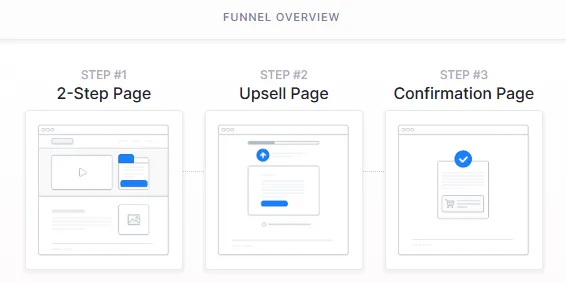
Funnel Overview:
Section titled “Funnel Overview:”Each Book Funnel template in ClickFunnels follows a proven page structure that supports your sales strategy:
-
2-Step Order Page: Collects customer details and payment info; often includes a product video and strong sales copy. Order bumps can be added here.
-
Upsell Page (OTO): Offers a one-click upsell after the initial order.
-
Confirmation Page: Confirms the order and summarizes all purchases.
Creating a Book Funnel in ClickFunnels
Section titled “Creating a Book Funnel in ClickFunnels”Follow these steps to quickly create your Book Funnel using one of the available templates:
-
Go to Funnels and click Create Funnel. The Funnel Templates page opens.
-
Use Search, or open Filters and pick a Funnel Type (Lead Funnels, Product Funnels, Presentation Funnels, Appointment Funnels or Challenge Funnels), to find a template that fits your Book Funnel. Click Preview to look through it, then click Use This Template. ClickFunnels installs the funnel and opens it in the funnel editor.
-
Prefer to build it yourself? Click Start From Scratch, or let Build with AI create the funnel for you.
For the full steps, see How to Create a New Funnel.
Once your funnel is created, update each page by editing the text, images, videos, and connecting products where needed.
Adding Products to the Order Page
Section titled “Adding Products to the Order Page”Adding products to your Book Funnel is an essential step that allows you to process payments and fulfill orders. Without connecting a product to your Order Page, your order form will not function, and customers won’t be able to complete their purchase.
To attach your book, open the Order Page’s Three-Dot Menu (⋮) and select Add Products (or click the green Products icon on the step card), then select your product. To offer an add-on, such as an audiobook version, attach it to the same step and turn on Product is an order bump in its settings (⚙). If you create a new product from the product selection window, it opens in a new browser tab and isn’t attached automatically, so return to the funnel and select it. For the full steps, see Adding Products in a Funnel Step.
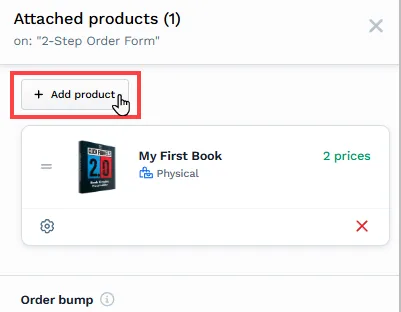
The Book Funnel template features an upsell page that also requires product additions. Please repeat the previously mentioned process on the upsell page to include the upsell product appropriately.
Sending Automated Emails Using a Workflow
Section titled “Sending Automated Emails Using a Workflow”To ensure your customers receive important order updates and follow-up communications, it’s recommended to send automated emails using a Workflow in ClickFunnels.
Common Email Types:
Section titled “Common Email Types:”-
Order Confirmation Email: Sent immediately after the purchase is completed.
-
Upsell Follow-Up Email: Encourages buyers to consider additional offers they may have skipped.
-
Delivery or Access Instructions: Share how customers can access a digital product or provide tracking info for a physical book.
-
Abandoned Cart Sequence: Reminds visitors who didn’t complete checkout to return and finalize their order. These can include limited-time discounts or additional product benefits.
-
Post-Purchase Promotions: Share bonus resources, referral incentives, or exclusive offers to increase customer engagement.
Attaching Workflows to a Funnel Step
Section titled “Attaching Workflows to a Funnel Step”Once your email workflow is ready, you can connect it to your Book Funnel so that contacts automatically enter the sequence based on their activity.
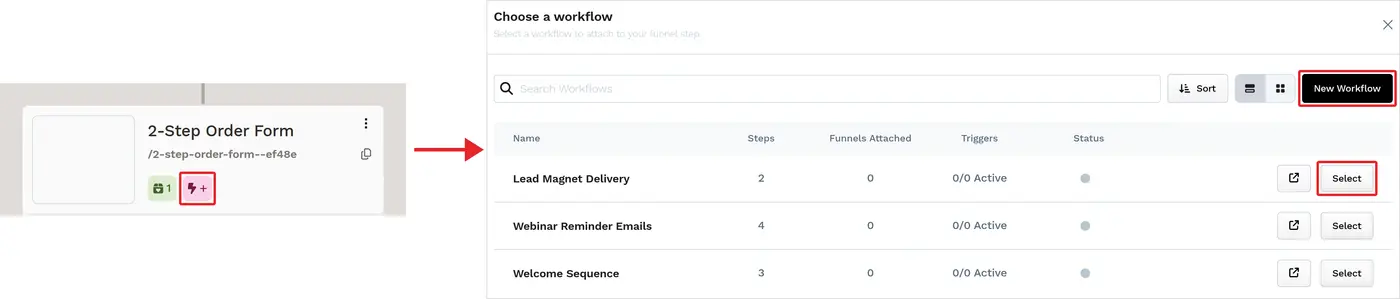
To attach a workflow, open your Book Funnel and click the Lightning Bolt (⚡) icon on the step where the automation begins (e.g., the Order Page). In the Choose a workflow dialog, select an existing workflow or click New Workflow, then choose the events that trigger it. For the full steps, see Adding Workflows to Funnel Steps.
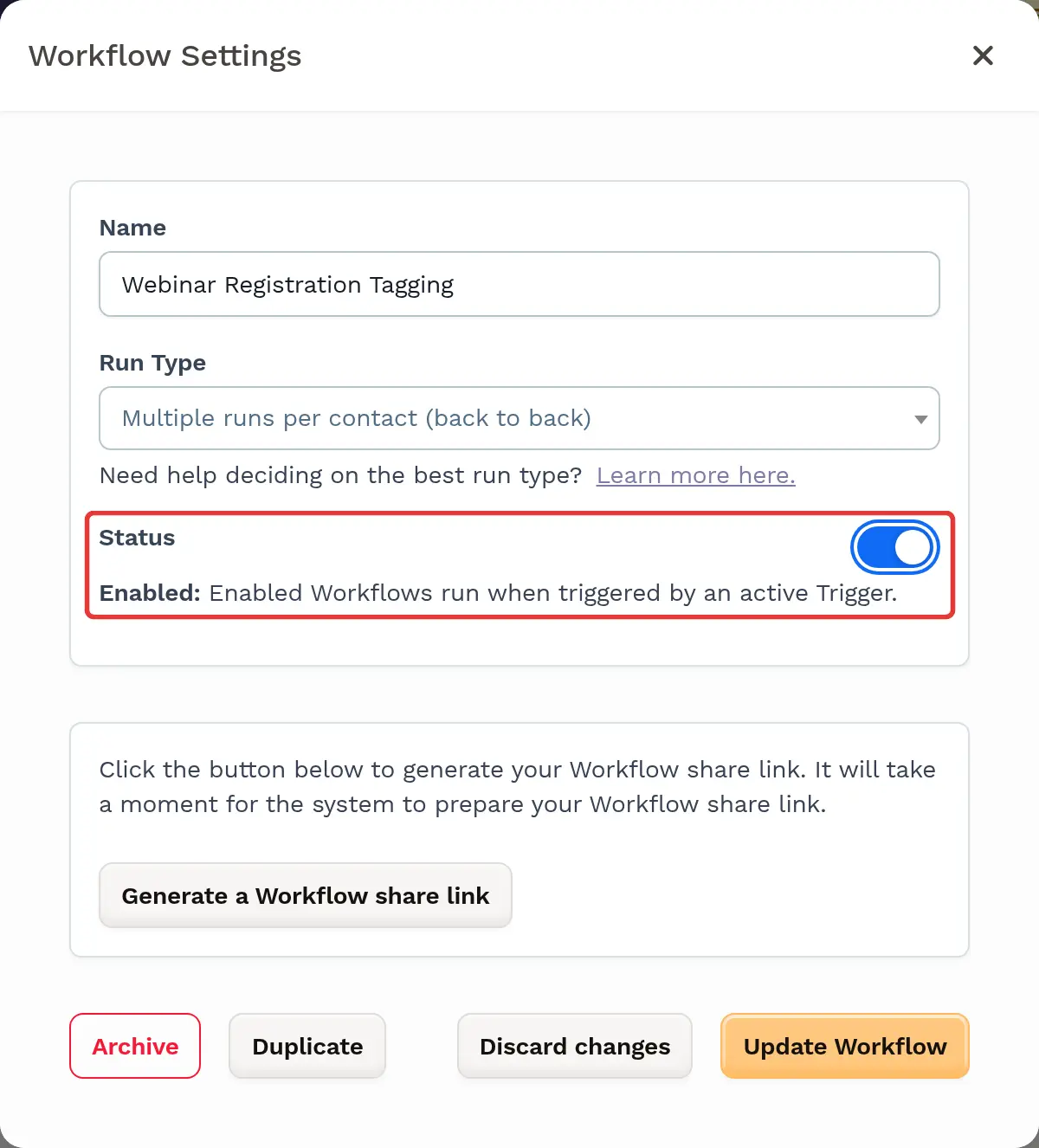
Make sure the workflow is enabled: open the workflow’s Settings, turn on Status, then click Update Workflow. Disabled workflows don’t run when triggered.
Fulfilling Customer Orders After Purchase
Section titled “Fulfilling Customer Orders After Purchase”If your Book Funnel includes physical books, digital downloads, or a combination of both, it’s important to set up appropriate fulfillment methods to ensure a smooth post-purchase experience for your customers.
Physical Product Fulfillment Methods:
Section titled “Physical Product Fulfillment Methods:”-
ShipStation Integration: If your business uses ShipStation for logistics and shipping, you can connect your account in ClickFunnels. When a customer completes a purchase, order data is automatically sent to ShipStation for processing, packaging, and shipping.
-
Shippo Integration: ClickFunnels also integrates with Shippo, which allows you to generate accurate shipping labels, compare live carrier rates, and access discounted shipping prices. When connected, Shippo can automatically display calculated shipping costs at checkout, helping you streamline fulfillment while offering cost-effective shipping options for your customers.
-
Zendrop Fulfillment: If your product was imported from Zendrop, ClickFunnels automatically sends the order data to Zendrop when the purchase is made. Zendrop then handles the packaging and delivery of the product on your behalf.
-
Manual Fulfillment: If you’re fulfilling orders manually, you can manage and track customer purchases inside your Orders tab. You’ll need to mark orders as fulfilled manually or use internal processes to ship products and notify customers.
To give you a general overview of how order fulfillment works in a Book Funnel, here are the most common scenarios depending on your business needs:
-
Automated Fulfillment with Shipping Services: If you want to fully automate shipping—including label generation, packaging, and delivery—you can use integrated services like ShipStation or Zendrop. These platforms handle logistics after the order is placed.
-
Manual Fulfillment with Live Shipping Rates: If you prefer to fulfill orders yourself (e.g., from your home or warehouse) but still want to charge accurate shipping fees, consider using Shippo. It allows you to display live carrier rates during checkout and print shipping labels manually.
-
Creating Shipping Profiles: You can set up domestic and international shipping profiles in ClickFunnels to display calculated shipping prices automatically when the customer enters their address during checkout.
-
Manual Order Management: You can also manually manage your entire fulfillment process by reviewing orders in the Orders tab, handling packaging and shipping yourself, and marking each order as fulfilled.
-
Manual Fulfillment: You can manually manage customer orders by reviewing purchases in your Orders tab. Once shipped, you can mark orders as fulfilled.
-
Shipping Integrations: If you’re using third-party services like ShipStation or Shippo, ClickFunnels can send order data directly to those platforms for automated label creation and tracking.
Digital Product Fulfillment (Ebooks or Downloads):
Section titled “Digital Product Fulfillment (Ebooks or Downloads):”If you’re selling an ebook or other digital asset, you can easily manage delivery using Downloads in ClickFunnels My Assets.
Uploading Digital Assets:
-
Navigate to Workspace Settings > My Assets > Downloads in your ClickFunnels workspace.
-
Upload your ebook file (.pdf, .doc, .txt, or other formats).
Delivering Digital Assets Automatically:
Once uploaded, you can add the digital asset to your product from its Access tab (Add access > Downloads). When a customer completes a purchase, the file becomes accessible to the buyer.
-
From your ClickFunnels dashboard, click Products and select All Products.
-
Access the product added to your book funnel.
-
Open the Access tab.
-
Click Add access and choose Downloads.
-
In the Downloads dialog, select the files buyers of this product get, or click Select all files. If you don’t have any files yet, upload them first from Downloads (the dialog links to it with Go to Downloads).
-
Click Save Access to apply the settings.
Summary
Section titled “Summary”To successfully set up and manage a Book Funnel in ClickFunnels, here’s what you need to do:
-
Import a pre-built Book Funnel template to get started with the essential funnel structure.
-
Create a product and attach it to the Order Page to enable payment processing and fulfillment.
-
Customize each funnel page to reflect your book’s messaging, branding, and offer strategy.
-
Set up workflows to automate email communication, including order confirmations, upsell follow-ups, and abandoned cart sequences.
-
Define your fulfillment method—whether you’re delivering digital products via Downloads or shipping physical books through manual or integrated fulfillment options.
This setup helps you deliver your products efficiently while creating a high-converting, customer-friendly purchase experience.