
How to Duplicate a Funnel
Published: Updated:
Duplicating a funnel allows you to create an exact copy of an existing funnel within your workspace, saving you time and effort. This feature is perfect for reusing successful funnels or testing new variations without starting from scratch. In this article, we’ll guide you through the steps to duplicate a funnel in your workspace, making it easy and efficient to manage and optimize your campaigns.

Requirements
Section titled “Requirements”-
An active ClickFunnels account
How to Duplicate a Funnel in ClickFunnels
Section titled “How to Duplicate a Funnel in ClickFunnels”Follow these simple steps to create a duplicate of an existing funnel inside your workspace:
-
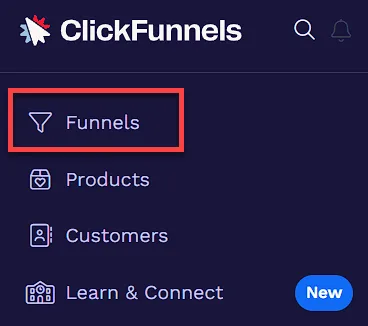
Click the Funnels page located on the left-hand side of your account to view all your funnels.
-
Click the Duplicate Funnel icon on the right side of the funnel options, next to the funnel you want to duplicate.
-
You’ll see the message Your Funnel is being duplicated. You’ll get a notification when it’s ready. The copy is created in the background with all existing steps and settings, and appears in your Funnels list when it’s ready.
You can also duplicate a funnel from its settings by clicking Duplicate Funnel. In the funnel workflow builder’s settings, you’re asked to confirm by clicking Yes, Duplicate Funnel. See Funnel Settings Overview.
What Gets Copied
Section titled “What Gets Copied”-
The copy is named Copy of followed by the original funnel’s name.
-
The copy starts in test mode, with Live Mode (Payments) turned off.
-
Tags aren’t copied to the new funnel.
-
Workflows, products, and calendar events associated with the funnel aren’t duplicated, but the new funnel keeps its associations with them. Changes you make to the original funnel after duplicating it don’t carry over to the copy.