
'Awaiting Response' Step - Wait Until the Contact Reply in MessageHub
Published: Updated:
The “Awaiting response” step in ClickFunnels workflows allows you to pause the workflow until a contact responds to a MessageHub message. This step is designed to work with the “Send MessageHub message” step. It provides a way to wait for a specific duration and decide whether to continue or complete the workflow based on contact response. In this article, we will explain how to use the “Awaiting response” step in a workflow.
Requirements
Section titled “Requirements”-
An active ClickFunnels account
-
A workflow created in your workspace
-
A “Send MessageHub message” step added to the workflow before the “Awaiting response” step
A Use Case for “Awaiting response” Step
Section titled “A Use Case for “Awaiting response” Step”The “Awaiting response” step is ideal for pausing a workflow until a contact provides a response to a message sent from the preceding “Send MessageHub message” step in the workflow. Let’s look at an example involving an online course:
Scenario - Follow-up on Student Feedback in an Online Course:
Imagine you are running a course in ClickFunnels and have set up a Web Widget using MessageHub on your course pages. This widget allows students to easily communicate with you by sending messages, asking questions, or providing feedback directly from the course interface.
-
Start by Sending an Automated Message: Suppose you want to engage students after they complete a module or lesson. You set up a workflow to automatically send a message via the Web Widget, asking for their feedback or if they have any questions. This is done using the “Send MessageHub message” step.
-
Pause the Workflow Until a Response is Received: After sending the initial message, you add the “Awaiting response” step to your workflow. This step pauses the workflow until the student replies via the Web Widget.
-
Handle Non Responses After a Set Duration: If no response is received within a predefined time (e.g., 3 days), you can configure the workflow to either Complete Run (end the workflow run for that student) or Continue Run (proceed with an alternative action, such as sending a reminder or offering additional resources). This ensures that no student is left unattended and your communication remains proactive.
Adding the “Awaiting response” Step to Your Workflow
Section titled “Adding the “Awaiting response” Step to Your Workflow”-
From your ClickFunnels dashboard, navigate to the Automations app and select Workflows.
-
Open an existing workflow or create a new one.
-
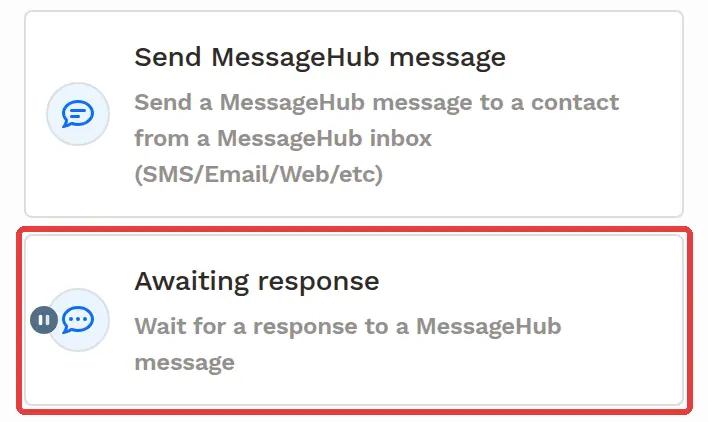
Ensure a “Send MessageHub message” step is added. The “Awaiting response” step can only be added after a “Send MessageHub message” step in the workflow; until then, it is grayed out with the tooltip “Add a “Send MessageHub message” step to use this step”. Usually, you place it directly after the “Send MessageHub message” step.
-
Click on the Plus Icon (+) in your workflow editor.
-
Select the “Awaiting response” option under the MessageHub category.
Configuring the “Awaiting response” Step
Section titled “Configuring the “Awaiting response” Step”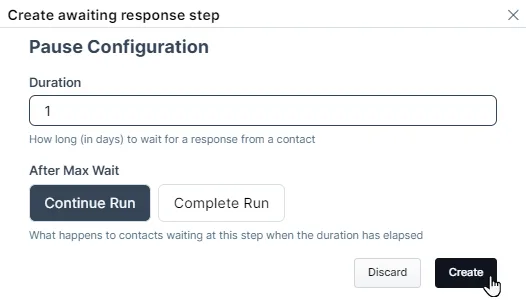
The Create awaiting response step dialog opens with a Pause Configuration section.
-
Set the Duration: In the configuration dialog, enter the number of days to wait for a response from the contact in the Duration field. This determines how long the workflow will pause at this step, waiting for a response to the MessageHub message. Enter a whole number of days from 1 to 364. The default is 1 day.
-
Choose an option under After Max Wait: In the After Max Wait field, choose what happens to contacts who haven’t replied when the duration has elapsed. The default is Continue Run.
-
Continue Run: Contacts who haven’t replied by the end of the duration move to the next step in the workflow. This is useful if you want to keep the workflow moving forward without waiting indefinitely for a response.
-
Complete Run: This option will mark the workflow as completed for contacts if no response is received after the max wait time has passed. The remaining steps after the “Awaiting response” step will not be triggered for that contact; their workflow run is completed.
-
-
Save the Step: Click on Create to save the step and apply the configuration to the workflow.
When a contact replies in the MessageHub conversation started by the “Send MessageHub message” step in their workflow run, they move on to the next step right away, without waiting for the rest of the duration.