
ClickFunnels MCP Server
Published: Updated:
Overview
Section titled “Overview”The ClickFunnels MCP Server connects an AI assistant — like Claude or ChatGPT — directly to your ClickFunnels workspaces. Using the Model Context Protocol (MCP), your assistant can look up your workspace data and take action on your behalf through plain conversation, backed by the same functionality that’s available in the ClickFunnels app.
Once connected, you can ask your AI assistant to:
-
Build and manage funnels, including funnel pages and steps
-
Manage contacts and CRM tags
-
Manage products and stores, including checkout setup
-
Create and manage courses and course content
-
Manage sites and blog content
-
Track marketing opportunities and deals
The connection belongs to you, not to a single workspace. When you authorize it, you choose which of your ClickFunnels workspaces it may reach — one, several, or all of them — and your assistant can then work in any of those workspaces, one at a time. See Working across multiple workspaces for how that works day to day.
The new MCP Server and the legacy connector
Section titled “The new MCP Server and the legacy connector”There are currently two ClickFunnels MCP connectors:
-
The new MCP Server at
https://agents.myclickfunnels.com/mcp. This is the one to use going forward. It replaces the legacy connector and offers expanded functionality, and you connect it with your own ClickFunnels login. -
The legacy MCP Server at
https://mcp.myclickfunnels.com/sse, described in earlier versions of this article. It still works, and we are not breaking it. If you already have it connected, you don’t need to do anything — it will keep functioning until it is eventually sunset, and we’ll communicate separately before that happens. It’s still listed as ClickFunnels (Legacy) in AI clients that offer a connector directory, so you may see both connectors side by side there.
One thing to know: having the legacy connector connected does not give you the new tools. If you want the new functionality, disconnect the legacy ClickFunnels MCP connector in your AI client, then connect the new one using the steps below.
Requirements
Section titled “Requirements”Before you begin, make sure you have:
-
An active ClickFunnels account with a login you can authorize with
-
Admin access to at least one workspace. The MCP Server only works with workspaces you administer — either because you’re an admin collaborator on the workspace itself, or because you’re an admin of the team that owns it (which covers every workspace on that team). Workspaces where you’re a non-admin collaborator are not offered and can’t be reached. If you don’t administer any workspace, the connector will sign in successfully but tell you that admin access to at least one workspace is required — ask a team admin to grant it.
-
An MCP-compatible AI client that supports remote MCP servers over HTTP with OAuth — for example Claude (Desktop or web), ChatGPT, or a generic MCP client such as n8n or Manus
How to Connect
Section titled “How to Connect”Connecting has changed. Instead of the old workspace-linked setup, you now authorize the MCP Server with your own individual ClickFunnels login through OAuth — the same style of authorization flow you’d use when connecting ClickFunnels to Zapier, Make, or n8n. The connection is tied to the user who authorizes it, not shared at the workspace level.
The exact steps vary slightly depending on which AI client you use, but the flow is the same everywhere: add the connector, sign in to ClickFunnels, pick the workspaces the connection may reach, and pick how much it’s allowed to do.
There are two ways to add it:
-
From your AI client’s connector directory. Some clients list ClickFunnels in a built-in directory of available connectors, so there’s no URL to type — see Add ClickFunnels from your AI client’s connector directory below.
-
As a custom connector. If your client doesn’t list ClickFunnels — or you’d rather set it up by hand — add it using the connector URL. See Add ClickFunnels as a custom connector.
Either way, the rest of the flow is identical: you sign in to ClickFunnels and authorize the connection.
Add ClickFunnels from your AI client’s connector directory
Section titled “Add ClickFunnels from your AI client’s connector directory”Some AI clients keep a built-in directory of available connectors, and ClickFunnels is listed in it. When your client has one, there’s nothing to copy or paste:
-
Open your AI client’s Settings and go to its connectors screen.
-
Find the directory of available connectors — depending on the client, it may sit behind a tab called Discover, Directory, Browse, or similar.
-
Search for ClickFunnels.
-
Add the ClickFunnels result, usually with an add or + button next to it.
Your client then hands off to ClickFunnels so you can sign in and authorize the connection, which is the same flow described in Sign in with your ClickFunnels login below.
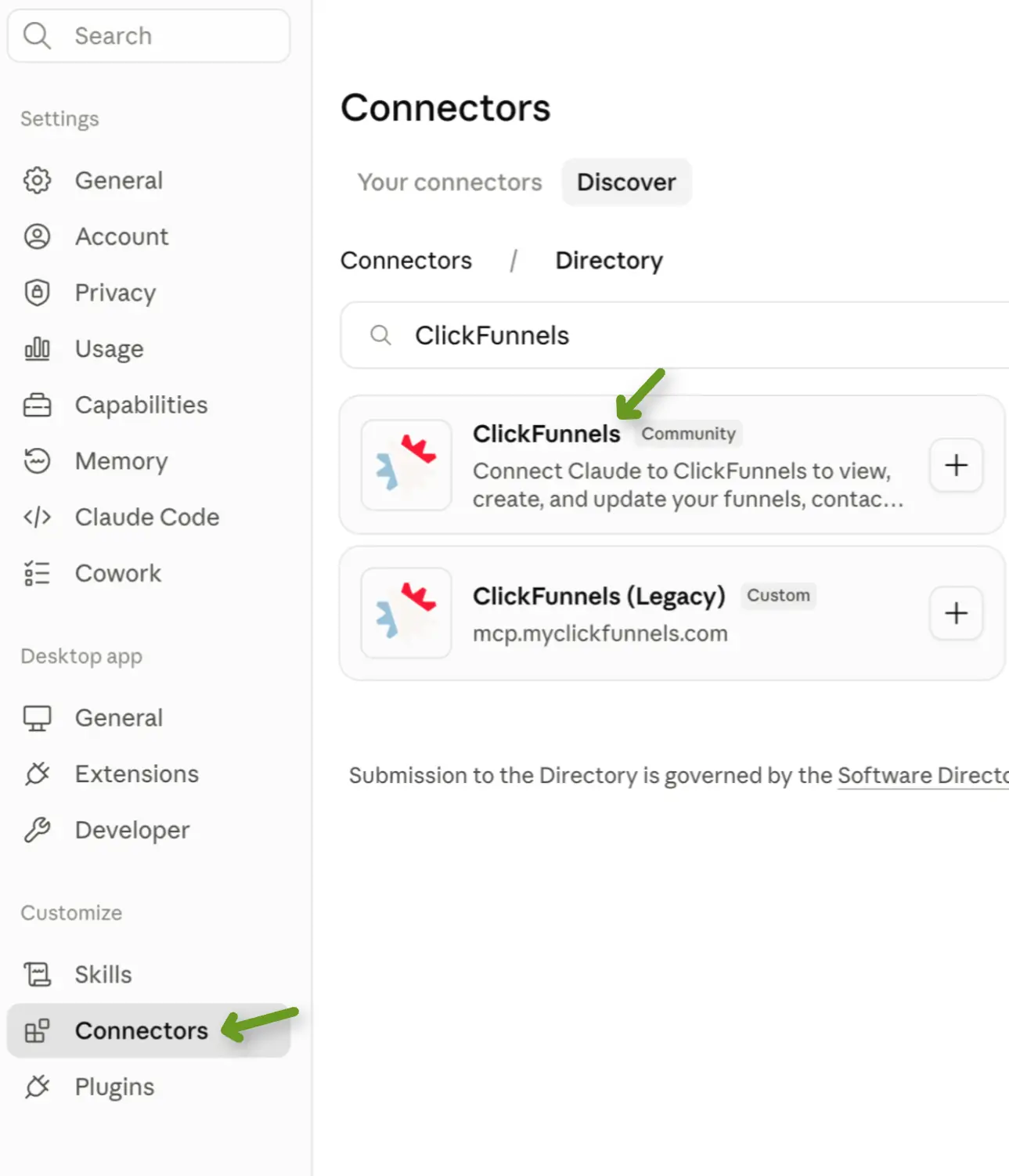
Searching a connector directory for ClickFunnels (shown here in Claude). The screen and wording differ from client to client.
Add ClickFunnels as a custom connector
Section titled “Add ClickFunnels as a custom connector”If your AI client doesn’t list ClickFunnels in a connector directory — or you’d rather set the connection up yourself — add it by hand. This path works in every MCP-compatible client.
1. Open your AI client’s connector settings. Find the settings screen for connectors (sometimes called integrations, apps, or tools), and choose the option to add a custom connector.
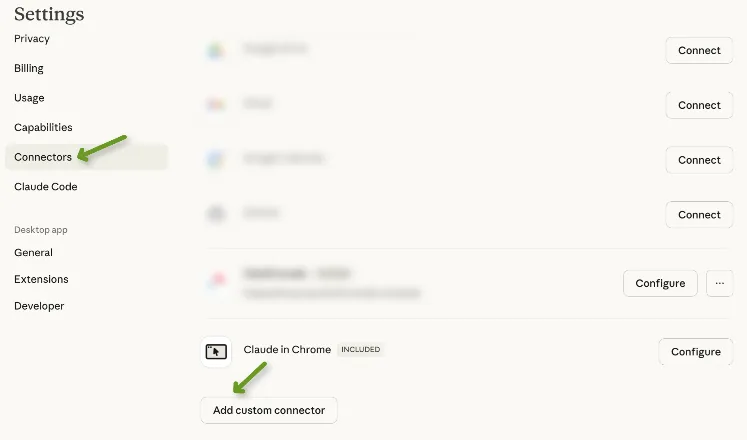
2. Enter the connector details.
| Field | Value |
|---|---|
| Connector Name | ClickFunnels |
| Connector URL | https://agents.myclickfunnels.com/mcp |
Then save or add the connector.
Sign in with your ClickFunnels login
Section titled “Sign in with your ClickFunnels login”Your AI client will open a ClickFunnels sign-in window. Log in with your own ClickFunnels credentials. No password is ever shared with the AI client — it only receives an access token from ClickFunnels at the end of the flow.
Once you’re signed in, ClickFunnels shows an authorization screen with the email you signed in as at the top, so you can confirm you’re granting access as the right user before going any further.
Choose which workspaces the connection can access
Section titled “Choose which workspaces the connection can access”This is the step that makes one connection work across multiple workspaces. On the same authorization screen, ClickFunnels lists every workspace you administer, grouped by team, each with a checkbox.
-
Everything is selected by default, along with a Select all toggle at the top. Clear the ones you don’t want this connection to touch.
-
A filter box narrows the list by workspace name, which helps if you administer a lot of workspaces.
-
You must select at least one workspace. If you try to authorize with nothing selected, the screen asks you to select at least one and doesn’t complete the connection.
-
Only the workspaces you select become reachable. Any workspace you leave unchecked — even one you administer — is refused for this connection.
-
If no workspaces are listed at all, your account doesn’t administer any workspace, and there’s nothing to authorize. See Requirements.
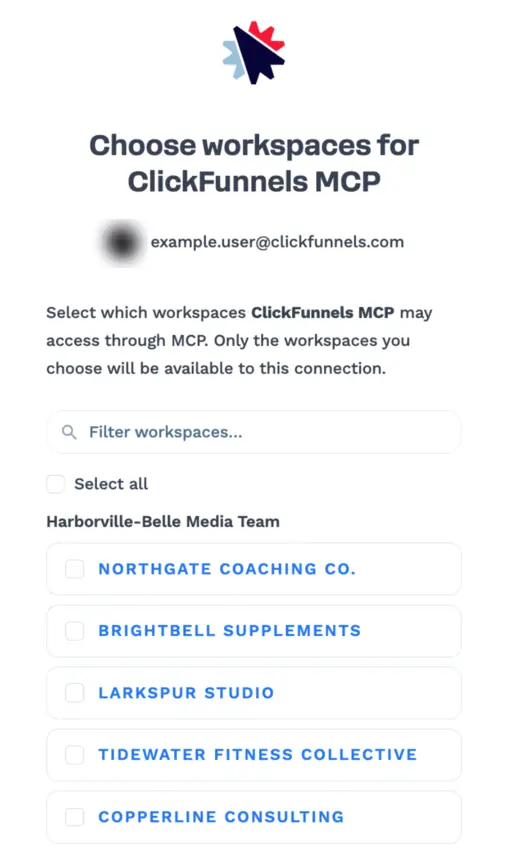
The screen above is shown part-way through a selection, with the boxes cleared so the list is easier to read. When you first reach it, Select all and every workspace are already checked.
The set you pick here is recorded on the connection itself, so it applies to that connector in that AI client. Connecting a second AI client (or reconnecting later) gives you a fresh, independent choice.
Choose the access level
Section titled “Choose the access level”Below the workspace list you choose how much this connection is allowed to do:
-
Full access (the default) — the assistant can read your data and create, update, and delete on your behalf.
-
Read only — the assistant can look things up and report on them, but can’t change anything.
-
Choose by category — no access by default, so you grant only the specific areas you open up below.
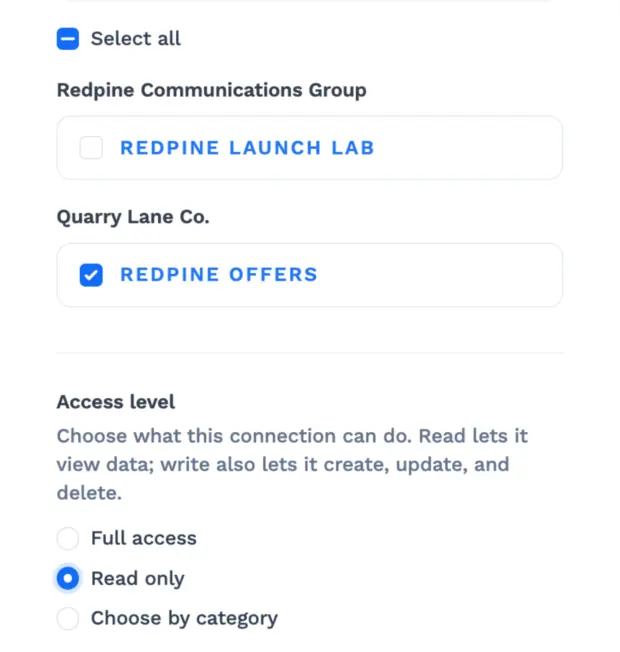
Expanding Customize access by category lets you override the choice above for individual areas of ClickFunnels — Contacts, Workflows (Automations), Funnels, Sites & Design, Courses, Emails, Blog, Community, Appointments, Opportunities, Store, Forms, Media, Webhooks, Account, and Reference Data. Each area can be set to Default (follow the choice above), No access, Read only, or Read & write.
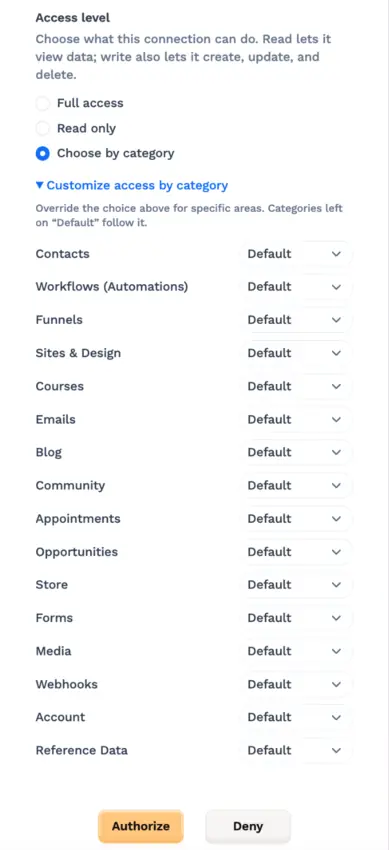
Read-only is a good place to start if you mainly want to ask questions about your workspaces; full access is what you want if you’d like the assistant to build and edit things for you. If you only want an assistant working on, say, your email and blog content, “Choose by category” plus per-category grants keeps it out of everything else.
Click Authorize, and the ClickFunnels tools become available in your conversations.
Client-specific notes
Section titled “Client-specific notes”Claude (Desktop and web): open Settings and go to Connectors. Add ClickFunnels from the connector directory if you see it listed there, or choose Add custom connector and enter the connector URL above. Either way, complete the ClickFunnels sign-in when prompted. Don’t have Claude Desktop? Download it from https://claude.ai/download.
ChatGPT: add ClickFunnels from its connector directory if it’s listed there, or as a custom connector using the same URL, then complete the ClickFunnels sign-in when prompted.
Other MCP-compatible clients: any client that supports remote HTTP MCP servers with OAuth (for example n8n or Manus) can connect using the same URL and sign-in step. Refer to your client’s documentation for where custom MCP servers are configured.
Working across multiple workspaces
Section titled “Working across multiple workspaces”You don’t need a separate connector for each workspace. A single authorized connection covers every workspace you selected when you chose which workspaces the connection can access, and your assistant moves between them inside the same conversation.
One workspace at a time
Section titled “One workspace at a time”Every action the assistant takes names a single workspace explicitly — there’s no hidden “current workspace” stored on the ClickFunnels side. In practice that means:
-
Ask your assistant which workspaces it has. It can list them for you, grouped by team, along with each workspace’s site, blog, and store URLs so you can tell similarly-named ones apart.
-
Tell it which workspace to work in. Say “work in my Acme Coaching workspace” and it will carry that choice through the rest of the conversation.
-
Switch by asking. “Now switch to the Beta Launch workspace” is all it takes; the assistant confirms the switch and continues there.
-
It should ask rather than guess. If it isn’t clear which workspace you mean, the assistant is instructed to ask before touching any data, and to work in exactly one workspace at a time rather than fanning a request out across several. If you want the same thing done in three workspaces, walk it through them one at a time so you can review each.
What the connection can and can’t reach
Section titled “What the connection can and can’t reach”Two limits apply to every request, and the stricter one always wins:
-
The workspaces you granted at authorization. A workspace you left unchecked is refused, even if you administer it. Creating a new workspace later doesn’t add it to an existing connection.
-
Your admin access right now. Access is re-checked against your live ClickFunnels permissions on every request. If you lose admin access to a workspace, the connection stops reaching it immediately — the earlier grant doesn’t keep it open. Granting can only ever narrow your access, never widen it.
Changing the set of workspaces
Section titled “Changing the set of workspaces”The workspace selection is fixed for the life of a connection. To add a workspace (including a newly created one), remove one, or change the access level, disconnect the ClickFunnels connector in your AI client and connect it again — you’ll get the workspace picker and the access-level choice fresh.
Managing and revoking access
Section titled “Managing and revoking access”-
Everything happens as you. Actions the assistant takes are real activity in your workspace, attributed to your ClickFunnels user.
-
Revoke from your AI client. Removing or disconnecting the ClickFunnels connector ends the connection’s access.
-
Connections don’t last forever. The connection renews itself quietly in the background, but roughly every 90 days it expires for good and your AI client will ask you to sign in to ClickFunnels again. When it does, you’ll go back through the workspace picker and access-level choice, so it’s a good moment to review what you’ve granted.
What You Can Do with the MCP Server
Section titled “What You Can Do with the MCP Server”Here’s a closer look at what you can ask for once the connector is in place.
Funnels and funnel pages
Section titled “Funnels and funnel pages”Build and manage funnels conversationally — create a new funnel, add or reorder steps, and work on the individual pages inside it. This is handy when you know the structure you want and would rather describe it than click through it.
Contacts and CRM tags
Section titled “Contacts and CRM tags”Look up contacts, create and update them, and organize your audience with tags. You can ask the assistant to find a specific contact, tag a group of people, or tidy up the tags in your workspace.
Products and stores
Section titled “Products and stores”Create and update products, manage your store, and handle the setup around selling — including checkout configuration. Useful when you’re launching something new and want the pieces in place quickly.
Courses and course content
Section titled “Courses and course content”Plan and build courses with your assistant, from the overall structure down to modules and lessons, and manage the content inside them.
Sites and blog content
Section titled “Sites and blog content”Manage your sites and blog content, including creating and updating posts.
Opportunities and deals
Section titled “Opportunities and deals”Work with your marketing opportunities and deals so you can track and update your pipeline without leaving the conversation.
Anything the assistant does here is real activity in your workspace, so it shows up in ClickFunnels exactly as if you’d done it yourself.
Example Conversations
Section titled “Example Conversations”Here are some examples of how you might work with your AI assistant once the MCP Server is connected:
Building a funnel
Section titled “Building a funnel”You: “I’m launching a coaching program. Can you build me a funnel with an opt-in page, a sales page, and a thank you page?”
AI: “I’ll create that funnel and set up the three steps for you…”
Creating a course
Section titled “Creating a course”You: “I want to create a course about digital marketing. Can you help me plan the structure?”
AI: “I’d love to help! Let me create the course structure for you…”
AI: “✅ Course structure created! Digital Marketing Mastery with 4 modules and 16 lessons total.”
Organizing contacts
Section titled “Organizing contacts”You: “Find everyone who signed up for my webinar and tag them as Webinar Attendee.”
AI: “I’ll look up those contacts and apply the tag…”
Setting up a product
Section titled “Setting up a product”You: “Add a new product called Coaching Intensive at $499 and get checkout ready for it.”
AI: “I’ll create the product, add the price, and set up checkout…”
Need Help?
Section titled “Need Help?”Questions or feedback about the MCP Server? Reach out to ClickFunnels Support — we’d love to hear how you’re using it.