Logging in to your ClickFunnels account is quick and straightforward. This article will guide you through the available login methods.
Requirements
An active ClickFunnels account
Login methods
Method 1: Using a Magic Link or Token Code
The magic link and token code login options let you access your account without a password. Here's how it works:
Request the magic link or token code:
Visit the ClickFunnels login page or click the link: https://accounts.myclickfunnels.com/.
Enter your registered email address in the Email field.
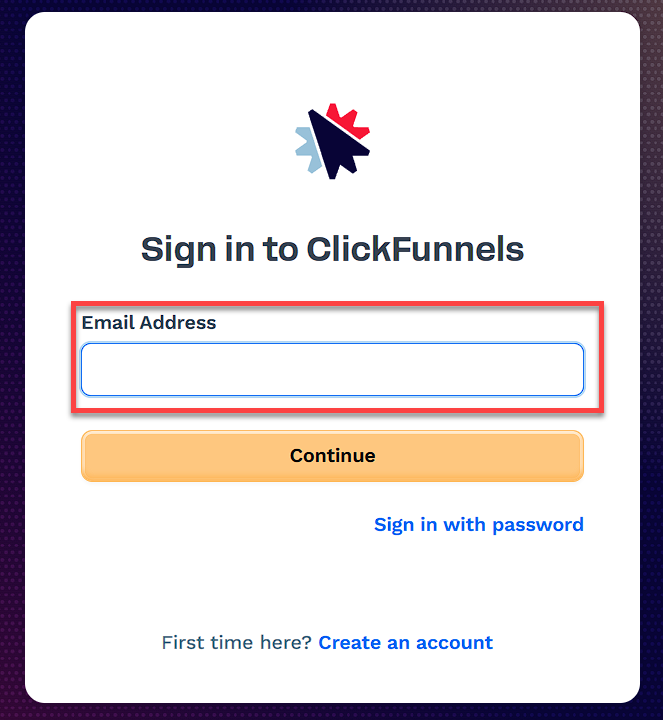
Click Continue.
Check your email:
Open the email inbox.
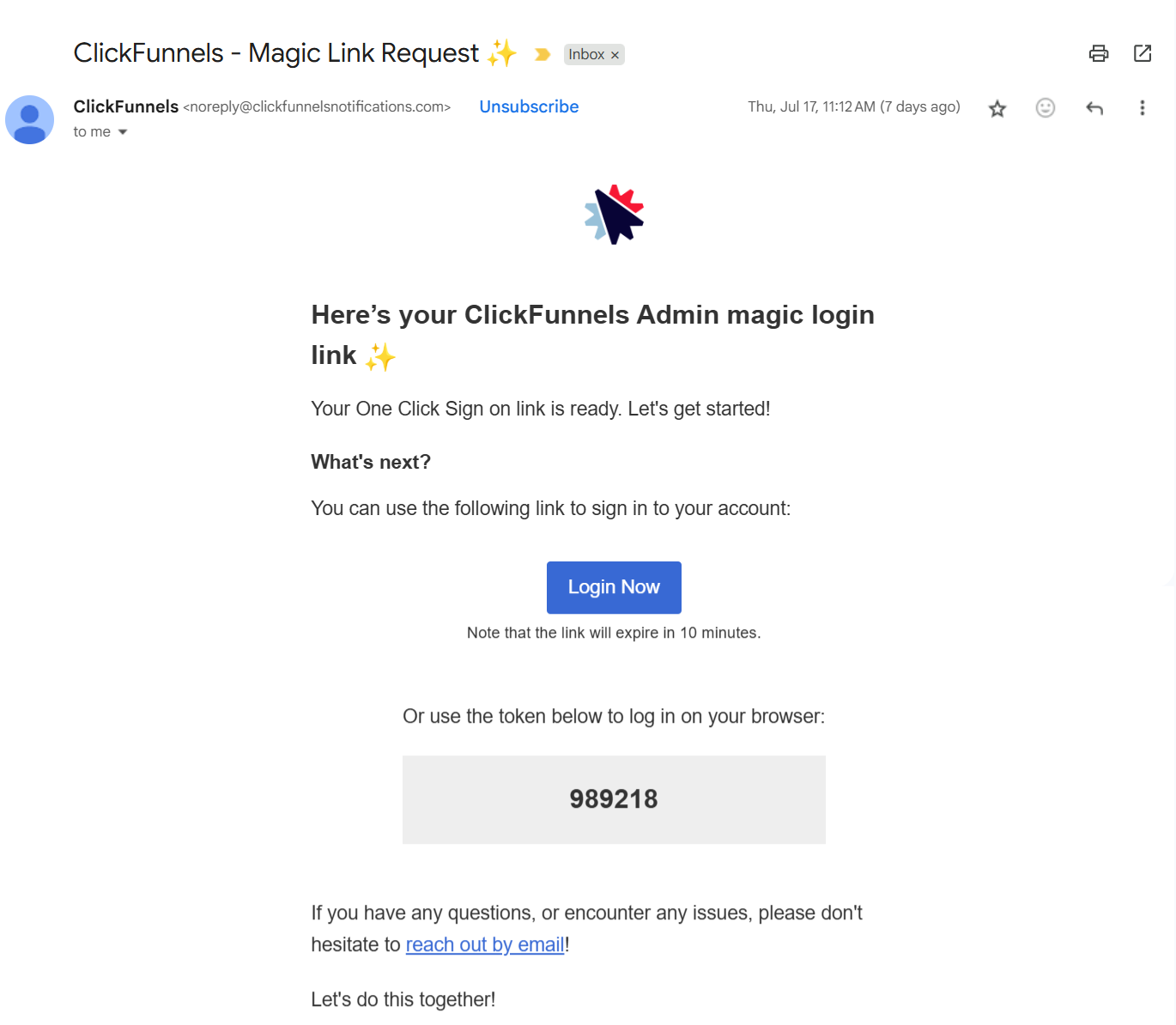
The ClickFunnels system will immediately send an email to your registered email inbox, providing a magic link and token code in the same email. If your ClickFunnels account has a phone number on file, you will also receive an SMS with this information. The magic link will be active for 10 minutes, and the authentication token will be valid for 4 minutes. After this period, you will need to request a new one.
Complete the login:
You can either click the “Login Now“ button or copy the 6-digit token code and paste it into the Login page.
You will be redirected to your ClickFunnels account dashboard.
Note:
In this authentication method, you won't need to memorize or store your ClickFunnels username and password. Nevertheless, each time you wish to access your ClickFunnels account, you must request a magic link or token code using your registered email address.
Method 2: Using Your Username and Password
Visit the ClickFunnels login page or click the link: https://accounts.myclickfunnels.com/.
Select Sign in with password.
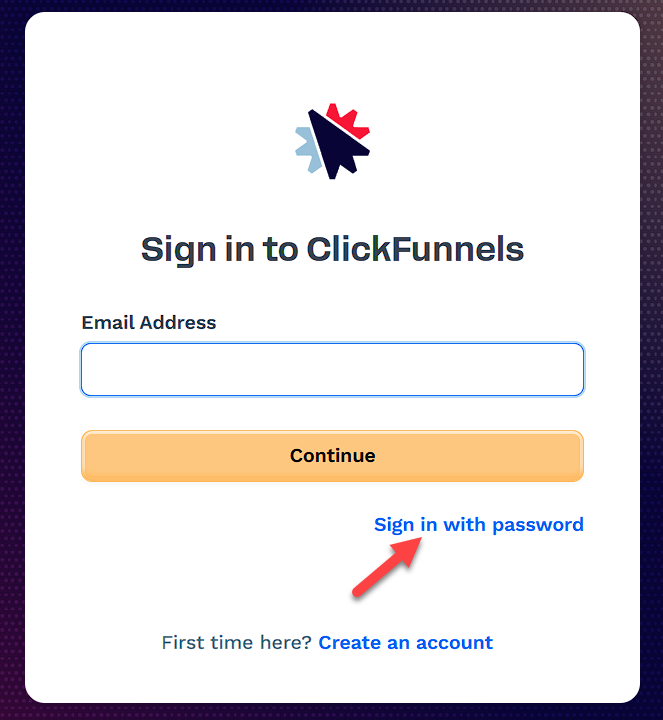
Enter the email address and valid password associated with your ClickFunnels account. If you’ve forgotten your password, refer to Method 1 above or click "Set a new password" to reset it.
Click Continue.
After successfully authenticating, you will be redirected to your account dashboard.
IMPORTANT
If your workspace has a payment gateway set up to process live transactions, you need to activate the "Two-Factor Authentication" feature to enhance security. If it is not activated, ClickFunnels will prompt you to enable 2FA every time you log in.
Method 3: Signing In with Google
The ClickFunnels login page includes a Sign in with Google button, separated from the other options by a divider line. To use it:
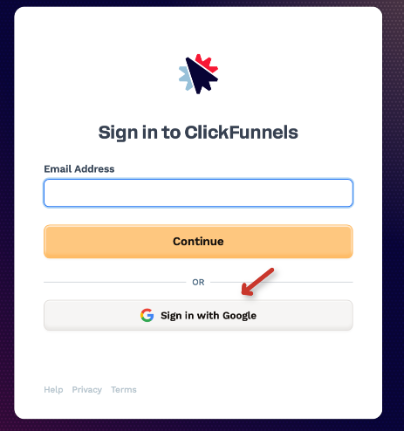
Visit the ClickFunnels login page or go to: https://accounts.myclickfunnels.com/
Click Sign in with Google.
Choose your Google account, or enter your Google credentials if prompted.
If your Google email matches an existing ClickFunnels account, you’ll be signed in directly and redirected to your dashboard.
Note:
ClickFunnels looks for an existing account linked to your Google email. If no match is found, you’ll be prompted to either create a new ClickFunnels subscription or try a different Google account. The login page also displays a Last used badge next to whichever sign-in method you used most recently, so you can quickly identify how you last accessed your account.
Two-Factor Authentication (2FA)
If you have enabled Two-Factor Authentication (2FA) for your ClickFunnels account, you will be prompted to enter a verification code after your initial login step. Here's how it works:
After completing your initial login (via magic link, password, or Google), ClickFunnels will display a 2FA prompt.
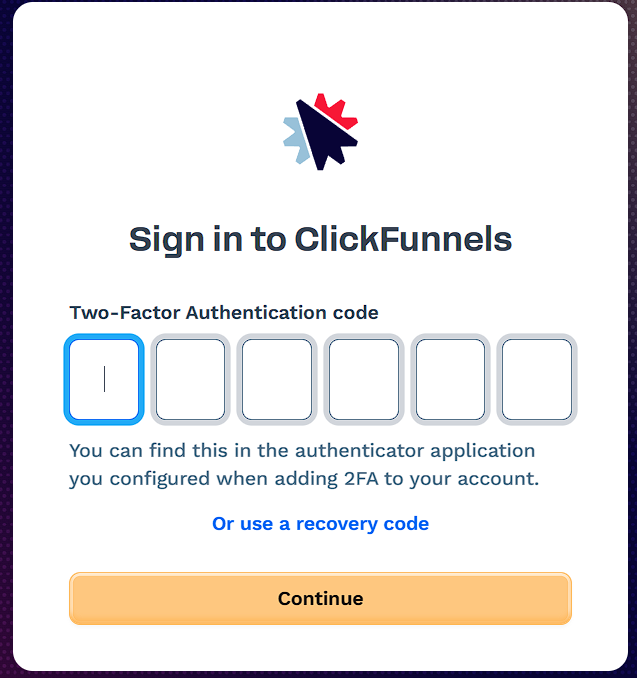
Open the authentication app you configured during the 2FA setup (e.g., Authy or Google Authenticator).
Retrieve the 6-digit verification code from the app.
Enter the code into the 2FA form displayed on the login page.
Click Continue to complete the login process.
With 2FA enabled, your account is secured with an additional layer of protection, ensuring only you can access it. To find out how to activate Two-Factor Authentication (2FA) in your ClickFunnels account, refer to our article Enable Two-Factor Authentication (2FA) in ClickFunnels Account.
Managing Sign-In Methods
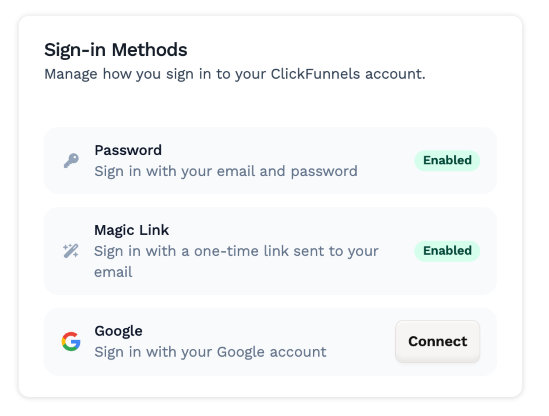
You can view and manage your connected sign-in methods from your user profile settings. Navigate to User Settings > Sign-in Methods to see the following:
Password - Always enabled. Sign in with your email and password.
Magic Link - Always enabled. Sign in with a one-time link sent to your email.
Google - Displays either “Not connected” or the Google email currently linked to your account. From here you can:
Click Connect to link a Google account to your ClickFunnels profile.
Click Disconnect to unlink it (you’ll be asked to confirm).
Note:
If your Google email differs from your ClickFunnels account email, a note will indicate which ClickFunnels account the Google account is linked to.
Troubleshooting Login Issues
If you encounter any difficulties logging in, consider the following steps:
Forgotten password:
Use the "Set a new password" link on the login page to reset your password.
No email received:
Check your spam or junk folder for the magic link or token code email.
Ensure you entered the correct registered email address.
Google sign-in not working:
Confirm that the Google account you’re signing in with is connected to your ClickFunnels profile.
If you see a message that no ClickFunnels subscription is associated with your Google email, either try a different Google account or sign in using your email and password instead.
You can also connect or swap your Google account under User Settings > Sign-in Methods.
Browser issues:
Clear your browser’s cache and cookies, or try logging in using a different browser.