Overview
The ClickFunnels MCP Server enables you to connect AI assistants like Claude to your ClickFunnels workspace. Using the Model Context Protocol (MCP), your AI assistant can read, create, and manage your workspace data through natural language commands.
Beta Notice: The MCP Server is currently in Technical Preview. While the core features are functional, we're still perfecting some capabilities based on user feedback. This is a Labs feature, meaning it’s experimental and may change without notice. Limited support coverage is available from our Customer Success team.
What You Can Do with the MCP Server
The MCP Server transforms how you work with ClickFunnels by enabling AI-powered automation:
Course Creation
Design and build complete courses with AI assistance - from structure to content. Ask your AI to create modules, lessons, and enroll students.
Contact Management
Find, organize, and nurture your contacts with intelligent tagging and insights. Search for specific contacts, apply tags, and manage your audience effortlessly.
Sales Pipelines
Track and manage leads through visual CRM pipelines with stages, deal values, and team assignments. Create opportunities and move them through your sales process.
Order Analysis
Get deep insights from your order data to improve business performance. Look up specific orders, view transaction history, and analyze customer purchases.
Requirements
Before you begin, ensure you have:
An Active ClickFunnels Account (Scale plan or higher required)
AI Assistant: Claude Desktop (Pro, Max, Team, or Enterprise plan)
Note: The MCP connection is linked to the workspace you use during setup. If your team has multiple workspaces, only one can be connected at a time. To switch workspaces, reconnect using the new workspace.
Install the MCP Server App in ClickFunnels
Before connecting your AI assistant, you need to enable the MCP Server app in your workspace.
Navigate to the Apps Page
Log in to your ClickFunnels account
Select the workspace you want to connect to AI
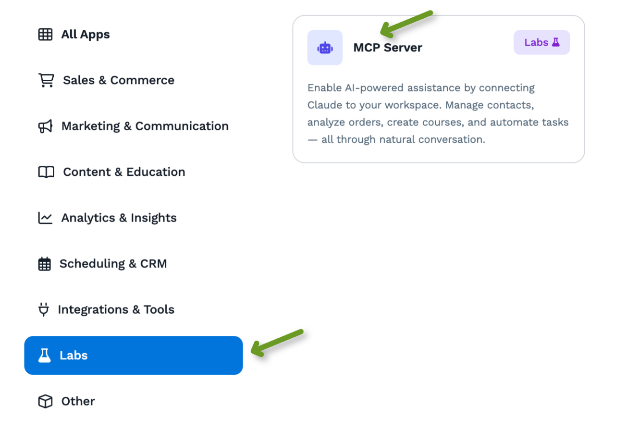
Click Apps in the left sidebar navigation
Find the MCP Server App
On the Apps page, look for the Labs category
Select the MCP Server app card
Click on the MCP Server card to view the app details
Enable the App
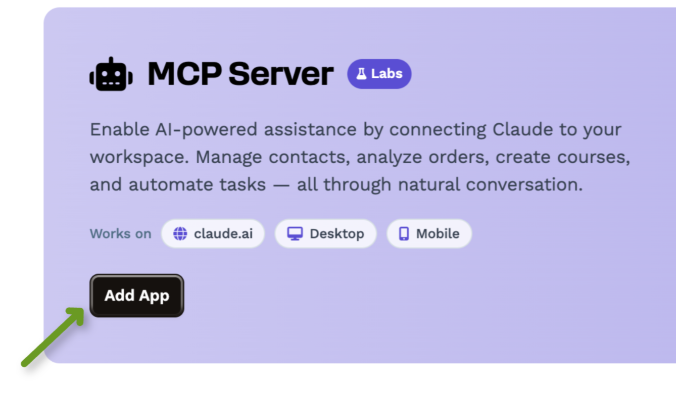
On the MCP Server app details page, click the Add App button
Once enabled, you'll see the setup instructions page
MCP Setup Instructions
Claude Desktop (Pro/Max/Team/Enterprise)
Follow these steps to connect Claude Desktop to ClickFunnels.
Step 1: Open Claude Desktop
Launch the Claude Desktop application on your computer.
Don't have Claude Desktop? Download it from https://claude.ai/download
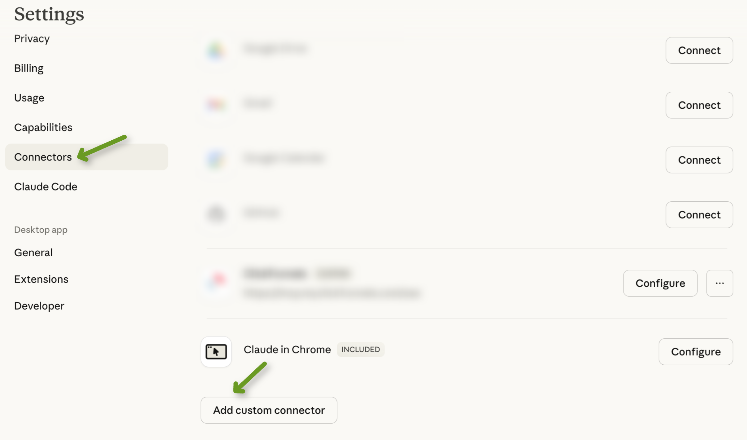
Step 2: Access Connector Settings
Click the Settings icon in Claude Desktop
Select Connectors from the settings menu
Click Add custom connector
Step 3: Configure ClickFunnels Connector
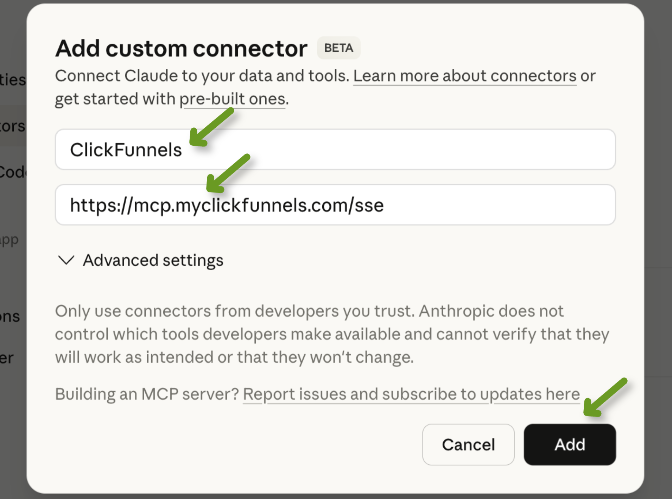
Enter the following details in the connector form:
Field | Value |
|---|---|
Connector Name | ClickFunnels |
Connector URL |
Click Add to complete the setup. The connector will be added to your available tools.
Available Tools
Your AI assistant can access the following tools to help manage your ClickFunnels workspace:
Contacts
Tool | Description |
|---|---|
create_or_update_contact | Create or update a contact. Creates new contacts if they don't exist (based on email) or updates existing ones |
find_contact_by_email | Find a contact by their email address |
update_contact | Update an existing contact's information |
delete_contact | Delete a contact from the workspace |
list_contacts | List contacts in the workspace with optional filtering |
add_tag_to_contact | Add a specific tag to a contact |
remove_tag_from_contact | Remove a tag from a contact by deleting the applied tag |
list_available_contact_tags | List the available contact tags from the workspace |
create_contact_tag | Create a new contact tag in the workspace |
delete_contact_tag | Delete a contact tag from the workspace |
Opportunities
Tool | Description |
|---|---|
create_opportunity | Create new sales opportunities in your CRM |
update_opportunity | Update existing opportunities |
delete_opportunity | Delete an opportunity from the CRM |
list_opportunities | List opportunities with optional filtering |
create_sales_pipeline | Create CRM sales pipelines with stages |
update_sales_pipeline | Update pipeline names and stage configurations |
list_sales_pipelines | List all sales pipelines in the workspace |
get_sales_pipeline | Get detailed information about a specific pipeline |
create_pipeline_stage | Add new stages to existing pipelines |
update_pipeline_stage | Update existing pipeline stages |
delete_pipeline_stage | Remove stages from pipelines |
list_pipeline_stages | List all stages in a specific pipeline |
get_pipeline_stage | Get details about a specific stage |
Courses
Tool | Description |
|---|---|
create_course | Create a new course in your workspace |
create_course_module | Add new modules to existing courses |
create_course_lesson | Add lessons to course modules |
update_course_module | Update existing course modules |
update_course_lesson | Update existing course lessons |
list_courses | List all courses in the workspace |
get_course | Get detailed information about a specific course |
enroll_contact_in_course | Manually enroll contacts in courses |
list_course_enrollments | List enrollments for a specific course |
update_enrollment_suspension_status | Update enrollment suspension status |
Orders & Transactions
Tool | Description |
|---|---|
list_orders | List orders with optional filtering |
get_order_details | Get detailed information about a specific order |
list_order_tags | List available order tags |
create_order_tag | Create a new order tag |
get_order_tag | Get details of a specific order tag |
update_order_tag | Update an existing order tag |
delete_order_tag | Delete an order tag |
add_tag_to_order | Apply a tag to an order |
remove_tag_from_order | Remove a tag from an order |
list_order_applied_tags | List tags applied to a specific order |
get_order_applied_tag | Get details of a specific applied tag |
list_order_invoices | List invoices for a specific order |
get_invoice_details | Get detailed information about a specific invoice |
list_workspace_invoices | List all invoices across the workspace |
list_order_transactions | List transactions for a specific order |
get_transaction_details | Get details of a specific transaction |
Products
Tool | Description |
|---|---|
create_product | Create a new product that can be sold |
update_product | Update existing product details |
get_product | Get detailed information about a product |
list_products | List all products in the workspace |
archive_product | Archive a product |
unarchive_product | Unarchive a previously archived product |
create_product_collection | Create a new product collection |
update_product_collection | Update an existing product collection |
get_product_collection | Get details of a specific collection |
list_product_collections | List all product collections |
create_product_price | Create a new price for a product variant |
update_product_price | Update an existing product price |
get_product_price | Get details of a specific price |
list_product_prices | List all prices for a product |
create_product_variant | Create a new variant for a product |
update_product_variant | Update an existing product variant |
get_product_variant | Get details of a specific variant |
list_product_variants | List all variants for a product |
list_product_tags | List available product tags |
create_product_tag | Create a new product tag |
get_product_tag | Get details of a specific product tag |
update_product_tag | Update an existing product tag |
delete_product_tag | Delete a product tag |
Webhooks
Tool | Description |
|---|---|
create_webhook_endpoint | Create a new webhook endpoint |
update_webhook_endpoint | Update an existing webhook endpoint |
delete_webhook_endpoint | Delete a webhook endpoint |
list_webhook_endpoints | List all webhook endpoints |
get_webhook_endpoint | Get details of a specific webhook endpoint |
Forms
Tool | Description |
|---|---|
list_form_submissions | List form submissions with optional filtering |
get_form_submission | Get details of a specific form submission |
Images
Tool | Description |
|---|---|
create_image | Create an image by uploading from URL |
update_image | Update image metadata or re-upload |
get_image | Get details of a specific image |
list_images | List all images in the workspace |
delete_image | Delete an image from the workspace |
generate_image_for_workspace | Generate a new image using AI |
Workspace & Teams
Tool | Description |
|---|---|
my_workspace | Get information about the authorized workspace |
list_teams | Get team information including memberships |
get_team | Get detailed information about a specific team |
list_scheduled_appointments | Get recently created appointments |
Example Conversations
Here are some examples of how you can interact with your AI assistant using the MCP Server:
Creating a Course
You: "I want to create a course about digital marketing. Can you help me plan the structure?"
AI: "I'd love to help! Let me create the course structure for you..."
AI: "✅ Course structure created! Digital Marketing Mastery with 4 modules and 16 lessons total."
Finding High-Value Customers
You: "I need to find all my high-value customers and see their purchase history"
AI: "I'll analyze your contact and order data to identify your top customers..."
AI: "✅ High-value customers found! Here are your top 5 customers by total value..."
Managing Sales Pipelines
You: "I want to track my coaching leads better. Can you help me set up an opportunities pipeline?"
AI: "I'll create a sales opportunities pipeline in your CRM with stages for your coaching process..."